
The Outlook email client allows users to add multiple email accounts, including Gmail, Microsoft, and Yahoo. Some users encountered the error “We couldn’t log on to the incoming (POP/IMAP) server” while adding their Gmail accounts to MS Outlook. If you cannot add your Gmail account to Outlook, use the fixes provided in this article.
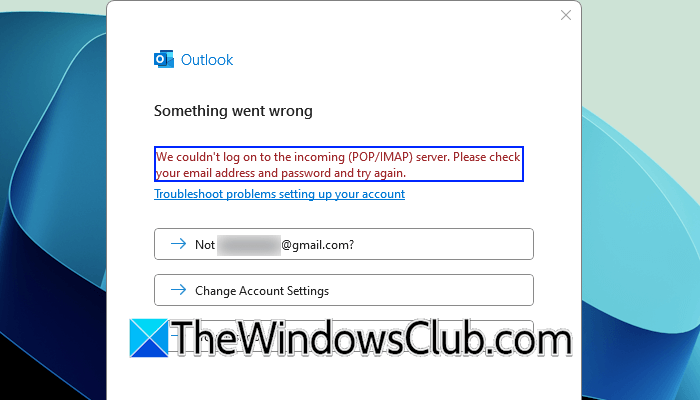
The complete error message is as follows:
We couldn’t log on to the incoming (POP/IMAP) server. Please check your email address and password and try again.
You may also receive the following error message while adding your Gmail account to Outlook:
We weren’t able to set up your Google account with IMAP. You may need to make changes to your Gmail settings.
The fixes provided here apply to both Outlook errors.
We couldn’t log on to the incoming (POP/IMAP) server
Use the following solutions if you cannot add your Gmail account to Outlook due to the “We couldn’t log on to the incoming (POP/IMAP) server” error.
- Check your email address and password
- Disable your antivirus and firewall
- Try again
- Remove access to Microsoft apps and services
- Delete the IMAP credentials in Windows Credentials Manager
- Repair Office
All these fixes are provided in detail below:
1] Check your email address and password
Make sure that you are entering the correct email address and password. Try again with the correct password. You can also try changing your Gmail account password and then adding it to Outlook.
2] Disable your antivirus and firewall
Your antivirus or firewall might be preventing Outlook from adding your Gmail account. You can check this by disabling your antivirus and firewall. If your antivirus and firewall were causing this issue, you can add your Gmail account after disabling them. Don’t forget to enable them again.
3] Try again
When you add a Gmail account to Outlook, a new tab opens in your default web browser automatically. Here, you have to log in with the same Gmail account. After signing in to your Gmail account in your web browser, you need to grant Microsoft Outlook the necessary permissions.
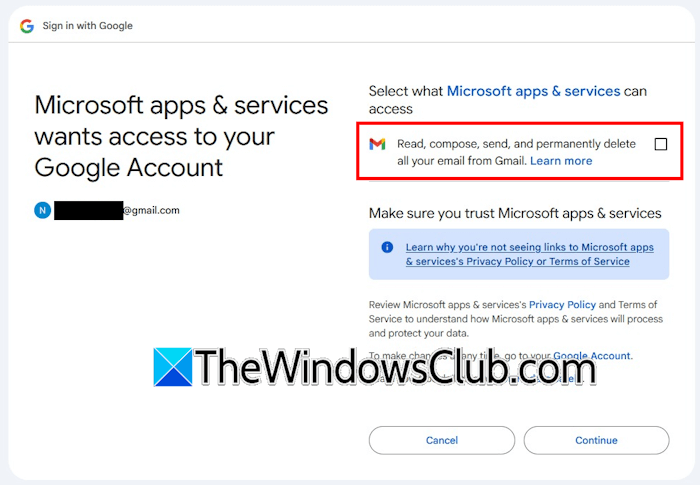
When you reach the screen shown in the above image, select the checkbox that says “Read, compose, send, and permanently delete all your email from Gmail.” If you deny permissions, Outlook will show this error, and you cannot add your Gmail account to it.
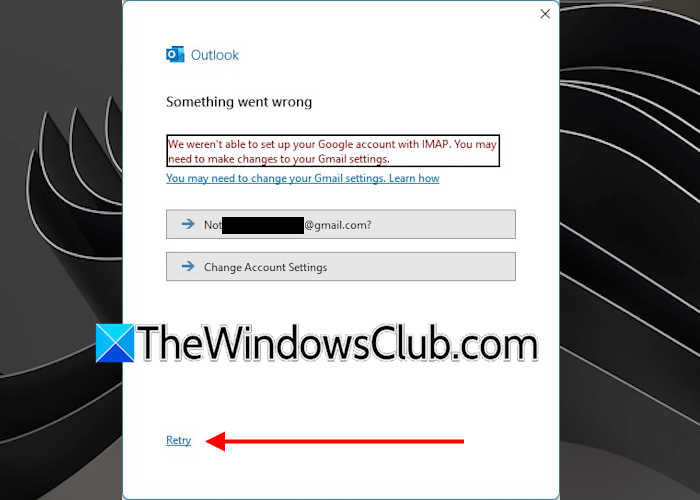
You can try again by clicking on the Retry link. This will open the Gmail login page again in your default web browser. Now, log in to your Gmail account and grant required permissions to Outlook. Once you grant permissions, you will see the confirmation message on your browser, and your Gmail account will be added to Outlook. Now, you can sign out of your Gmail account in your web browser.
4] Remove access to Microsoft apps and services
If the issue persists, you can try removing access to Microsoft apps and services in your Google account and try again.
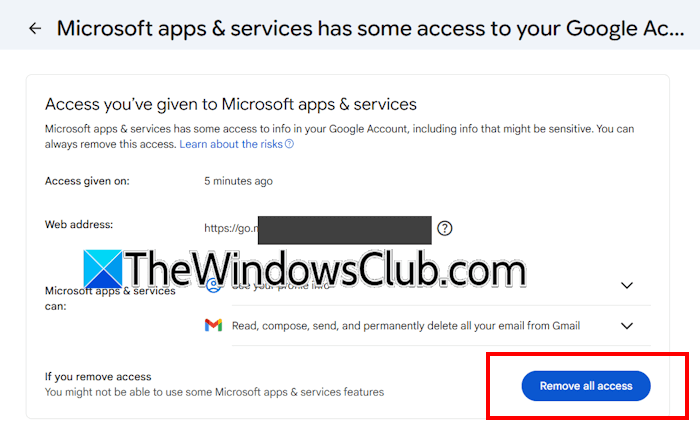
Follow these steps:
- Open your favorite web browser and sign in to your Google account.
- Open your Google account settings.
- Select Security and sign in from the left side.
- Scroll down and locate the “Your connections to third-party apps & services” section. This section contains all apps and services that you have connected to your Google account by granting necessary permissions.
- Click See all connections.
- Locate Microsoft apps & services. Once you find it, click on it.
- Click the See details button under the “Microsoft apps & services has some access to your Google Account” section.
- Click Remove all access under the Access you’ve given to Microsoft apps & services section.
Now, open Outlook and check if you can add your Gmail account this time. You have to grant permission again.
5] Delete the IMAP credentials in Windows Credentials Manager
Delete the IMAP credentials in Windows Credentials Manager and try again adding your Gmail account to Outlook.
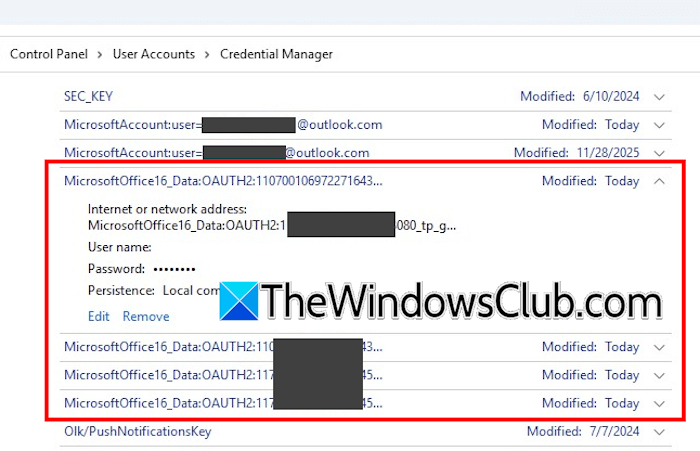
Follow these steps:
- Open the Control Panel.
- Select User Accounts > Credentials Manager.
- Select Windows Credentials.
- Scroll down to Generic credentials and locate those starting with MicrosoftOffice16_Data:OAUTH2.
- Expand each of these and hover over MicrosoftOffice16_Data:OAUTH2 until it shows the full name, including the tp_google_imap_Oauth2. These are the Google credentials for your Gmail account.
- Select Remove for each of these with the MicrosoftOffice16_Data:OAUTH2.
If you have added multiple Gmail accounts to Outlook, you will see more than one MicrosoftOffice16_Data:OAUTH2 in Windows Credentials Manager. In this case, deleting all the MicrosoftOffice16_Data:OAUTH2 entries will cause issues to previously added Gmail accounts. Hence, you need to find out the correct MicrosoftOffice16_Data:OAUTH2 entry. It is not possible to find out the correct MicrosoftOffice16_Data:OAUTH2 entry in the Credentials Manager. Therefore, you have to use the Registry Editor.
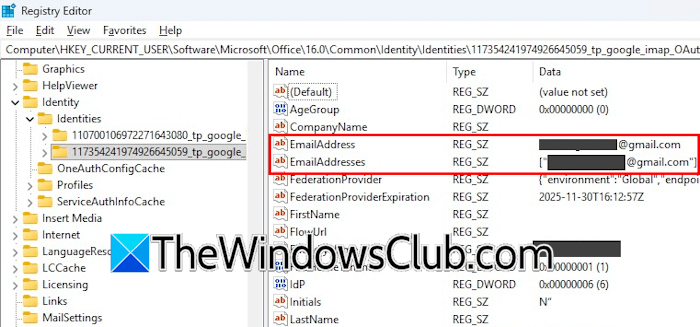
Open the Registry Editor and navigate to the following path:
Computer\HKEY_CURRENT_USER\Software\Microsoft\Office\16.0\Common\Identity\Identities
Expand the Identities folder. You will find multiple subfolders there. Each subfolder represents a separate Gmail account added to Outlook. Select the subfolders one by one and look at the email address on the right side. When you find the right Gmail address, note down the identity number of that subfolder. Now, use the identity number to delete the right credential from the Credentials Manager.
After removing the credential, try adding your Gmail account to Outlook again.
6] Repair Office

Repair Microsoft Office using the built-in Online Repair tool. This action repairs the corrupt Office files and fixes the issues with Office applications. Please do not interrupt the scan; it will take some time to complete.
That’s it. I hope this helps.
How to check POP and IMAP settings?
Different email clients have different interfaces. Therefore, the methods for checking POP and IMAP settings vary across email clients. If you use Gmail, you can check POP and IMAP settings by opening Gmail settings. You will find the option to configure POP and IMAP under the Forwarding and POP/IMAP tab.
How do I fix my IMAP problem?
To fix your IMAP problem, you can try some fixes. First of all, check your IMAP server settings. The IMAP server name should be correct. If the server name is correct, check the password. Retype the password and try again. If the error persists, check the server port number.
Read next: MS Outlook Encryption not changing.
