
AMD is a popular graphics card manufacturer. The AMD graphics card delivers a superb gaming experience. A graphics card is a piece of hardware that is responsible for rendering images and displaying high-quality photos and videos. Undoubtedly, a graphics card is the best friend of a gamer. To establish a communication link between a graphics card and the operating system, you need to install the required driver. When the driver malfunctions or gets corrupted, the respective devices do not work properly. Such an issue is experienced by gamers who have installed AMD graphics cards on their systems. According to them, the AMD driver crashes 10 to 15 minutes after launching a game. If you are facing this problem, the solutions in this article may help you fix it.
AMD driver keeps crashing when playing games on PC
If your AMD driver crashes when playing games, here is how to fix the problem.
- Roll back the AMD graphics card driver
- Download the AMD graphics card driver
- Turn off Enhanced Sync
- Use Dual Rail PSU (if your graphics card supports that)
- Update your chipset driver
Let’s see all these fixes in detail.
1] Roll back the AMD graphics card driver
Installing the latest version of Windows Update also updates the graphics card and other device drivers (if the latest driver is available). If you are experiencing this problem after installing the latest Windows Update, roll back your graphics card driver (if that option is available in Device Manager) and see if it resolves the issue.
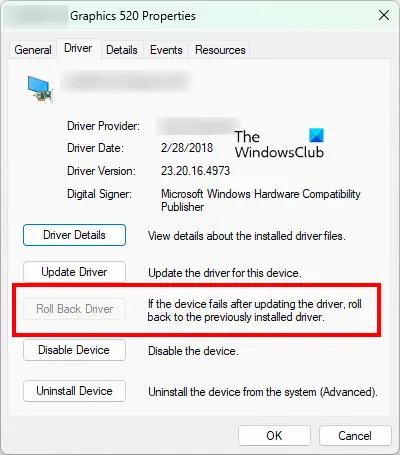
The steps to rollback AMD graphics card driver are as follows:
- Press Win + X keys and select Device Manager.
- Right-click on your AMD driver and select Properties.
- Click on the Driver and see if the Roll Back Driver option is available.
- If the option is available, click on it and roll back the AMD driver.
The roll-back option installs the previous version of the driver on your system.
2] Download the AMD graphics card driver
Another solution to get rid of this problem is to download or update AMD Drivers with AMD Driver Autodetect. AMD Driver Autodetect will detect your machine’s graphics card and Windows operating system. If a new driver is available, the tool will download it with a click of a button and start the installation process. The auto-detect tool lets you download the latest official driver. In case you are interested, AMD Clean Uninstall Utility can help you remove AMD driver files completely.
This solution has fixed the problem for many users. It should also help you.
3] Turn off Enhanced Sync
Enhanced Sync, or VSync, is a feature of AMD graphics cards that matches your game’s frame rate to your monitor’s refresh rate, providing an ultra-fast, tear-free gaming experience. Some users have experienced issues with this feature. When they turned off this feature, the problem disappeared.
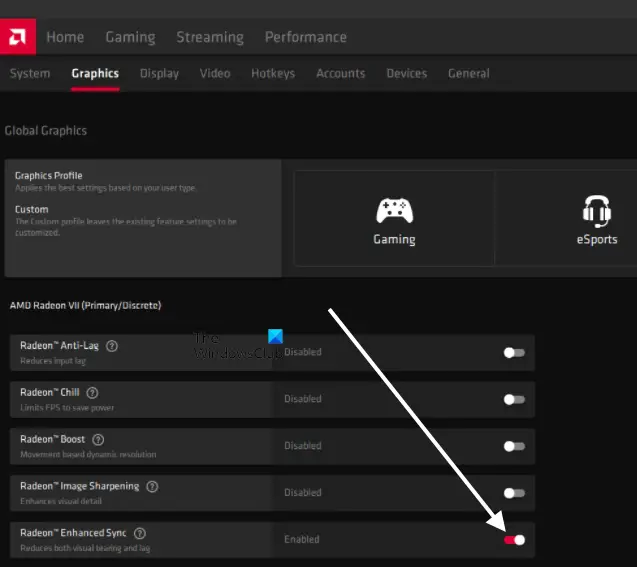
If you have enabled the Enhanced Sync feature, we suggest disabling it and then checking whether it fixes the problem. To turn off AMD Enhanced Sync, open the Settings panel of your AMD graphics card software and then select the Graphics tab. After that, click on the button next to Radeon Enhanced Sync to turn this feature off.
4] Use Dual Rail PSU (if your graphics card supports that)
If your graphics card is connected to PSU via a single cable split into two ends, replace it with two separate cables. But for this, you need a dual rail PSU (Power Supply Unit). The electronics components in a PC need DC input current to operate. That’s why a PSU is installed on every computer: it converts the incoming AC current into DC output current.
A Graphics card requires a 12V DC input. A Dual Rail PSU has two 12 V DC outputs. In a Dual-rail PSU, the incoming current is distributed to two 12 V outputs; hence, each 12 V output delivers less current than in a single-rail PSU. The current is directly proportional to power, and Power is directly proportional to Heat generation. Therefore, less current means lower power consumption, and lower power consumption means less heat generation. That’s why, if you connect your graphics card to a Dual Rail PSU using two separate cables, it will consume less power, resulting in less heat. This decreases the chances of crashes while playing games.
Before you purchase a Dual Rail PSU, you should know how much current your graphics card requires to operate correctly so that you will not make any mistakes while buying a Dual Rail PSU. Read the PSU specifications to determine how much current each 12 V output delivers.
Read: Ryzen Master Driver not installed properly on Windows PC.
5] Update your chipset driver
Another cause of this problem is the outdated or corrupted chipset driver. We suggest you update your chipset driver from the Device Manager. The steps for the same are given below:
- Right-click on Start and select Device Manager.
- Expand the System devices node.
- Right-click on your chipset driver and select Update driver.
- Now, select Search automatically for drivers.
After that Windows will search for the latest version of your chipset driver and install it. Alternatively, you can also install the chipset driver manually by downloading it from the manufacturer’s website.
Why does my game keep crashing AMD?
Before you purchase a game, you should check its hardware requirements. The most common cause of game crashes is unsupported hardware. If your computer cannot run the game, it will crash. If your game crashes despite your system’s hardware being capable of running it, your graphics card driver might have been corrupted. You should update your graphics card driver from the Device Manager.
Another cause of the game crash is the excessive heat generation during gameplay. When we play a game, the graphics card consumes power. Due to high power consumption, the amount of heat generated is also high. One way to reduce heat generation is to lower your graphics card’s power consumption, which you can do with a Dual Rail PSU.
How do I fix my AMD driver bug?
If your AMD driver has a bug, AMD should release the latest version on its official website. Visit AMD’s official website and download the latest version of your graphics card driver. Now, uninstall the current version of your graphics card driver, then run the installer to install the driver manually. Alternatively, you can also update your graphics card driver via the Windows Optional Update feature.
Read next: NVIDIA driver keeps crashing in Windows 11.
