
The AMD Adrenalin software is developed specifically for computers with AMD processors and GPUs. It automatically detects the AMD GPU installed on your system. However, the software is not working for some users. If the AMD Adrenalin software is not detecting the GPU, the solutions provided in this article will help you.
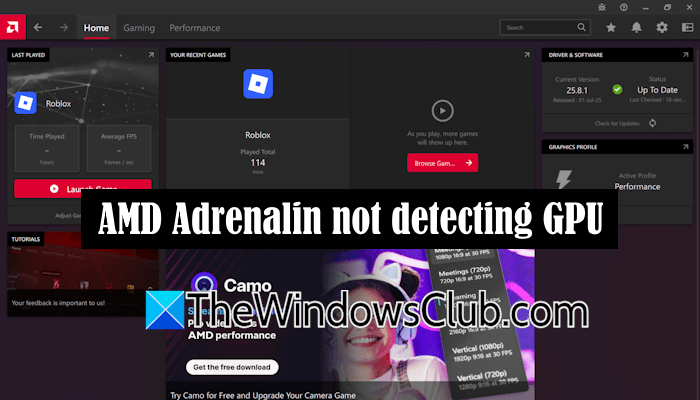
AMD Adrenalin is not detecting the GPU
Use the following fixes if the AMD software is not detecting the GPU on your Windows computer.
- Restart your GPU driver
- Update the AMD Adrenalin software
- Check cable connections
- Check the status of your GPU in the Device Manager
- Factory reset AMD software
- Perform the clean installation of AMD Adrenalin
All these fixes are explained in detail below:
1] Restart your GPU driver
The first step is to restart your GPU driver. Press the Win + Ctrl + Shift + B keys. You will hear a beep sound and your screen will flash for a second. Now, launch AMD software and check if it detects your GPU.
2] Update the AMD Adrenalin software
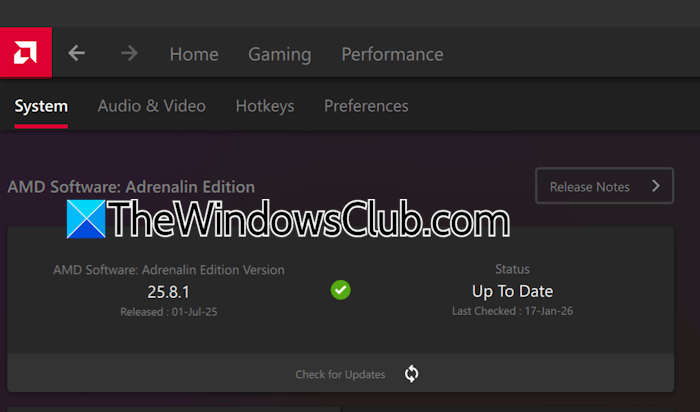
Outdated AMD Adrenalin software may contain bugs. Therefore, I suggest you update your AMD software manually. To do this, launch AMD Adrenalin software and open its Settings. Click the Check for updates button.
3] Check cable connections
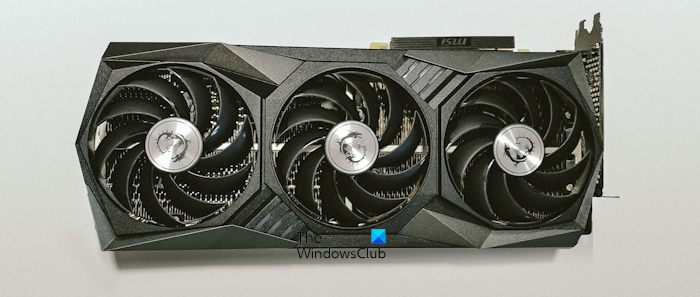
Your graphics card might not be connected properly. This might happen if you have recently cleaned your computer. Open your computer case and check this. I also suggest you remove and reinstall the graphics card.
4] Check the status of your GPU in the Device Manager
Check the status of your graphics card in the Device Manager. Open the Device Manager and expand the “Display adapters” branch. You will see your graphics card driver there. If you see a yellow warning sign, there might be a problem with your graphics card driver.
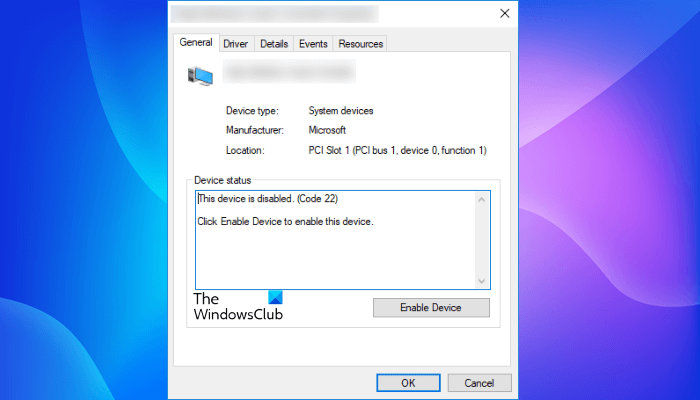
Now, right-click on your graphics card driver and select Properties. Read the message in the Device status box under the General tab. The message or error code you see there will correspond to one of the standard Device Manager error codes.
Note down the error code and message, and troubleshoot the issue accordingly.
5] Factory reset AMD software
You can also try to factory reset the AMD Adrenalin software. This action will restore all default settings, and you’ll have to redo all your customizations, which can be a headache in some cases. Therefore, before performing this action, I recommend exporting all the current AMD settings. Follow these steps:
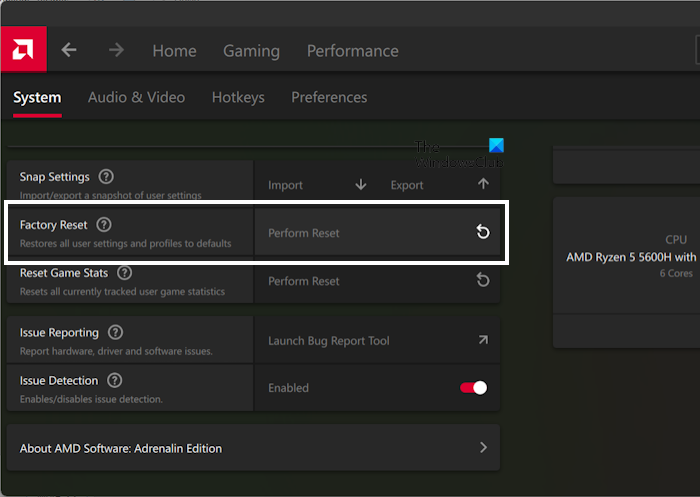
- Launch AMD Adrenalin.
- Navigate to Settings > System.
- Click Export next to the Snap Settings option.
- Enter a name and click Save.
- The settings will be saved as a zip file. Do not extract the folder.
The reset option is also available on the same page in AMD settings. After exporting AMD settings, click Perform Reset. Click Proceed in the confirmation box.
To import settings, click the Import button, then select the ZIP folder containing your AMD software settings.
6] Perform the clean installation of AMD Adrenalin
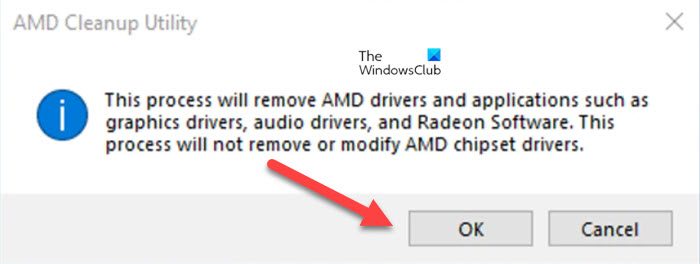
If the issue persists, you can perform a clean installation of the AMD software. This step will also reinstall your AMD graphics card driver from scratch. For this, you have to completely remove the AMD graphics card driver and all its files. You can do this by using the dedicated AMD Cleanup Utility or DDU (Display Driver Uninstaller). After performing this action, your system will restore the Microsoft Basic Display Adapter, and you will not lose your display.
Restart your computer and visit the official AMD website. Download the latest version of the AMD software and begin its installation. Your screen will flicker a few times during the installation. After the installation process is completed, the issue should be fixed.
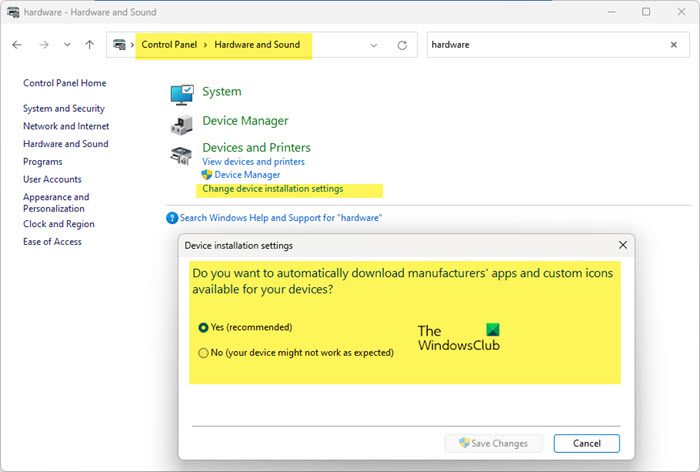
By default, Windows Update automatically updates eligible drivers. This issue may occur in the future because Windows Update may overwrite the AMD GPU driver. Therefore, to stop this issue from recurring, you can disable automatic driver downloads or updates.
That’s it. I hope this helps.
Why isn’t my AMD GPU showing up?
There are many reasons your AMD GPU may not be showing up. The AMD software might be outdated, or your graphics card driver might be corrupted. To fix this issue, you can try reinstalling your GPU driver.
Why is my PC using my CPU instead of the GPU AMD?
There are many reasons your PC may be using the CPU instead of the GPU. One possible cause of this issue is a corrupted graphics card driver. This issue also occurs if your dedicated graphics card driver is disabled or the application is not configured to use the dedicated GPU. You can configure this in Windows settings by forcing the app to use the dedicated GPU.
Read next: Check for Updates button missing in AMD Adrenalin.
