
AMD Adrenalin software allows you to optimize and update your AMD graphics card for better performance and gaming. The software automatically checks for updates and notifies you whenever a new update is available. You can also check for updates manually in the software using the Check for Updates button. However, some users found the Check for Updates button missing in the AMD Adrenalin software. If you encounter the same issue, the solutions provided in this article will help you.
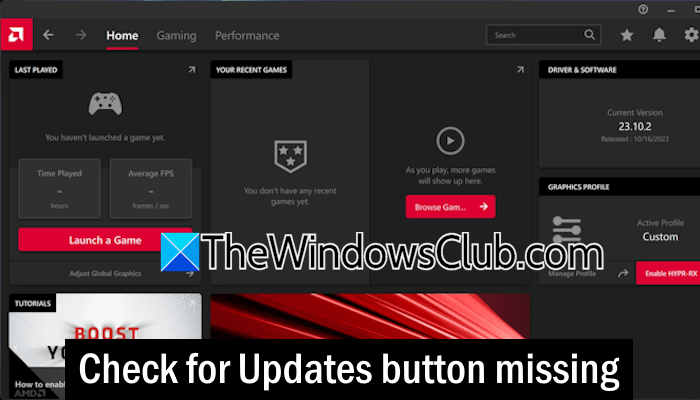
Check for Updates button missing in AMD Adrenalin
If the Check for Updates button is missing in the AMD Adrenalin software, use the solutions provided below:
- Clear AMD Adrenalin software cache
- Roll back your graphics card driver
- Restore your system
- Uninstall and reinstall the AMD Adrenalin software
All these fixes are explained in detail below.
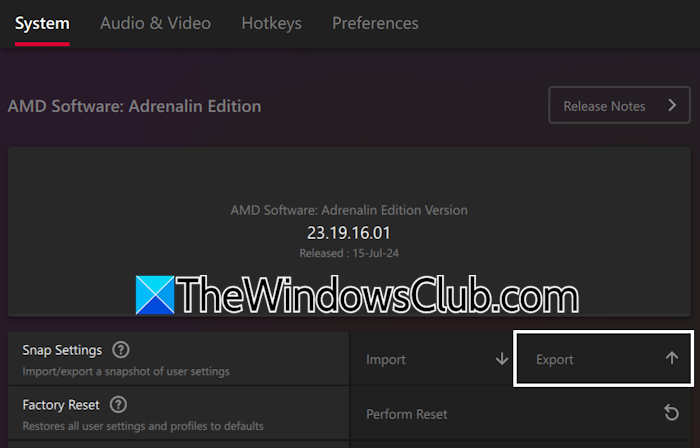
Before proceeding, I recommend you export your current AMD profile settings, so you can reapply them later. For this, open the AMD Adrenalin software settings and select the System tab. Now, click Export next to the Snap Settings option.
Let’s start.
1] Clear AMD Adrenalin software cache
The corrupt cache files can be the cause of this problem. Delete the AMD Adrenalin software cache and see if it helps.
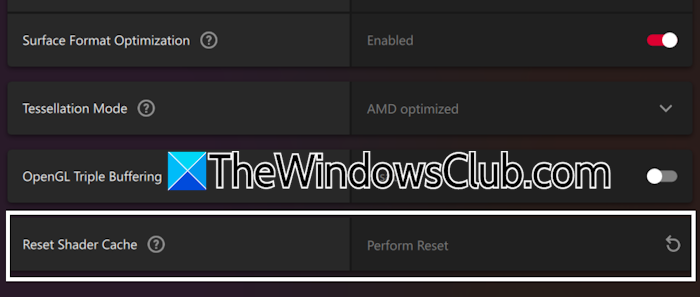
The steps to do this are as follows:
- In the AMD Adrenalin software, select the Gaming tab and then navigate to the Graphics tab.
- Scroll down and expand the Advanced tab.
- Click Perform Reset next to the Reset Shader Cache option and click OK in the confirmation box.
Now, completely close AMD software, then open File Explorer. Navigate to the following path:
C:\Users\<username>\AppData\Local
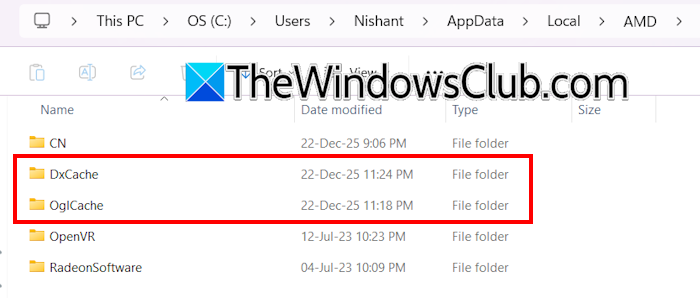
Replace the username with your username. Open the AMD folder, then delete all files in the cache folders. Deleting AMD cache files requires administrative rights. Therefore, sign in as an administrator. If you cannot delete these files, boot in Safe Mode, then try again.
2] Roll back your graphics card driver
If clearing the cache files does not help, you can try rolling back the graphics card driver to the previous version. To roll back the graphics card driver, follow these steps:
- Open the Device Manager.
- Expand the Display drivers branch.
- Right-click on your graphics card driver and select Properties.
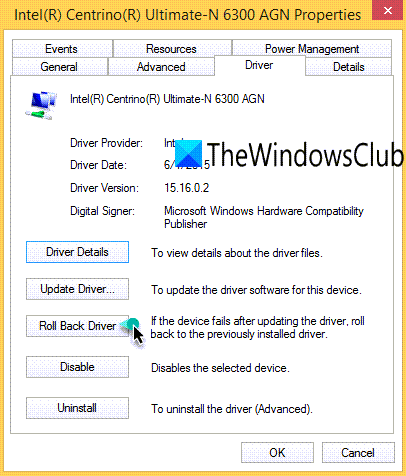
- Go to the Driver tab and click the Roll Back Driver button.
- Follow the on-screen instructions to roll back the GPU driver.
If the Roll Back button is greyed out, you can try it in Safe Mode. However, if the option remains unclickable in Safe Mode, it means Windows did not retain the previous version of your GPU driver.
3] Restore your system
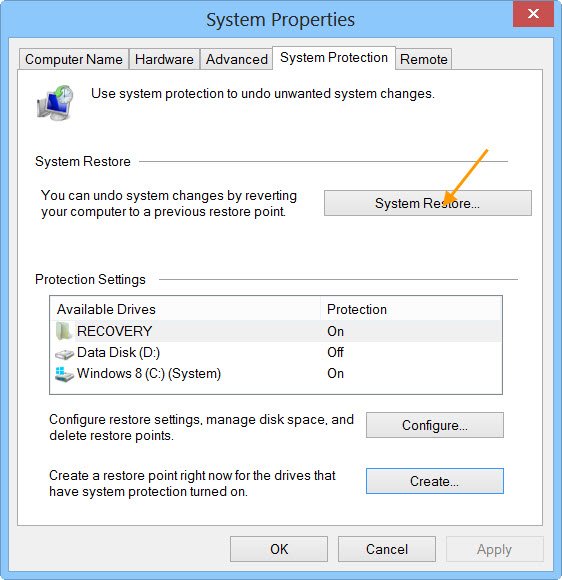
You can also try to roll back your system to the previous point in time. This option also rolls back the drivers to their previous versions. Use System Restore and select the restore point created on the date after which this issue occurred.
4] Uninstall and reinstall the AMD Adrenalin software

If none of these fixes work, the last resort is to uninstall and reinstall the AMD Software: Adrenalin Edition. Restart your computer after uninstalling the software. Then download its latest version from the official website and install it. This should fix this issue.
This issue usually occurs when a Windows Update overwrites the AMD driver. Therefore, when this issue is fixed, disable automatic Driver updates in Windows. This will prevent this issue from occurring again.
That’s it. I hope this helps.
How to check for updates in AMD Adrenalin?
You can easily check for updates in the AMD Adrenalin software. Open the software and navigate to its settings. Now, select the System tab. You will see the Check for Updates button there. Click on that to install the latest updates (if available).
How to reset AMD Adrenalin settings?
To reset AMD Adrenalin settings, open the software and navigate to Settings > System. Now, click Perform Reset next to the Factory Reset button. This action will restore all user settings and profiles to the default.
Read next: Radeon Settings and Driver versions do not match.
