
To resolve issues experienced while working with Office suite, Microsoft offers a useful tool called SaRA (Support and Recovery Assistant). The tool is designed to run multiple scans to diagnose and fix problems occurring in Office apps. So, if you find an Office app like Microsoft Outlook is not working properly, you can use Advanced Diagnostics in Microsoft Support and Recovery Assistant to fix it.
Using Advanced Diagnostics in Microsoft Support & Recovery Assistant
If your Microsoft Outlook account is not working as desired and causing problems, you can use the Advanced Diagnostics section in Microsoft Support and Recovery Assistant to scan Outlook for known issues and build a detailed report of your Outlook configuration. Take the following steps,
- Select which apps you are having problems with
- Review your Outlook Scan
- Sharing Results
You’ll need an internet connection to download, install, and use the Microsoft Support and Recovery Assistant
1] Select which apps you are having problems with
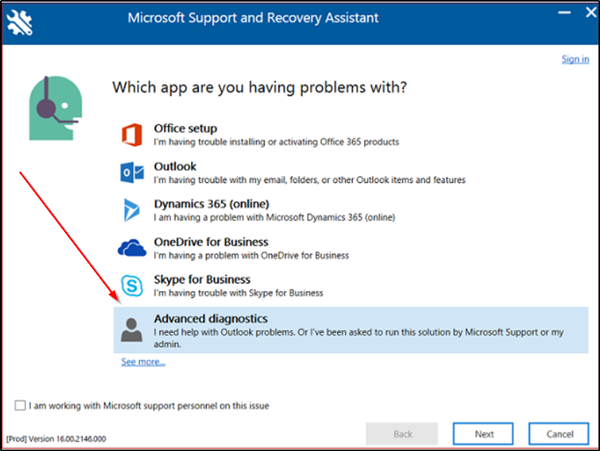
If you have downloaded SaRA to your local computer, sign in with your Microsoft account and select ‘Advanced diagnostics’ in Microsoft Support and Recovery Assistant. Click ‘Next’.
Select Outlook, and then click Next.
When presented with ‘Select which apps you are having problems with’ screen, choose Outlook and hit the ‘Next’ button.
Now, when prompted to confirm that you are using the affected machine, select ‘Yes’ and again hit the ‘Next’ button.
When the new window opens, enter your account details and press ‘Next’.
Once your account is verified and validated by Office 365, the scanning process will kick-in.
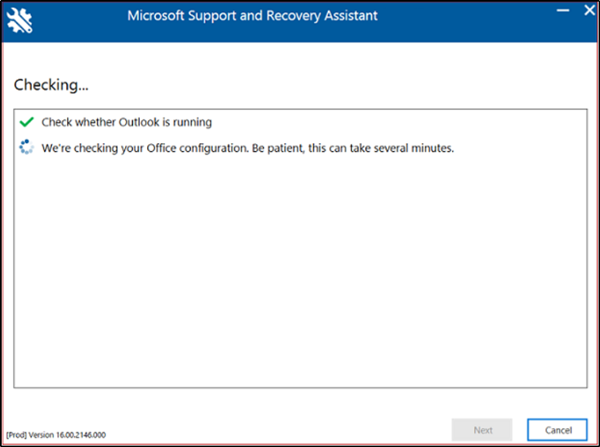
When the scanning is in progress, you will see a window with spinning dots under heading ‘Checking’. The process may take several minutes to run.
Once the scan is complete, you’ll see a notification bearing the following message – We’re done collecting your Outlook configuration details.
NOTE 1: The consumer version of Microsoft Support and Recovery Assistant (SaRA) has been deprecated. Microsoft officially ceased support for the tool in November 2024. Despite the deprecation, the Enterprise version of SaRA which is a command line tool is still available for download from Microsoft’s official site, for now. This post will show you how to use command-line version of Microsoft Support and Recovery Assistant (SaRA CMD).
NOTE 2: First, the Microsoft Support and Recovery Assistant was deprecated, and then on March 10, 2026, the SaRA command-line utility was deprecated. This has been replaced by the new, more secure Get Help Command Line tool. Visit this link to learn how to use the new Get Help command-line tool in Windows 11.
2] Review your Outlook Scan
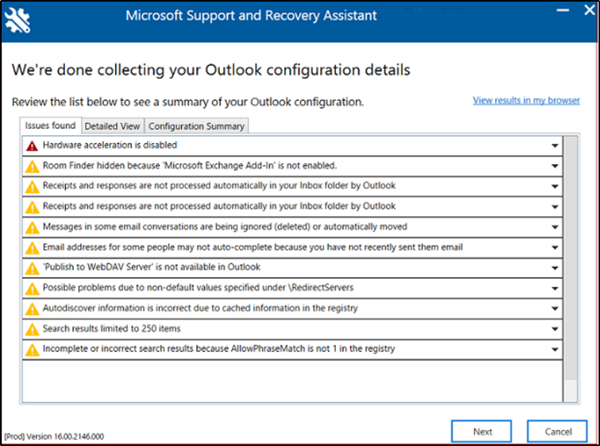
The scanning report will show 3 tabs namely-
- Issues found
- Detailed View
- Configuration Summary
Each of the tabs above will show a summary of your Microsoft Outlook configuration.
Choose a tab and select an issue to expand it for a more detailed description. Every description will be accompanied by a link to an article that covers all necessary steps to resolve the issue.
Issues Found
The first tab, ‘Issues Found’ tab will provide you a list of configuration issues that are detected during the scan.
Detailed view
The information contained in the ‘Detailed View’ tab is intended for advanced users, such as Helpdesk personnel and IT administrators. It stores information in a tree-like view. You can click any node to expand or collapse it. In addition to diagnosing an Outlook issue on the client side, this tab also collects important configuration information for Microsoft Office apps such as Excel, PowerPoint, and Word. To see the related information, expand the Miscellaneous section in the tree view.

This scenario also collects important configuration information for Microsoft Excel, Microsoft PowerPoint, and Microsoft Word. To see this information, expand the Miscellaneous section in the tree view.
Configuration Summary
The details of the scanning contained in the Configuration Summary tab represents a snapshot of the configuration settings collected on a frequent basis and analyzed.
If the small size of the text bothers you or strains your eye, you can view the scan results in a browser.
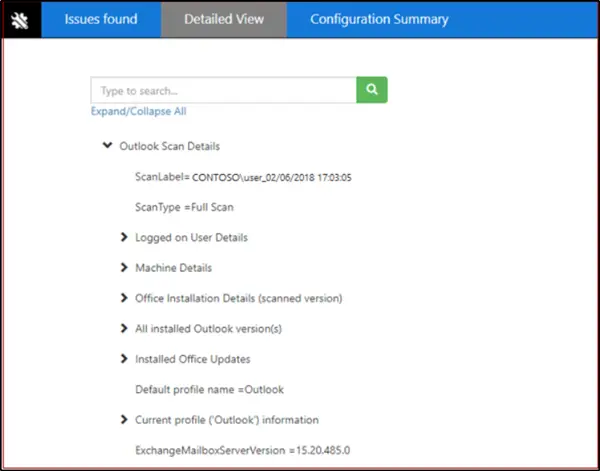
For this, click ‘View results in my browser’. The action, when confirmed, will display the complete scan report, including all three tabs, in your default browser. The results of ‘Detailed View’ displayed in your browser differ from the SaRA window in that the latter does not show a ‘Search’ option found in the former.
3] Sharing your scan results
SaRA allows users to share your scanning results with Microsoft as well.
Users who have an Office 365 account
If you sign in to SaRA using an Office 365 account, the application will allow you to send your files to Microsoft. This can be helpful when working with a Microsoft Support engineer to get assistance. Moreover, if you choose to send the files they will be securely uploaded.
Users who do not have an Office 365 account
For users who choose to sign in to SaRA via an account not supported by Office 365, there will be no option available to send files to Microsoft.
For instance, if you still wish to share your files, you will need to share your log files with your Helpdesk. For this, click ‘See all logs’ to open the folder that contains all the logs that are created by SaRA.
Now, you can copy the file from this folder to share with the person helping you fix your Outlook issue.
Lastly, SaRA is not just designed to fix Outlook issues for Office 365 or on-premises environments. It also has options for troubleshooting Dynamics, OneDrive and Skype for Business issues.
How do I fix Microsoft Outlook email problems?
The solutions depend on the error or issue you encounter when using the Outlook app. However, in most cases, you can use Microsoft Support and Recovery Assistant to get it fixed. For your information, the Advanced Diagnostics option is quite handy in resolving Outlook issues.
How do I troubleshoot Outlook performance issues?
To troubleshoot Outlook performance issues, you need open Outlook in Safe Mode and check if you are getting the same issues or not. If yes, you need to repair the Outlook email profile first. Then, you can create a new Outlook profile. Finally, it is suggested to repair Outlook via the installer.
