
If you have accidentally deleted the camera driver on your Windows 11/10 computer, this article will help you. Usually, Windows reinstalls the missing or deleted drivers on restart. However, this does not work for some users. The camera driver has permanently disappeared from their system, and their device’s camera is now not working.
Accidentally deleted the camera driver on Windows 11
If you have accidentally deleted the camera driver on your Windows 11/10 computer and cannot get it back, the following fixes will help you reinstall it. Before proceeding, restart your computer.
- Scan for hardware changes
- Check for Windows Update
- Download and install the camera driver
- Try the Add legacy hardware option
- Restore your system or reset your PC
- Perform the clean installation of Windows
All these fixes are explained below in detail.
1] Scan for hardware changes
When you restart your computer after uninstalling a driver, Windows checks the system for missing drivers and reinstalls them. However, if Windows fails to install the missing driver on the restart, you can use the Scan for hardware changes option in the Device Manager.
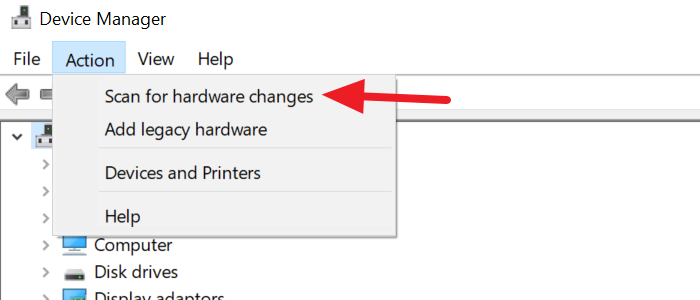
Select your system’s name in the Device Manager and click Action > Scan for hardware changes. This option forces Windows to scan the system for missing drivers and install them.
2] Check for Windows Update
If the Scan for hardware changes option does not bring back the camera driver, open Windows 11 Settings and check for Windows Update. If an update is available, download and install it. Windows Updates also fix bugs and driver issues.
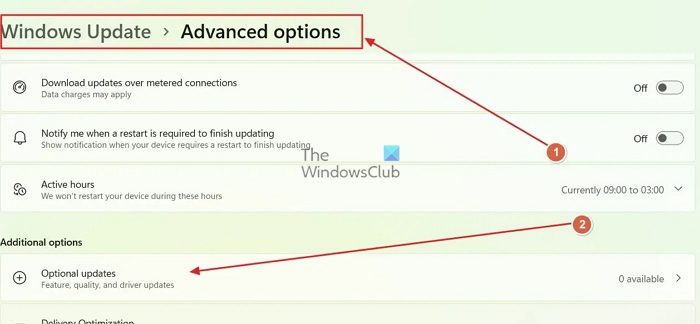
You should also check the Optional Update page in your system Settings. On the Windows Update page, select Advanced options > Optional updates. The updates released by the device manufacturer are also reflected on the Optional updates page.
3] Download and install the camera driver
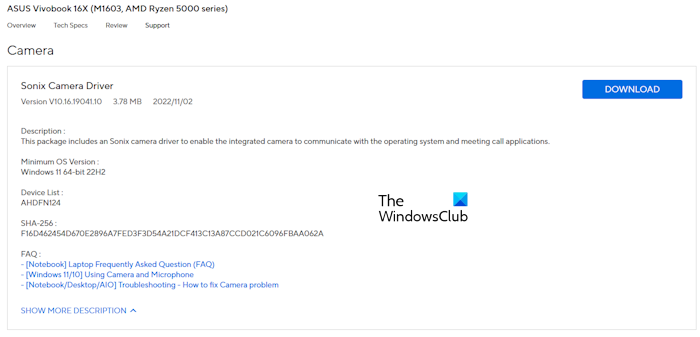
If the issue persists, you can download the latest version of the camera driver from the official website of your computer manufacturer. Enter your device model or serial number and download the right camera driver. If you do not know your device model or serial number, you can use the Scan feature on the website. The Scan feature automatically detects the user’s computer.
If the camera driver is downloaded as an INF file, you have to use the Device Manager to install the driver.
4] Try the Add legacy hardware option
You can try the Add legacy hardware option to install the missing camera driver. Follow these steps:

- Open the Device Manager.
- Select your computer’s name and click the Action menu.
- Now, click Add legacy hardware. The Add Hardware window will appear.
- Click Next.
- The Search for and install the hardware automatically (recommended) option is selected by default. Leave it as is and click Next.
Windows will automatically search for and install the driver. If this does not work and Windows displays the following message, try adding the driver manually.
The wizard did not find any new hardware on your computer.
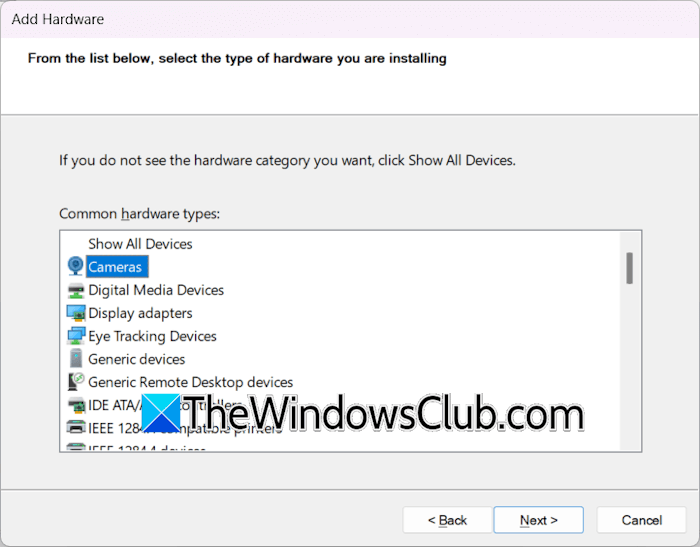
Follow these steps:
- Select Action > Add legacy hardware and click Next.
- Select the “Install the hardware that I manually select from a list (Advanced)” option and click Next.
- Follow the on-screen instructions to install the camera driver.
5] Restore your system or reset your PC
If the issue persists, you can restore your system to the previous working state. The System Restore is helpful when the issue occurred recently. Selecting the correct restore point will help you restore the deleted camera driver.
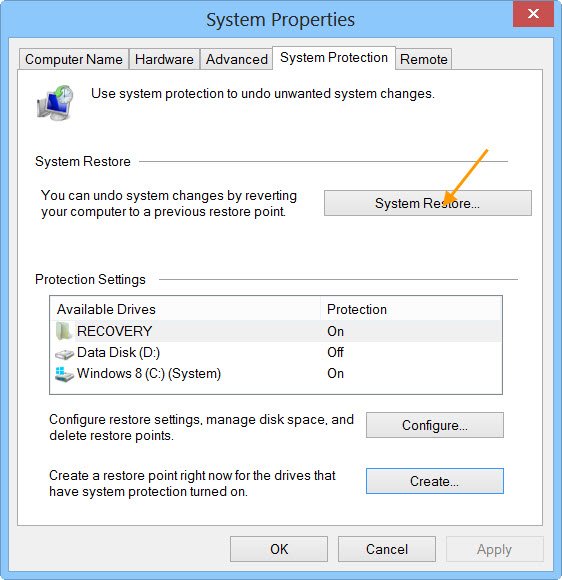
While restoring your system, select the restore point created on the date before which the problem did not exist.
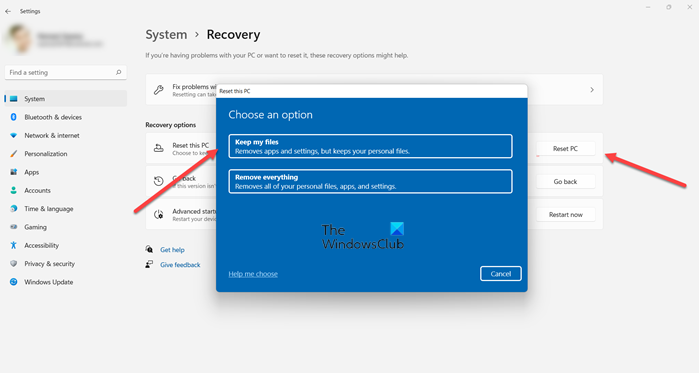
If no restore points exist, you can reset your PC. While resetting your PC, select the Keep my files option, as it will reset your PC without deleting your data. However, all the installed programs will be deleted after resetting the PC, even if you select the Keep my files option.
6] Perform the clean installation of Windows
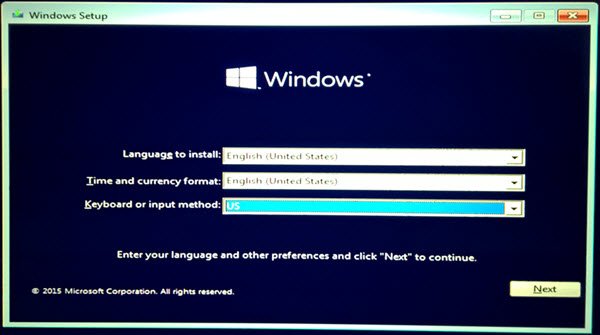
If the fixes explained above do not work, the last resort is to perform a Clean Installation of Windows. While installing Windows from scratch, you need to format your C drive. This will delete all the data on the C drive, but other drive partitions will remain unaffected. However, we recommend that you back up all your important files from other partitions too. This is because if you format the incorrect hard drive partition during the clean installation, you will not lose your data.
That’s it. I hope this helps.
How do I reinstall the camera driver on Windows 11?
To reinstall the camera driver on your Windows 11 computer, visit your computer manufacturer’s official website and download the latest version. Now, run the installer file to install the driver.
How do I restore the deleted drivers in Windows 11?
Windows automatically restores the deleted drivers on restart. However, if this does not happen, you can download the required drivers from your computer manufacturer’s official website. Restoring the computer to the previous point in time also reinstalls the missing or deleted drivers.
Read next: Webcam light remains always ON.
