
If your Windows 11/10 fails to boot, it will launch Automatic Startup Repair, in order to attempt to repair Windows. If Automatic Repair also fails, you will want to use the Reset your PC option. To do so, you will select Advanced options > Troubleshoot > Reset or Refresh.
Windows fails to boot
Now even if Reset your PC options fail, you will be returned to the WinRE screen. Such a situation could arise if your Windows Registry hive has been badly damaged or corrupted.
Automatic Startup Repair stuck in a reboot loop
If Automatic Startup Repair or Reset PC is stuck in a reboot loop, KB2823223 recommends that you try the following:
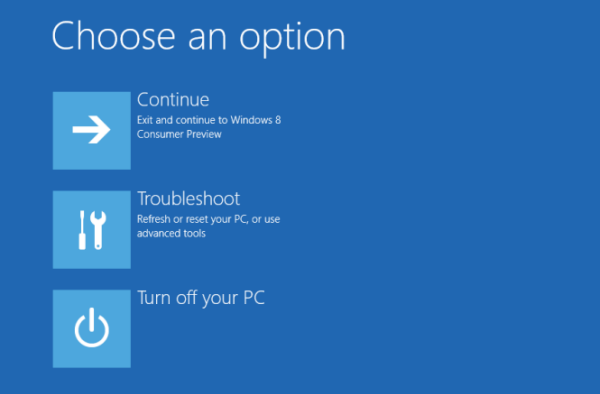
From the WinRE screen, select Troubleshoot > Advanced options.
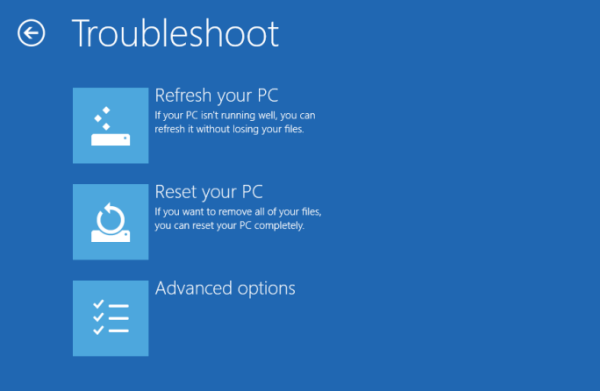
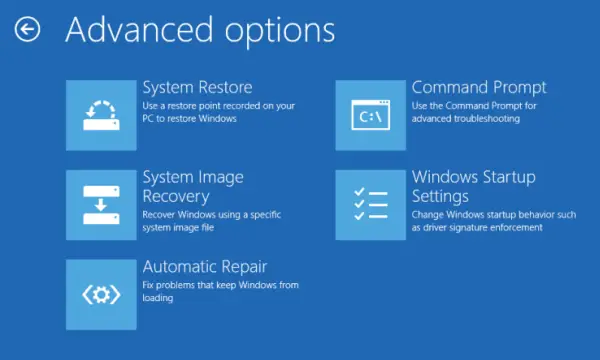
Under Advanced options > Command Prompt.
Use the CD command and change the directory to \Windows\System32\config folder as follows. Type the following and hit Enter:
cd %windir%\system32\config
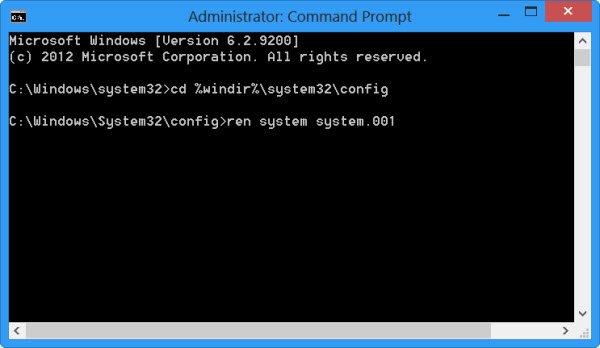
You should rename the System and Software registry hives to System.001 and Software.001. To do so type the following command one after the other and hit Enter:
ren system system.001

ren software software.001
If you want to use Refresh This PC, rename ONLY the System hive. But in such a case, if your Software hive is also corrupt, you may be unable to use the Refresh your PC option. In such a case, you may have to rename the Software hive too. When you rename the Software hive, you will not be able to use Refresh your PC, but only the Reset your PC option.
Finally, type Exit to close the Command Prompt.
Reboot the PC back to the Automatic Repair screen.
Select > Advanced options > Troubleshoot > “Reset your PC” or “Reset your PC”, as you wish.
It should work.
This procedure will also help you if you receive a There was a problem resetting your PC error message when you use the Reset This PC option.
Read:
How to disable Automatic Repair in Windows 11?
If you want to disable automatic Startup Repair, boot into Safe Mode, open Command Prompt (Admin) and execute the following command:
bcdedit /set recoveryenabled NO
Alternatively, you can use the Registry Editor. Open REGEDIT and navigate to the following key:
Computer\HKEY_LOCAL_MACHINE\SYSTEM\CurrentControlSet\Control\CrashControl
On the right side, locate and right-click on AutoReboot value, select Modify, and change its Value Data to 0 to disable Automatic Startup Repair.
Restart your computer and see.
Related: Windows stuck on Diagnosing your PC or Preparing Automatic Repair screen
The process cannot access the file because it is being used by another process
If the commands to rename the software hives fail and you receive The process cannot access the file because it is being used by another process error, then I suggest that you boot from your installation media and run the commands. Once you reach the Repair your computer screen, select Troubleshoot > Advanced options > Command Prompt and then run the commands.
Related: Reset This PC not working; Can’t Reset PC
Startup Repair couldn’t repair your PC
If Automatic Startup repair fails, and you get an error message Startup Repair couldn’t repair your PC, you may need to check the log file at:
C:\Windows\System32\Logfiles\Srt\SrtTrail.txt
TIP: This post will help you if Reset This PC is stuck on Getting things ready, at 100 %, on Downloading, on Canceling or on Preparing to reset in Windows 11/10.
What is the SrtTrail.txt file?
SrtTrail.txt is a log file that records any problems that may have caused Automatic Startup Repair to fail or a Blue Screen Stop Error. It is located at C:\Windows\System32\Logfiles\Srt\SrtTrail.txt.
This post will help you if your Windows is stuck in an endless reboot loop.
TIP: Read about the Advanced Startup options and how to boot Windows directly to the Advanced Startup Settings screen.
