
Setting up Dual Monitors is a common thing these days. Whether you want to increase your screen area or mirror something to another monitor, Windows has got it all. With improved functionality in Windows 11 and Windows 10, now you can set up dual monitors easily and with some familiar commands. Let’s check out how to set up and use dual monitors on Windows 11/10. We will also discuss what you can do if your Windows cannot detect the second monitor.
How to Set up and Use Dual Monitors on Windows 11/10
Hardware requirements for Dual Monitor setup
Obviously, you’ll need an extra monitor, and you may also need some wires and connectors. The first and foremost step is checking the ports on your computer. If you are using a laptop, you might have only one HDMI port, or, rarely, a VGA port. If you are on a computer and one monitor is already connected, look for another port that is similar. Make sure your computer or the graphics card supports multiple monitors before buying any equipment. Typically, a VGA port has several small holes in three lines.
Now it is time to get a suitable wire. If both the devices (Monitor and the PC) are compatible with HDMI, you can get an HDMI wire. Usually, the old monitors are compatible only with VGA, so you’ll need a VGA wire and an HDMI to VGA converter. Connect the monitor and power it on!
Setting up the second monitor
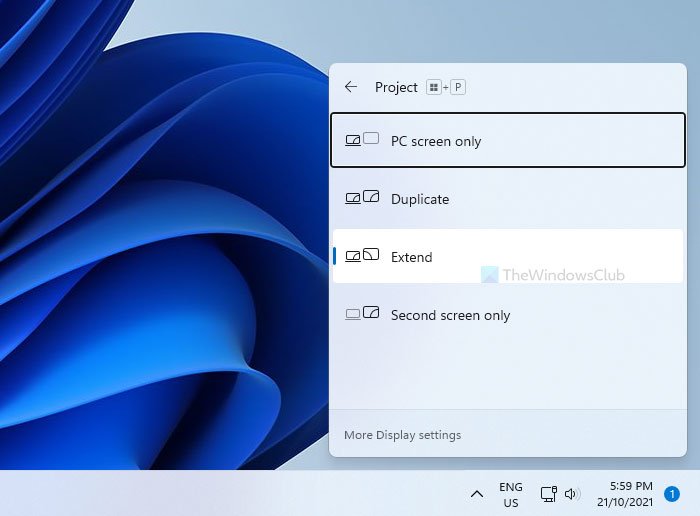
Well, there are four projection modes available in Windows. You can open up the projection menu by simply pressing ‘Win + P’ from the keyboard. The first mode is ‘PC Screen Only’ and in this mode, the secondary monitor will not display anything. There is also a mode that can turn on the secondary screen only and turn off the primary screen. Next comes the two most used projection modes. The ‘Duplicate’ mode lets you project the screen as it is on the second monitor.
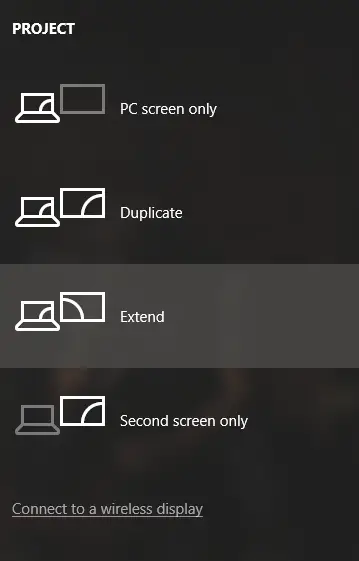
The last and most important mode, ‘Extend’ lets you extend your actual working area to the second monitor. The dual monitor setup is essentially about working in this mode on your computer. You might have seen someone who has collaborated with a few monitors to make a larger screen. That setup is nothing but working in this ‘Extend’ mode.
Configure the second monitor in Windows
While the ‘Duplicate’ mode does not require any configuration as such. But we need to configure the monitor connected in ‘Extend’ mode to get the best out of it. On your primary monitor, right-click on the desktop and select ‘Display Settings’. The majority of settings can be configured on this page; first, you need to define the position of the second monitor relative to the first. For example, I’ve placed the monitor to the left of my laptop, so I will drag the second box to the left of the first one. Also, you can make some height adjustments if both monitors are not on the same level.
The settings for both monitors can be configured separately. You can change monitor resolutions, scale layout, and much more. Also, you can change the primary monitor.
Change the primary monitor in Windows 11
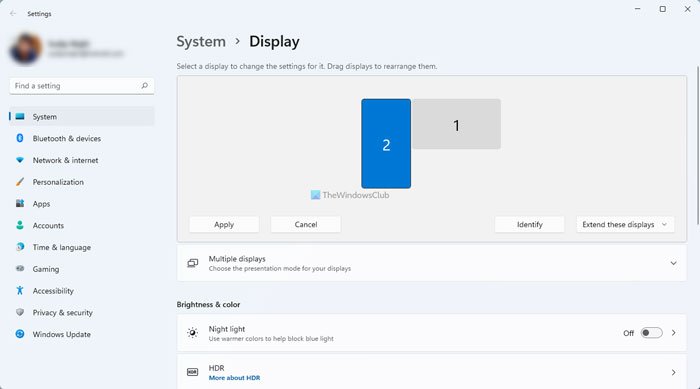
To change the primary monitor in Windows 11, select the number associated with the desired monitor, click on the Multiple displays section to expand it, and tick the Make this my main display checkbox.
Show or hide the Taskbar on the second or all displays in Windows 11
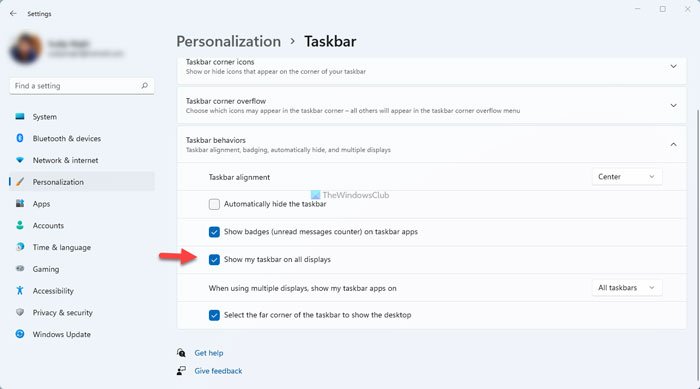
You can change a few taskbar-related settings. To show or hide the Taskbar on the second or all displays, you need to press Win+I to open the Windows Settings and go to Personalization > Taskbar. Here, click the Taskbar behaviors section to expand it.
Set wallpaper on one or multiple displays in Windows 11
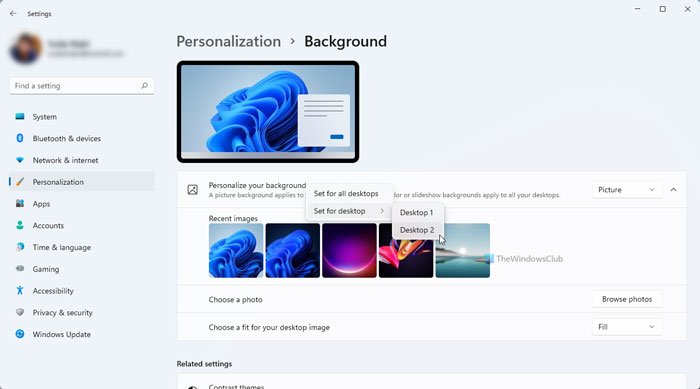
Wallpaper-related settings can also be customized. You can stretch a wallpaper to fit both displays. Or you can have the same wallpaper mirrored on both screens. Even further, you can have entirely different wallpapers on both screens. If you are using Windows 11, go to Personalization > Background. Then, right-click on the wallpaper and select the Set for all desktops option to set one wallpaper on multiple displays.
Change the primary monitor in Windows 10
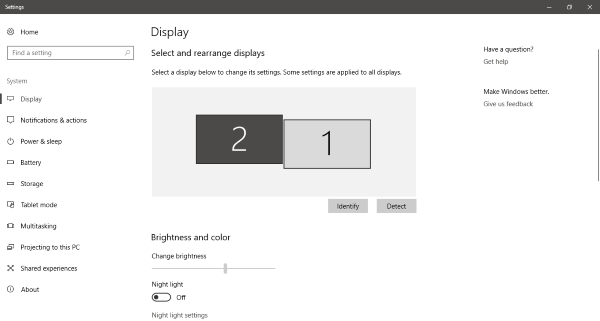
To change the primary monitor in Windows 10, select the number corresponding to that monitor, scroll down and select ‘Make this my main display’. The primary monitor is generally the one that displays most of the details and hosts the primary desktop. Although the taskbar is available on both monitors, the primary one is more functional and accessible.
Show or hide the Taskbar on the second or all displays in Windows 10
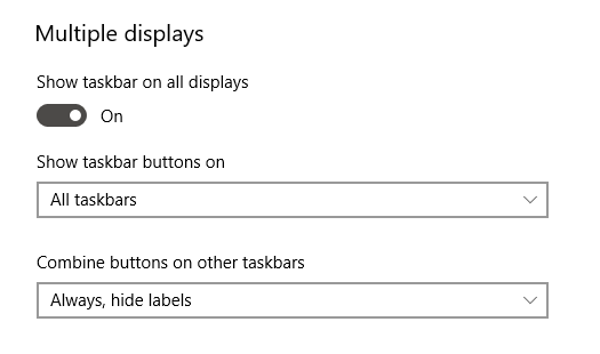
In Windows 10, right-click the taskbar and select ‘Taskbar Settings’. Scroll down to find ‘Multiple displays’. Here, you can change a few taskbar-related settings like whether to show taskbar on a secondary display or where to show taskbar buttons and when to combine buttons and labels.
If you want to show the Taskbar on all displays, you must tick the Show my taskbar on all displays checkbox.
You can also expand the When using multiple displays, show my taskbar apps on the drop-down list and choose an option among these:
- All taskbars
- The main taskbar and the taskbar where the window is open
- Taskbar where the window is open
Set wallpaper on one or multiple displays in Windows 10
In Windows 10, right-click the desktop and select ‘Personalize’. Browse for a wallpaper that you want to apply. Right-click its thumbnail to select the monitor you want to apply this wallpaper on.
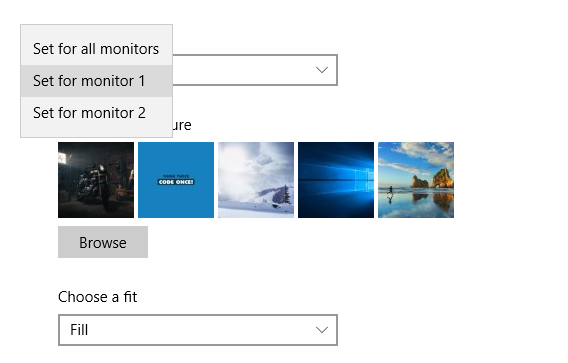
However, if you want to set different wallpaper on a different monitor, you need to select the Set for desktop > Desktop 1 or Desktop 2 or any other number. If you want a single wallpaper on both monitors, make sure you have a high-quality wide wallpaper in hand. Wide wallpapers are specially designed for multiple displays, and they can be applied without any unusual stretching and quality distortion. Also, they look quite beautiful.
NOTE: When you connect multiple monitors, a new option is offered in Taskbar Properties. To configure this option, right-click on the Taskbar and select Properties. Towards the bottom, under Multiple displays, you can opt to show the Taskbar on your primary monitor or all the monitors. You can also configure where to show the taskbar buttons from the drop-down menu.
Read: Laptop external monitor not detected.
Multiple Monitor external tools for Widows PC
While Windows itself offers a variety of customizations, a lot more can be done with dual monitors. There are plenty of freeware available that can bring more features and functionality to this setup. Recently, we covered Dual Monitor Tools. It is a freeware that lets you control a few things here and there. You can restrict mouse movements in between the screens. Or you can create hotkeys to shift windows between monitors instantly. Moreover, you can take snapshots and create your own magic commands, and perform a certain operations like switching the monitors and etc.
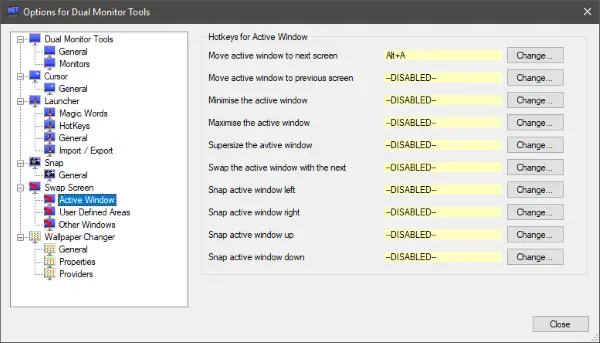
There is another tool called Dual Display Mouse Manager which is designed to customize the mouse movement in between the screens. You can find plenty of other tools online that fit your needs.
Related: How to set up 3 monitors on a Windows laptop.
Windows cannot detect the second monitor
See this post if Windows cannot detect the second monitor. If this post does not help you, open Devices Manager and identify your Display Adapter driver. If you see a yellow exclamation mark against it, right-click on it and select Roll back to roll back the driver. If that option is not available, select Update.
Does Windows 11 support dual monitors?
Yes, Windows 11 supports dual monitors like Windows 10. You have almost the same set of options for configuring the dual monitor in Windows 11. For example, you can choose whether to extend or duplicate the monitors. Apart from that, you can set different wallpapers, show or hide the Taskbar, etc.
Read: Do Multiple Monitors slow down a Computer?
How do I change my primary monitor in Windows 11?
To change your primary monitor in Windows 11, press Win+I to open Windows Settings, then go to System > Display. Then, choose the desired display you want to set as the primary monitor. Following that, expand the Multiple displays section, and tick the Make this my main display checkbox.
I hope this helps you in setting up dual monitors on Windows 11/10. As I already mentioned, Windows 11/10 provides improved support for dual monitors. You can use this setup anywhere at your convenience.
