
If you are one of those geeks who like adding multiple screens to their Laptops then this article is for you. In this article, we present a guide to 3 Monitor Setup on a Windows Laptop.
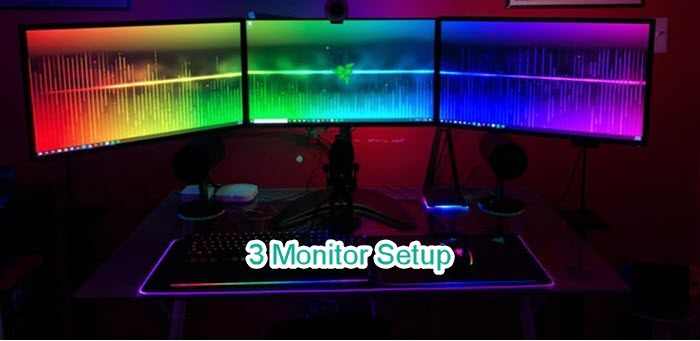
Can I connect 3 or multiple monitors to my laptop?
You can check if your Laptop can support 3 Monitors. Connecting 3 Monitors is not as easy as you may think. Some computers do not support 3 Monitors. Whether your computer can support multiple monitors depends on the type of port you have. There are multiple monitor ports available, such as VGA, DVI, HDMI, USB-C, etc., and you need to make sure you have at least 3 video ports if you want to run 3 monitors at once.
However, most laptops don’t have all the ports; they will either have 1, USB-C or HDMI, or 2, depending on the configuration you are going for. But this doesn’t mean that you can’t have a 3 Monitor setup, you just have to buy external hardware. There are three things you can buy for your laptop to connect 3 Monitors at once. They are.
- External Docking station
- USB to HDMI Adapter
- External multi-display adapter
Let us talk about each of them.
1] Using External Docking station
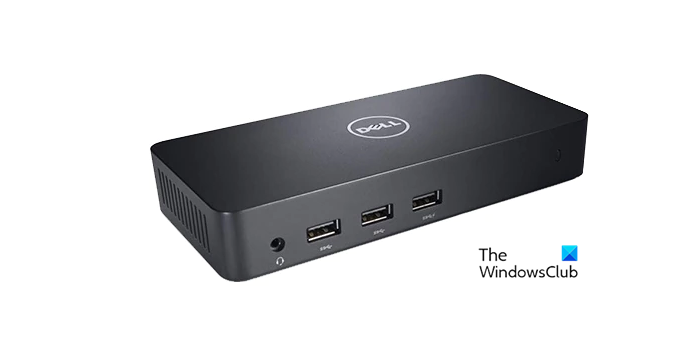
An External Docking Station is a one-stop shop for connecting all three Monitors at once. It has one USB cable that will connect to your computer and then you can connect all three Monitors to the available ports in the docking station. It is a clean setup and doesn’t require you to get a whole bunch of cables.
However, they are not very inexpensive. They generally cost around $150 USD and can be bought from Amazon or any other electronics seller.
The only caveat here is that they don’t generally come with a fan. So, it can be pretty hot and then throttle the performance.
2] Using USB to HDMI Adapter
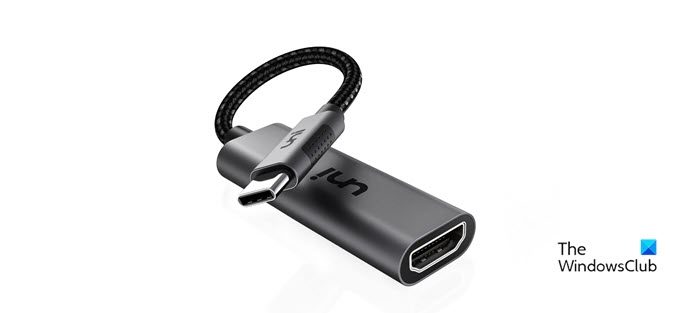
If you don’t want to spend $150 on an external doc, you can get USB-to-HDMI adapters. They can be connected to your computer via USB and to the Monitors via the HDMI port. However, this is not the best solution if you are a gamer or do anything graphics-intensive, such as video or photo editing. They don’t have a dedicated Graphics Card, and the experience is just not good enough.
3] Using External multi-display adapter
This is the best option if you are a gamer. You can get an external multi-display adapter for $150 from anywhere and you will be good to go. Just plug the ports where they belong, execute the steps mentioned hereinafter and you have a simple setup consisting of 3 Monitors.
After getting any of the mentioned devices, you need to get the appropriate cables to connect them to the setup. Once you are done with all the required things, you can see the steps mentioned here.
How to set up 3 monitors on a Windows laptop
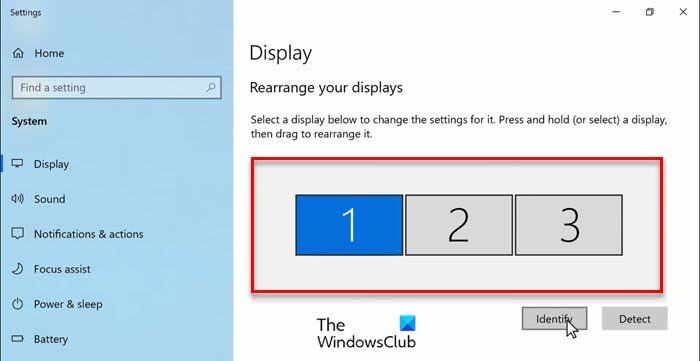
After accumulating the required hardware, it is time to create the 3-monitor setup. We have seen how to set up Dual Monitors on Windows – now let us see how to create a 3 Monitor Setup on Windows Laptop.
- Open Settings by Win + I.
- Click System and make sure that you are on the Display tab.
- Then click Detect.
- Now, you will see 3 Monitors that you can arrange.
- From there, you can arrange your monitors in any given order.
After rearranging, you need to click Apply. If you want to see any Monitor’s position, just click Identify.
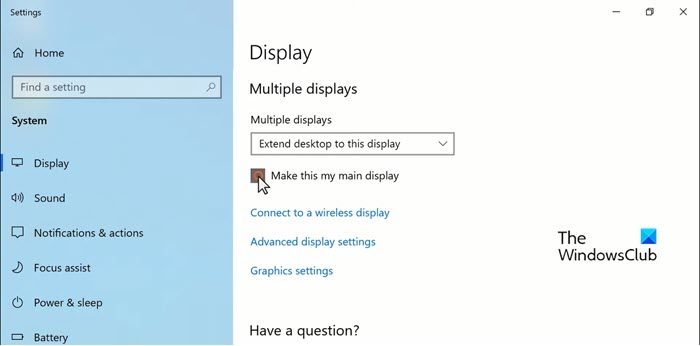
And if you want to make a monitor your primary, just scroll down and tick “Make this my main display”.
You can also change the screen resolution or orientation from Scale and Layout.
That’s it!
Can Windows 11 support 3 monitors?
Yes, Windows 11/10 has several features and settings to support one, two, three or even more monitors. You do not have to use any third-party software for it.
Read Next:
- How to turn off Laptop Screen when using External Monitor
- How to make a program open on a specific monitor in Windows.
