
One of the new features of Windows 11/10, is downloading of Windows Store applications. Often you might encounter issues where the downloading of Windows Store apps get stuck halfway or when you try to install or update it on your Windows 11/10/8.1 PC; it does not work.
The Microsoft Store is more of an important aspect to Windows 11 due to the coming support of Android applications. Often you might encounter issues where the downloading of Microsoft Store apps get stuck halfway or when you try to install or update it on your Windows 11 PC; it does not work.
Repair or Reset Microsoft Store via Settings
Windows 11
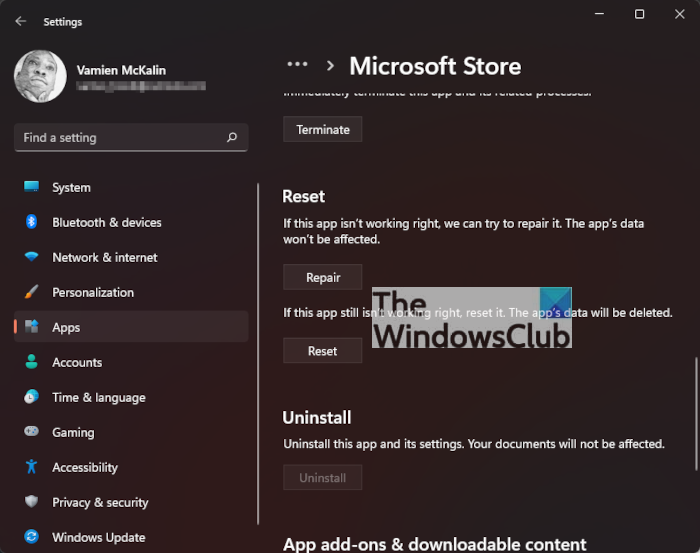
When it comes down to resetting the Microsoft Store, you only need to fire up the Settings app by pressing the Windows key + I. From there, click on Apps > Apps & Features, then scroll down until you come across Microsoft Store in the list.
Click on the three-dotted button, then select Advanced Options. Scroll down again and click Repair or Reset, and that’s it.
Windows 10
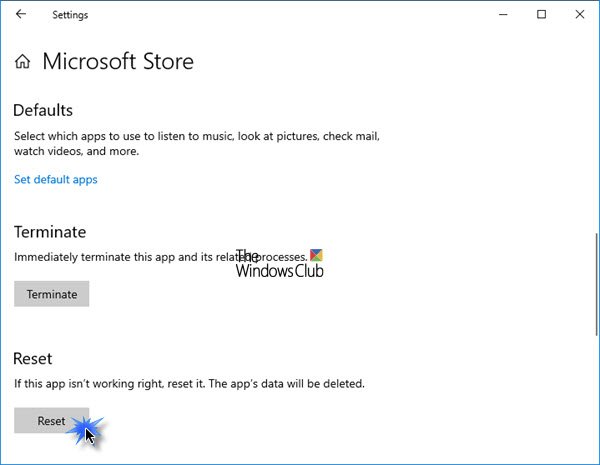
To reset Microsoft Store, open Settings > Apps > Apps and features > Search for Microsoft Store > Advanced options > Use the Reset button.
TIP: Windows 11/10 also allows you to Reset Microsoft Store apps via Settings.
Clear Windows Store Cache with WSReset.exe
To reset the cache for Microsoft Store you can use Windows Settings or use the built-in command-line tool known as WSReset.exe.
Run CMD as administrator, type WSReset.exe and hit Enter.
Alternatively, in the Start search, type wsreset.exe. On the result which appears, right-click and select Run as administrator.
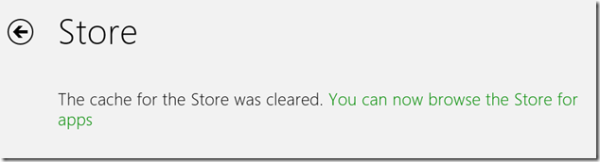
A command prompt window will open. After a while, the Windows Store will open. You may (or may not) see the following confirmation message:
The cache for the Store was cleared. You can now browse the Store for apps.
It will then take you back to the Windows Store. Now try to install or update the apps or download fresh apps and see if it’s working as it should.
TIP: This post will help you if WSReset.exe is not working.
Why reset and clear the Microsoft Store cache?
There are many reasons you may want to reset the Microsoft Store to its default state. You see, there are times when the Store just fails to work as it should, or maybe one or more apps are acting up. Now, there are other ways to solve issues with the Microsoft Store, but resetting and clearing the cache is the best of the bunch.
If you receive an error-
Windows cannot find ‘ms-windows-store:PurgeCaches’. Make sure you typed the name correctly, and then try again.
you need to re-register the Windows Store app by running the following command in an elevated command prompt window:
powershell -ExecutionPolicy Unrestricted Add-AppxPackage -DisableDevelopmentMode -Register $Env:SystemRoot\WinStore\AppxManifest.xml
Incidentally, our freeware FixWin, lets you reset Windows Store Cache, with a click. If this doesn’t help, you may want to repair your corrupt Windows Image or Component Store using DISM.
Related reads:

