
Most of us take special care to keep our Windows 11 or Windows 10 operating system running in top condition. We may simply let our Windows carry out the scheduled automatic maintenance tasks or use some good freeware optimizer software.
If you want to go a step further and find out the state of health of your Windows computer, you can use a built-in tool called Perfmon or Performance Monitor or perfmon.exe.
Read: How to use Performance Monitor.
Generate System Health Report in Windows 11/10
To generate a performance report of your system, open Run, type the following command, and hit Enter:
perfmon /report
The Performance Monitor will now start analyzing your system state.

Perfmon basically carries out the following checks:
- Checks for attributes of the operating system
- Disk Checks – Checks for disk status
- Security Center Tests – For the state of Security Center related information.
- User Account Control
- Checks Windows Update state
- Check System Services status
- Hardware Device and Drivers and Windows Management Infrastructure supported devices.
Once the task has been completed, you will be presented with a list of findings.
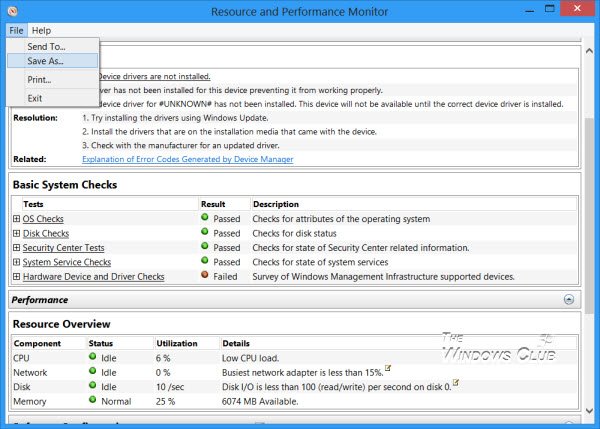
Once the test is complete, you will also be able to export and save the findings via File > Save As.
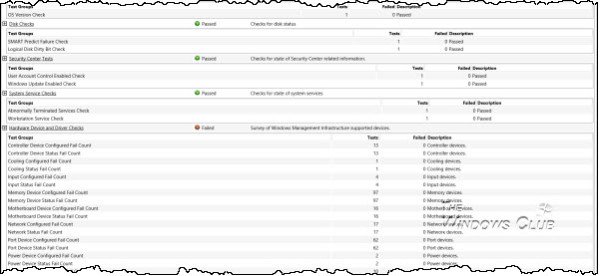
The report is exhaustive and rather longish. The problems if any will be highlighted in red so that you can focus on only those issues.
There is another way to generate this advanced system health report.
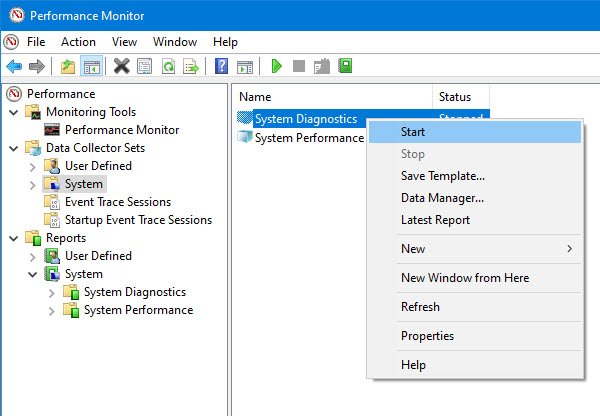
Open Performance Monitor and on the left side, expand Data Collectors Set > System > System Diagnostics.
Right-click on System Diagnostics and select Start. You can do the same for System Performance as well.
After a while, you will be able to access the report under Reports > System > System Diagnostics.
You can use the findings to troubleshoot Windows problems.
Related reads:
- Health Report is not available in Windows
- An error occurred while attempting to generate this report, The Data Collector Set or one of its dependencies is already in use
- Performance Monitor is stuck at collecting data for 60 seconds
How do you generate system performance report?
To generate a system performance report, open the Run dialog box, type “perfmon” and press Enter to open the Performance Monitor. Next, navigate to Data Collector Sets > System > System Performance and right-click on “System Performance” and select Start. This will initiate the report generation process.
Read: How to run Windows Memory Diagnostic Tool in Windows
How do I run a full diagnostic on my computer?
To run a full diagnostic on your Windows computer, open the Start menu and search for “Diagnostic Tool”. Click on “Diagnostic Tool” from the search results. Next, select the option for a full system scan and follow the on-screen instructions to complete the scan. This will help identify any issues with your computer’s hardware or software. Ensure that all of your programs are closed before running the diagnostic test.
Read: How to run System Diagnostics using System Information Tool?
