
Some users are complaining that Zoom’s audio starts stuttering with the following error message:
Low system resources may affect your audio quality. Try closing some applications to improve performance.
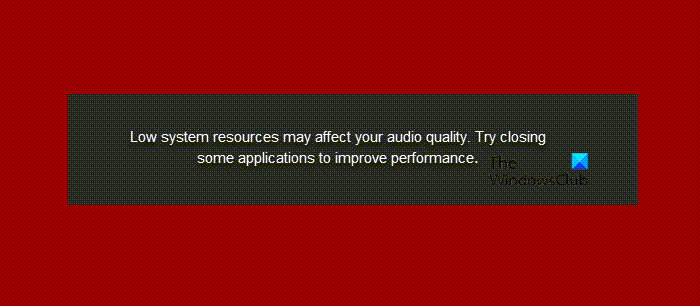
In this post, we are going to show you what to do if Zoom throws up an error message Low system resources may affect your audio quality.
Why does my computer keep saying low system resources?
The reason for this peculiar behavior is obvious from the message itself. Your computer is not able to render voice properly because of low system resources, i.e; low processing power. Low processing power doesn’t mean that you have to get a new system just attend Zoom calls, but with a bit with few tweaks and some solutions, we can make your current computer Zoom ready.
Fix Zoom error: Low system resources may affect your audio quality
If you are seeing Zoom error: Low system resources may affect your audio quality, first, update your computer and then follow the following solutions to resolve the issue.
- Close all unnecessary apps
- Use Ultimate Performance Mode
- Update your Graphics Driver
- Run Audio Troubleshooter.
Let us talk about them in detail.
1] Close all unnecessary apps
If you are not using a ton of alongside Zoom then it is better to close them. If you are using Zoom then chances are you are using one or two apps with it to share screens or do some other stuff. But if you open some apps, especially some heavy apps such as Discord, or some game, a huge chunk of your RAM will be wasted on them. Hence, close all the apps that you are not using before joining a Zoom meeting.
Another thing that you can do to ensure that no app is running in the background is to open Task Manager, right-click on the processes that you don’t want to run, and click End Task.
2] Use Ultimate Performance Mode
If you are not concern about your battery or if you are using your Laptop plugged-in then using Ultimate Performance Mode is a good way to give more power to your system. So, chances are you won’t see the error message after doing this.
Read: Fix Sound and Audio problems and issues in Windows.
3] Update your Graphics Driver
Outdated Graphics drivers can cause this error. So, you should update your Graphics Drivers and see the issue persists.
4] Run Audio Troubleshooter
Run Audio Troubleshooter and see it helps. Windows 11/10 already includes Playing Audio Troubleshooter and Recording Audio Troubleshooter, which you can easily invoke via the Control Panel, the Taskbar Search, or the Troubleshooters Page in Windows 11/10.
Wait for the process to complete and see if the issue persists.
Why does Zoom lower my audio quality?
There are multiple reasons why Zoom could lower your audio quality. For example, if your microphone has some physical flaws, you could find this problem for sure. Secondly, if you have lowered the audio from the Windows Settings panel, there is a chance of getting this issue. On the other hand, it could be a bug or glitch as well.
Hopefully, you are able to resolve the issue with the given solutions.
Read Next: How to fix Zoom Error Codes and Problems.

