
If YouTube videos lag or stutter in Chrome Edge, then the solutions provided in this article will help you fix this problem. There can be several reasons for this issue, such as a corrupted browser cache or incompatible extensions. Whatever the cause of the issue, use the solutions provided here to resolve this problem.
![YouTube videos lag on Chrome or Edge [Fix]](https://www.thewindowsclub.com/wp-content/uploads/2023/05/YouTube-videos-lag-in-Edge.png "YouTube videos lag on Chrome or Edge [Fix]")
YouTube videos lag on Chrome or Edge
If YouTube videos lag in Chrome or Edge, use the solutions listed below to fix the issue.
- Update the browser
- Disable Hardware Acceleration
- Play YouTube videos in Private mode
- Disable your browser extensions
- Remove YouTube-specific extensions
- Play on local video players
- Configure Proxy Settings
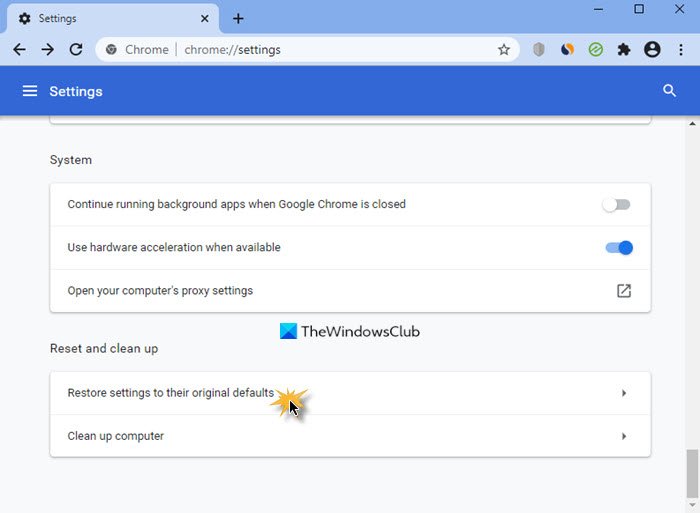
- Reset the browser settings to default
Let’s see all these fixes in detail.
1] Update the browser
Are you using the latest version of Chrome or Edge? Check this manually. If an update is available, install it and then check if the issue persists.
The following steps will help you update Microsoft Edge:
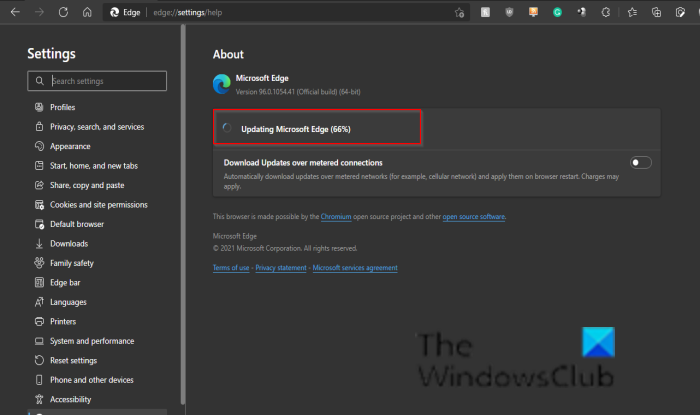
- Open Microsoft Edge.
- Click on the three dots on the top right side and go to “Help & feedback > About Microsoft Edge.”
- If an update is available, Edge will start downloading it automatically.
If Edge is up to date, you will see the Microsoft Edge is up to date message.
If you are a Chrome user, you can follow this post to update your Chrome browser.
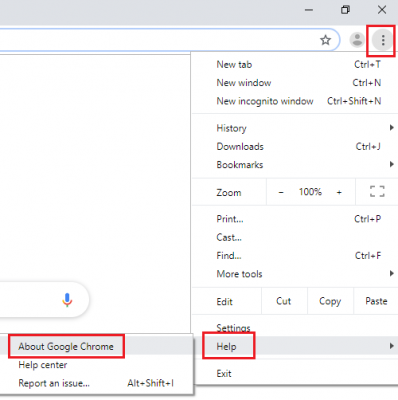
Related: YouTube not working on laptop
2] Disable Hardware Acceleration
Google Chrome and Microsoft Edge uses Hardware Acceleration when available. The Hardware Acceleration feature helps enhance the browser’s performance. It remains enabled by default. In some cases, it can cause issues. In such cases, disabling the Hardware Acceleration can help.
The steps to turn off hardware Acceleration in Edge are provided below:
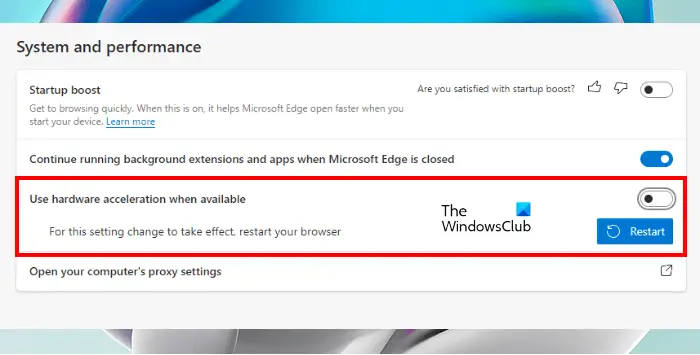
- Open Edge Settings. For this, type edge://settings in the address bar of Edge.
- Select the System and performance category from the left side.
- Turn off the switch next to the “Use hardware acceleration when available” option under the System section on the right side.
After performing the above steps, you have to restart Edge.
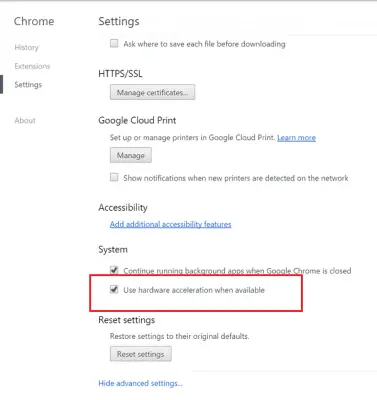
If you are a Chrome user, you can follow this post to disable hardware Acceleration in Chrome and check.
3] Play YouTube videos in Private mode
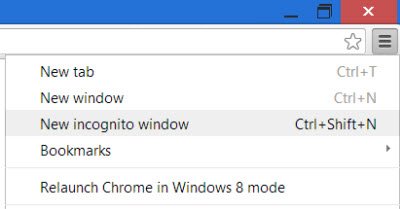
Do YouTube videos play smoothly in Edge InPrivate or Chrome Incognito mode or do you experience the same issue? Check this.
If YouTube videos do not lag in InPrivate mode in Edge, the cause of the problem may be either a corrupted cache or cookie or a bad extension. Press the Ctrl + Shift + N keys to open InPrivate mode in Edge.
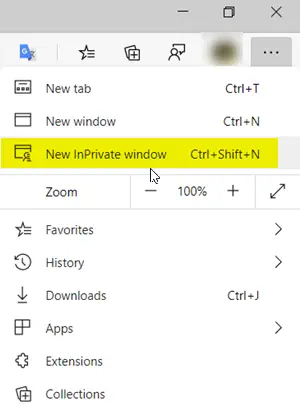
Exit InPrivate mode and clear cache and cookies. To do so, press the Ctrl + Shift + Delete keys. After clearing the cache and cookies, check if the issue persists.
If you are a Chrome user, you can follow this post launch Incognito Mode in Chrome and check.
Read: Improve YouTube Buffering, Performance & Speed
4] Disable your browser extensions
We also suggest disabling all your extensions in Edge or Chrome and then checking if it helps. If this resolves the issue, you will need to identify the problematic extension.
Type edge://extensions in the address bar of Edge to view all the installed extensions. Now, disable all the extensions and then play a video on YouTube. If the video does not lag, proceed toward the next step.
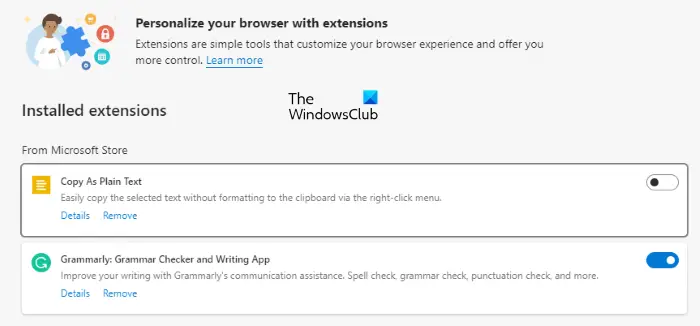
Now, turn on each extension one by one and see if the problem reappears in Edge. When the issue reappears in Edge after enabling an extension, the extension you have just enabled is likely the culprit. You can turn off that extension while playing YouTube videos or look for an alternative.
Chrome users can disable its extensions here.
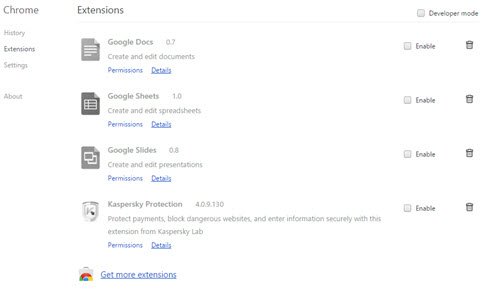
According to the reports, Ad Block extension was found to be the culprit of this issue.
Read: Fix YouTube slow loading & buffering issues
5] Remove YouTube-specific extensions
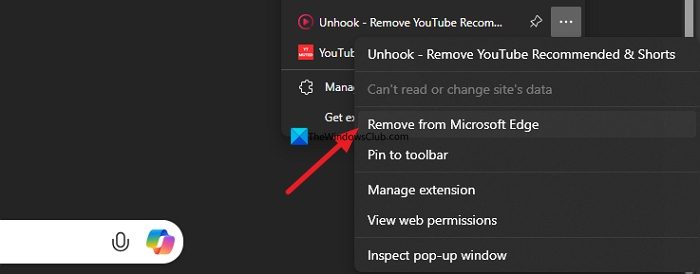
If you are still experiencing lagging and slow YouTube video (even while playing 1080p at 60fps), you need to remove extensions you have specifically installed on your browser to enhance the YouTube watching experience. These extensions interfere with YouTube’s backend processes in real-time, making it a resource-intensive task. Head to the toolbar and click the extensions icon. Find the extensions related to YouTube and remove them permanently, including Adblockers, which YouTube is actively cracking down on.
6] Play on local video players
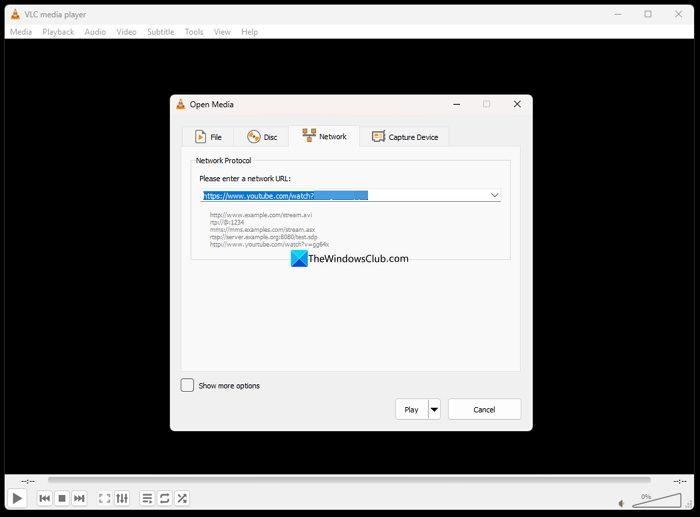
Most of the video players we install on Windows PC have the capabilities to stream YouTube videos. Open the local video player you have installed on your PC and play the video. If you have VLC media player installed on your PC, copy the video link in your browser, then open VLC media player and click Media > Open Network Stream. Paste the link to start playing the video.
7] Configure Proxy Settings
Turn off the Automatically detect settings option in your Proxy settings. This fix has helped some users. Maybe this will help you too. Go through the following instructions:
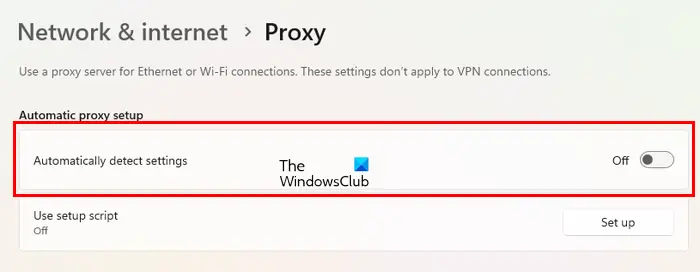
- Open Settings.
- Go to “Network & internet > Proxy.”
- Turn off the Automatically detect settings switch.
8] Reset the browser settings to default
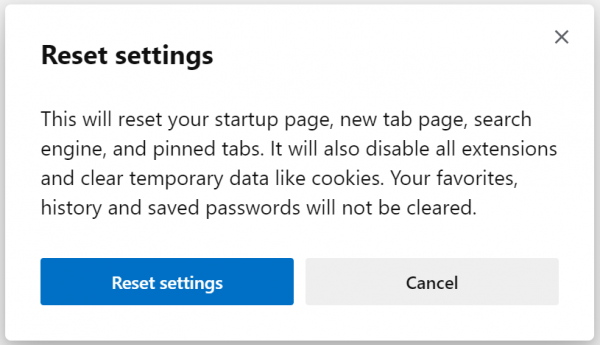
If the problem still persists, reset the Edge settings to default. After doing this, your startup page, new tab page, search engine, and pinned tabs will be reset to default and all your extensions will be disabled. This action will not delete your history, favorites, and saved passwords in Edge.
If you are a Chrome user, then this post will show you how to reset Chrome settings to default.
That’s it. I hope this helps.
TIP: This post will help if YouTube videos are not playing on Microsoft Edge
YouTube videos stuttering or lagging at 1080p 60fps on browsers
If YouTube videos stutter at 1080p 60fps, first check your internet speed and stability, as high-resolution videos need consistent bandwidth. You could disable hardware acceleration in your browser settings and see. You could also update your Display drivers, clear your browser cache and disable extensions like ad blockers.
Read: How to speed up Edge and make it load faster.
How do I clear my YouTube cache in Edge?
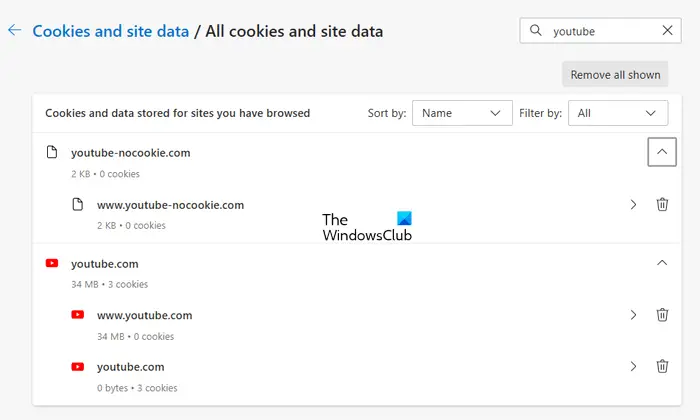
You can clear cache and cookies for specific websites in Edge. To do so, type edge://settings/siteData in the Edge address bar and then type YouTube in the search bar on the right side. After that, Edge should show all the YouTube-related cache and cookies. Now, click on the Remove all shown button.
Read: Video Stuttering and Lagging in Windows 11
Is it good to clear YouTube cache?
Web browsers save some information in the form of cache and cookies. This information helps load the same website faster when you visit it again. But sometimes, cache data gets corrupted which creates issues. Clearing the YouTube cache is completely safe. This action can help fix video loading or lagging issues on YouTube.
Read next: Edge Waiting for browser.events.data.msn.com.
