
Microsoft Edge offers a better experience than Google’s Chrome even though they both use the same Chromium engine. However, if it feels slow at times, especially when starting, these tips are sure to help you speed up Edge and make it load faster.
Speed up Edge and make it load faster
The tips we are talking about here are some of them general, while others have to do with experience. However, there is one rule of thumb. The more you customize it, especially those that result in extra connections when loading up, the slower it could become. The things you can do are:
- Enable Startup Boost in Microsoft Edge
- Make sure Proxy Settings are correct
- Disable or Delete unnecessary Extensions
- Stop Unwanted Tasks using Edge Task Manager
- Use Suspender Extension
- Optimize New Tab page Experience.
How to make Microsoft Edge faster in Windows 11
Before you begin, make sure you have a stable internet connection that is good enough to load websites.
1] Enable Startup Boost in Microsoft Edge
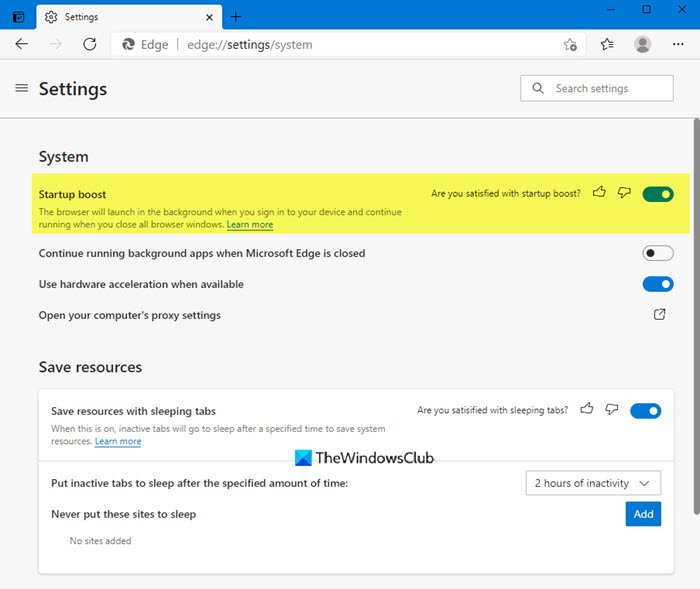
Use the Startup Boost feature in Microsoft Edge. It is sure to make your Edge browser open faster.
2] Make sure Proxy Settings are correct
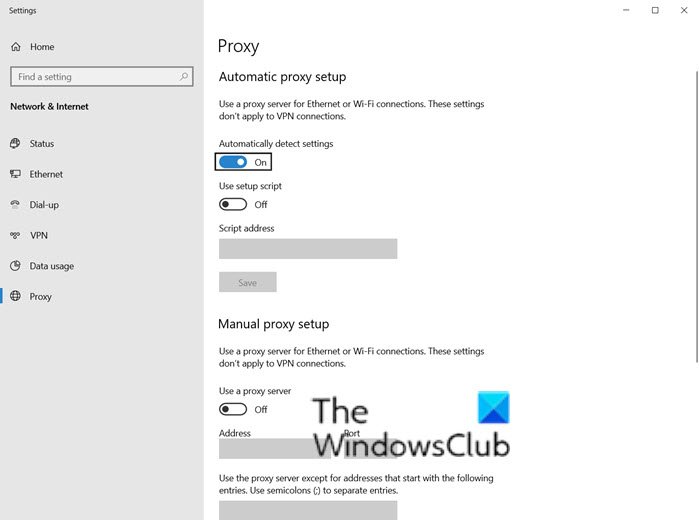
A lot of us need to use ProxyProxy to connect to an external network that could be work-related, or you just use it every day. While Edge, like any other browser, is configured to automatically detect, but if you have issues, you may have to manually configure it. It could be the other way round, as well. If the Proxy has issues, you will face loading issues i.e., slow loading website.
- Click on the three-dot menu and select Settings.
- Search proxy, and it will give you a link to Open Windows Proxy Settings, which is available under Network and Internet.
- Here you have two options:
- Automatic proxy setup
- Manual proxy setup
- Configure according to your current status, and then restart the computer
You can disable ntp.msn.com and optimize the proxy & other settings to make it load quickly.
You may also have to check with whoever gave you the Proxy details and find out if there is an issue on its side.
3] Disable or Delete unnecessary Extensions
Extensions or Add-ons in any browser help you get great features, and many services offer extensions so you can use them right in the browser. While they are great, too many of them can slow down, especially if they check for connection every time you launch the browser or a new tab. So take a look at your Edge extensions.
- Open a new tab in Edge, type
edge://extensions/and press the Enter key. - Take a look at all the extensions and see the on you need and the ones you don’t
- Uninstall whatever seems unnecessary.
Restart the browser, and see if that makes any difference.
4] Stop Unwanted Tasks using Edge Task Manager
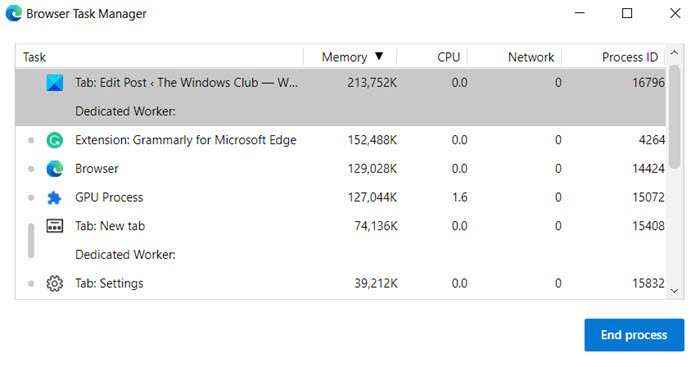
There are tasks in Chromium-based browsers, which you can also call as a Background process. Not all of them can slow down, as they are necessary, too. So you will have to judge for yourself what you can stop or kill.
- Click on the Edge menu > More tools >Browser Task Manager.
- Sort the list by memory usage and see if anything is consuming a lot of memory.
- Sometimes few open tabs can also be heavy on the browser and if you don’t need them, click on the End process to get rid of it.
Do note that any unsaved work in your task will be lost.
TIP: You can disable Efficiency Mode (Energy Saver) in Microsoft Edge. to make the browser faster.
5] Suspender Extensions
Extensions like The Great Suspender and Tab Suspender do a great job of keeping tabs that consume resources in the background in check. You can specify a URL that keeps running in the background, ensuring your work doesn’t get interrupted. You can install these Chrome extensions on Edge.
6] Optimize New Tab page Experience
Every time you press New Tab, it loads up a bunch of stuff, including the notorious connection to NTP.MSN.Com. On Edge, the new tab offers a lot of things, including news. You can either choose to disable the connection it calls out or reduce the number of items in the new tab.
Preload New Tab Page
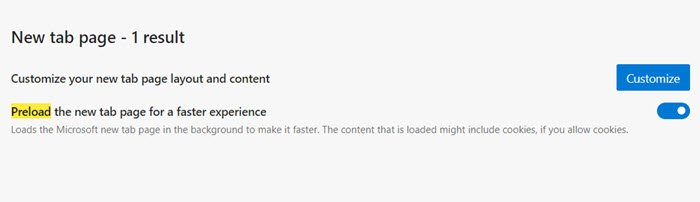
Open Edge Settings, and then search “Preload” and it will reveal the settings —Preload the new tab page for a faster experience. While it is turned on by default, make sure it is if you wish to keep the New tab the same way.
Customize New Tab
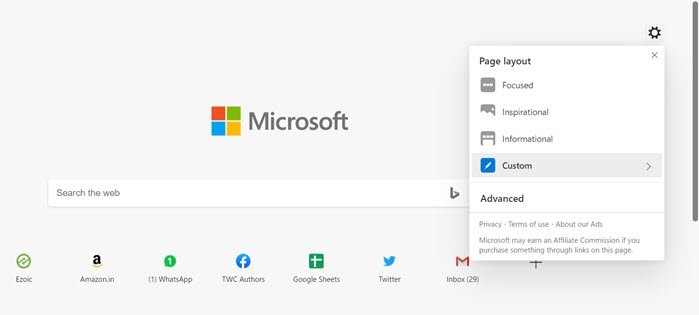
Open Edge Settings > New Tab > Customize. Switch to Focused mode, which will remove almost everything from the new page. You can also use the custom mode and choose what you want to show or hide.
Remove the experiences you do not need.
Disable or Replace ntp.msn.com
The exact URL, which is called every time you open a new tab, is ntp.msn.com. Unlike Google, Edge Chromium doesn’t offer any local page, which would load a lot faster. However, you can block the URL via the Host file. Follow our guide on how you can edit the Hosts file,
Do this and then navigate to edge://settings/onStartup and then add about:blank against Open a specific page or pages under On Startup settings.
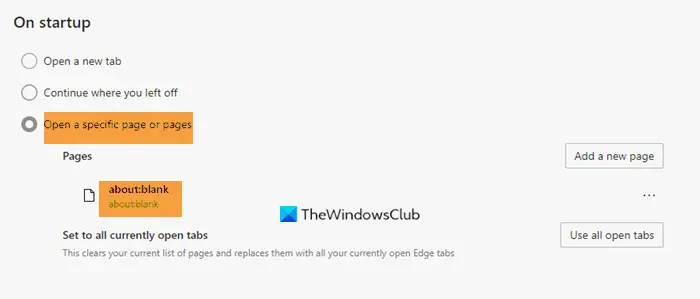
This will make Edge load instantly.
Note: When you add this entry to the Hosts file, the New Tab Customize Option may go missing.
That said, you can also use Group Policy.
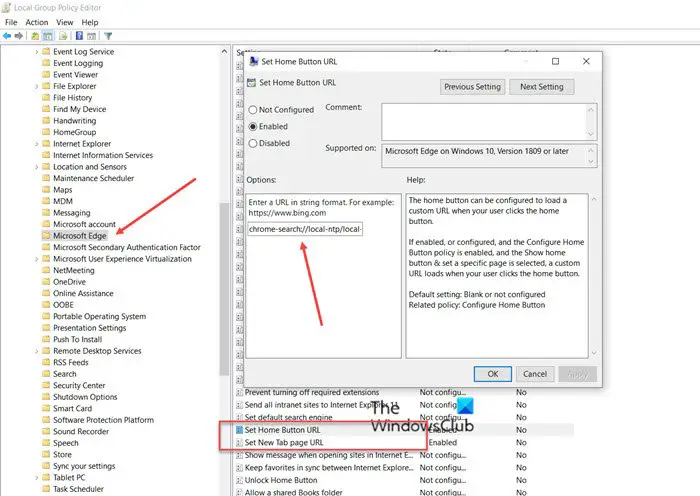
If you type chrome-search://local-ntp/local-ntp.html in the new tab, you should see a lighter home page.
You can set the URL as the default Home Page or New Tab page URL.
- Open Group Policy Editor. Type gpedit.msc in the Run prompt (Win + R) and press the Enter key.
- Navigate to
Administrative Templates > Windows Components > Microsoft Edge - Double click the following policies, Enable the policy and set the URL:
- Set Home Button URL
- Set New Tab page URL
Use the URL mentioned above, click Apply and Exit.
The other way is to Enable the Set New tab page URL policy and then Disable the Allow web content on New Tab Page policy. In this case, Microsoft Edge ignores any URL specified in this policy and opens about:blank.
More details on this can be found here on Microsoft.com.
The corresponding value is available here in the Registry:
- HKEY_CURRENT_USER
- Registry Path: Software\Policies\Microsoft\Edge
- Value Name: NewTabPageLocation
If it doesn’t work, you can always set any other URL to open.
Also read: Edge Waiting for browser.events.data.msn.com
I hope the post was easy to follow and that you had a better experience, faster loading times, and better speed with Microsoft Edge.
How to disable ntp.msn.com in Edge browser?
ntp.msn.com is a legitimate Microsoft domain used for news and network time synchronization. You can’t fully disable ntp.msn.com because it’s the Microsoft service that powers Edge’s default New Tab Page (NTP) with news, weather, and personalized content. However, you can stop Edge from loading MSN content by customizing the New Tab Page, setting Content to Off, making the Home page and New tabs open to blank pages, disabling News content or setting it to a blank/custom URL. If you want to disable ntp.msn.com completely, you will have to use Windows Firewall or the Hosts file, but this may break Edge’s New Tab Page and certain features.
