
If you are wondering why you see Your organization has set some policies to manage updates or You have opted in for the Windows Insider Program, in Windows 11/10 Settings, when you run Windows Update, then this post may be able to guide you. If your administrator has disabled Windows Update or there is corruption in the Automatic Update settings, you may see an error message.
- Your organization has set some policies to manage updates.
- You have opted for the Windows Insider Program.
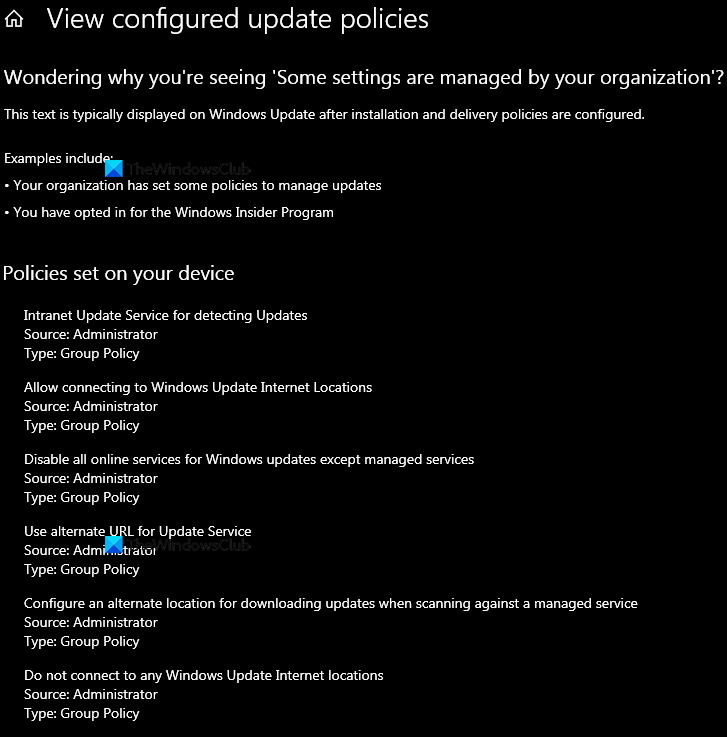
Your organization has set some policies to manage updates.
When you see this message, it means that your system administrator has configured these Windows Settings for your organization, and you will have to contact him/her.
The message also indicates that your system has been configured to receive Windows Insider Preview Builds.
But if you are the only user on your PC, or the Admin account user, here is what you can do to resolve the issue.
- Try a system restore operation to a prior good point.
- Reverse the changes by changing the Group Policy settings
- Try the suggestions from this post.
- Opt out of the Insider program
- Re-enable Windows Updates using one of these update tools
- Use the Cloud Reset/Reinstall option.
Before you begin, do remember to create a system restore point first.
1] Try a system restore operation to a prior good point
If this happened recently, trying a system restore operation to a prior good point could help.
2] Reverse the changes by changing the Group Policy settings
Open Group Policy Editor and change the status of the following settings to Not Configured.
- Intranet Update Service for detecting Updates
- Allow connecting to Windows Update Internet Locations
- Disable all online services for Windows Updates except managed services
- Use alternate URL for Update Services
- Configure an alternate location for downloading updates when scanning against a managed service
- Do not connect to any Windows Update Internet Locations
- Notify to download Updates
- Set Automatic Update options
Typically, you will see most of these settings here:
Computer Configuration > Administrative Templates > Windows Components > Windows Update.
But you can search Group Policy for specific GPO using these methods, or use this tool from Microsoft for finding the Group Policy settings.
These links have detailed suggestions to offer:
If you are using Windows Home edition, you won’t have the Local Group Policy Editor. You need to add the Local Group Policy Editor to your computer.
3] Try suggestions from these post
Some more information here that can help you –
4] Opt out of the Insider program
Check if you have signed for the Windows Insider Program; If this is not something you want, then you may opt out from the Insider program.
5] Re-enable Windows Updates using one of these Updates tools
You could try to re-enable Windows Updates using one of these Updates tools using the Disable/Enable button.
6] Use Cloud Reset/Reinstall option
If nothing helps using Cloud Reset/Reinstall option. This will reset/restore Windows files and settings to its original state by downloading files from the Microsoft servers.
All the best.
TIP: You can also use Microsoft Intune. With Intune, administrators can fix update policy issues by centrally managing Windows 11 devices. They can configure Windows Update for Business settings to control when and how updates are delivered, enforce compliance rules to ensure devices stay secure, and remove or adjust restrictive policies that block user updates.
Read: How to view Configured Windows Update Policies applied to your computer.
