
Firefox is my preferred browser. That said, with any browser, one is likely to encounter peculiar problems, and when this happens, troubleshooting is pretty tough. We need to understand that every browser has its own set of protocols and authentication checks that it applies to all websites. However, when something goes wrong, errors occur. “Your Connection is not secure” is one such error that will stop you from accessing the sites.
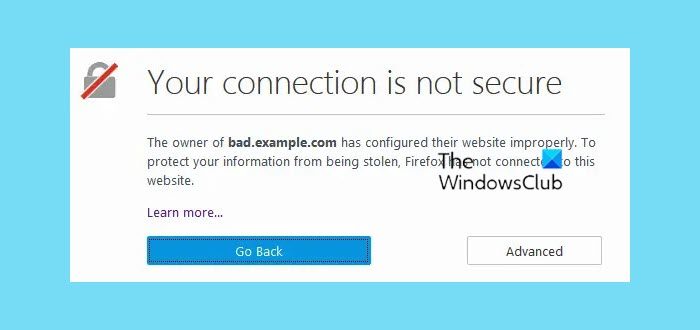
Your connection is not secure – Firefox
Usually, the URL begins with “https://,” and the website’s certificate provides sufficient evidence that the encryption is strong enough. But this error usually occurs when certificate validation is incomplete, and the encryption is not strong enough. It can also occur if any assets, such as fonts or images, used by the website are from a third-party source that starts with HTTP.
The best thing would be to hit “Go Back” button and try to contact the site owner. However, you can always override the warning and access the website, but at that point you should understand the consequences of using a vulnerable communication channel. If you intend to make some purchases its highly recommended not to use the website until the warning goes off.
Your Connection is not secure is one of the common problems on Firefox & in order to troubleshoot, we need to understand the type of connection errors like The certificate is only valid for site, SEC_ERROR_UNKNOWN_ISSUER, Corrupted certificate store, SEC_Error_Expired_Certificate, etc.
Let’s take a detailed look at the errors that usually crop up.
The certificate is only valid for (site name)
This error reflects the fact that the certificate you are currently viewing is for meant for another site. Identification error is often caused when you land from other sites but this issue should not persist when you try to visit the site directly.
SEC_ERROR_UNKNOWN_ISSUER
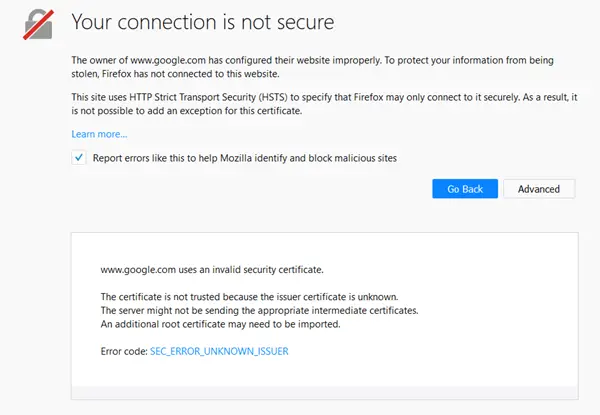
SEC_ERROR_UNKNOWN_ISSUER warning is actually an additional layer of security that is mostly enforced by the security software. You can resolve this issue by disabling the SSL scanning in your security software like Avast, Bitdefender, ESET, and Kaspersky.
The certificate is not trusted because it is self-signed. Peer’s Certificate issuer is not recognized.
A self-signed certificate might make you immune to third-party eavesdroppers, but it doesn’t ensure who the recipient of the data is. However, if you are trying to access an intranet network and you get this message, you may ignore it without giving it much of a thought.
Corrupted certificate store
The Corrupted certificate file error often crops up when the file is in your profile folder, the one which stores your cert9.db/cert8.db certificates have become corrupted. Delete this file and allow Firefox to regenerate it.
If the site has weak encryption, you will be shown an option to load the site with updated security in place. If the site certificate cannot be validated, you will be given the option to load the site with an exception. Be forewarned that legitimate sites will not ask you to bypass the certificate; if they do, it’s best to check whether it’s a phishing attempt or a fake site altogether.
Tip in Tip: See this post if you receive This site is not secure message in Firefox, Edge or Chrome.
SEC_Error_Expired_Certificate
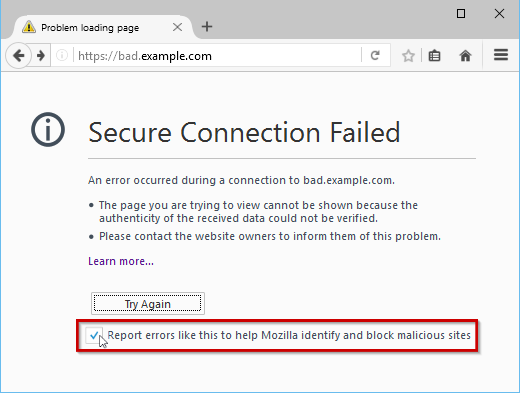
The error text will show you your system’s date and time, in case this is incorrect you can fix the problem by simply updating the same.
The certificate is not trusted because the issuer certificate is unknown
This happens when the server might not actually be sending intermediate certificates, and an additional root certificate might be needed for import.
How do I fix my Firefox connection is not secure?
If you are a regular visitor to a website that displays such an error message, there is almost nothing you can do to get rid of this problem. As this message appears due to an issue with the SSL certificate, you do not have many options. However, you can scan your PC for adware, and that is the most you can do.
How do I enable Secure connection in Firefox?
To enable a secure connection in the Firefox browser, you need to turn on the HTTPS-Only Mode. To do that, open the Settings panel in Firefox first. Then, switch to the Privacy & Security tab. Following that, scroll down to the bottom and choose the Enable HTTPS-Only Mode in all Windows option.
If your Firefox throws up a This connection is not secure, Logins entered here could be compromised message. You may have to disable Insecure password Login prompt. See this post if Firefox couldn’t load XPCOM in Windows.
Related read: How to troubleshoot Time related errors on secure websites for Firefox.
