
Microsoft 365’s encrypted email safeguards sensitive information, ensuring that only intended recipients can access the contents. However, it can lock legitimate users with a frustrating prompt saying You don’t have sufficient permissions to open this mail. In this article, we are going to see why this is happening and how you can resolve the issue.
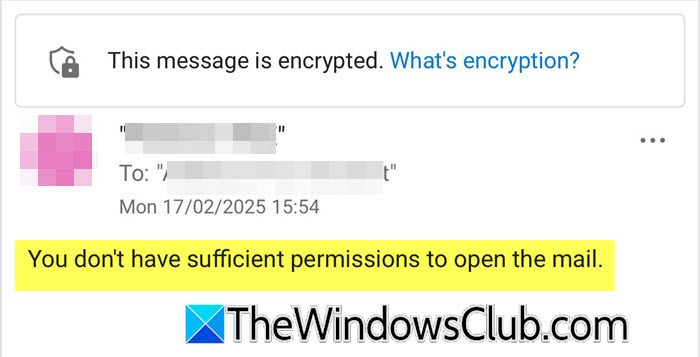
You don’t have sufficient permissions to open the Mail encrypted in Outlook
You may see this error because the Microsoft 365 encryption service cannot verify your identity or check if you have permission to view the message. This is not usually a bug; instead, it’s a security feature that helps prevent unauthorized access. The problem often happens when your login credentials don’t match what the encryption system expects. It can also occur due to issues with the client or browser you are using to open the email, or problems with your Microsoft 365 license that allows you to decrypt messages.
If you get a message saying You don’t have sufficient permissions to open the Mail in Outlook or Microsoft 365, follow the solutions mentioned below.
- Sing Out and Sign Back into your Microsoft Account
- Switch the Email Client
- Configure Outlook Encoding
- Configure License Eligibility
- Clear the Local Outlook Cache (Desktop)
- Check the Sender’s Encryption Template (For Senders)
Let us talk about them in detail.
1] Sign Out and Sign Back into your Microsoft Account
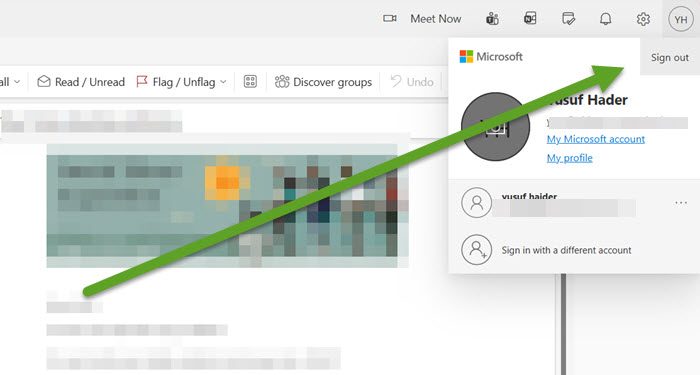
Signing out and then back in refreshes your security token with Microsoft’s servers. A new, valid token allows the encryption service to correctly authenticate you and grant the necessary permissions to decrypt the message. You can follow the steps mentioned below to do the same.
- First of all, completely sign out of your Microsoft 365 account in your web browser (e.g., Outlook on the web). Close all Microsoft-related tabs.
- Clear your browser’s cache and cookies. This ensures no old, conflicting data is stored.
- Fully close your web browser.
- Reopen the browser, navigate to Outlook on the web (or wherever you access the email), and sign in again.
Now, try opening the encrypted email again.
2] Switch the Email Client
If the error occurs in your desktop Outlook, try opening the same encrypted message in Outlook on the web (OWA) at office.com. Conversely, if it fails in the browser, try opening it in the desktop app. This helps determine if the problem is isolated to one client. If switching clients doesn’t work, try a different web browser altogether (e.g., from Chrome to Edge or Firefox).
This isolates the problem. If the email opens in one environment but not another, the fault lies with the original client’s configuration or extensions. Opening it in Outlook on the web often bypasses local client issues.
3] Configure Outlook Encoding
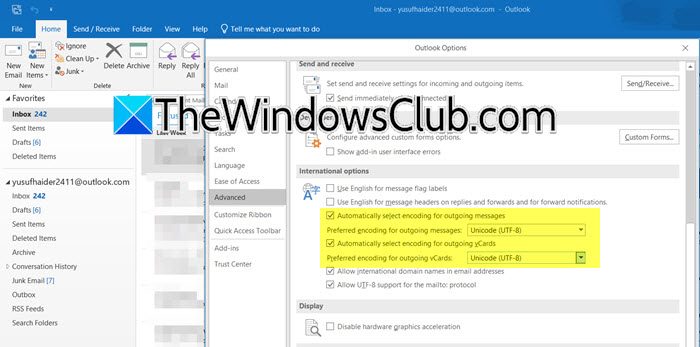
We need to ensure your client communicates with the encryption service using standard character encoding to prevent authentication conflicts. This setting ensures your Outlook client uses a universal standard for encoding, which can prevent misinterpretation of the encrypted message’s properties.
Follow the steps below to do the same.
- In Outlook Desktop (Classic), go to File > Options.
- Go to Advanced.
- In the International options section, check the box for Automatically select encoding for outgoing messages.
- Also, set the preferred encoding for both outgoing and incoming messages to Unicode (UTF-8).
Finally, check if the issue is resolved.
4] Confirm License Eligibility
Decryption of emails requires a specific license. If your account does not have the appropriate license, you will be denied access. To use this feature, your user account in the Microsoft 365 admin center must be assigned a license that includes Microsoft Purview Message Encryption. Common licenses that qualify include Microsoft 365 E3, E5, and Office 365 A3 or higher.
5] Clear the Local Outlook Cache (Desktop)
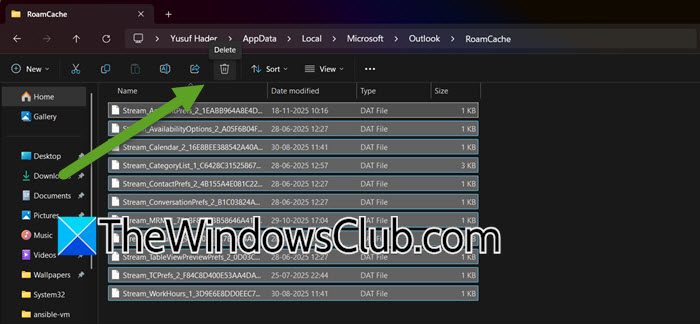
A corrupted local cache in the desktop client can cause this issue. Therefore, to resolve this issue, we need to go ahead and clear the Local Outlook cache. You can follow the steps mentioned below to do the same.
- Open Task Manager, look for Outlook, right-click on it, and select End Task.
- Go to %localappdata%\Microsoft\Outlook in the File Explorer.
- Delete the contents of the RoamCache folder.
- Now, open Outlook.
Finally, check if the issue is resolved.
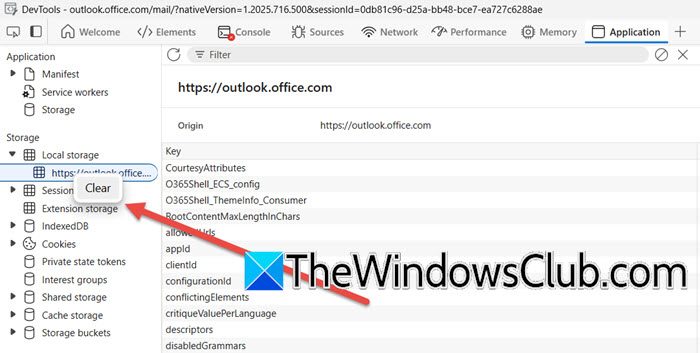
If you use Outlook New, you can run olk.exe --devtools command in Run (Win + R) to open it with developer tools enabled. This feature enables advanced troubleshooting and provides options such as clearing the cache or inspecting elements in the Outlook environment.
In the DevTools window, click the Application button on the toolbar. To clear cookies, expand the Cookies section in the left pane, right-click on https://outlook.office.com, and select Clear. In the left pane, expand Local storage (under Storage) and find the link https://outlook.office.com. Right-click on this link and select Clear.
6] Check the Sender’s Encryption Template (For Senders)
If you are the one sending encrypted emails and recipients are reporting this error, the problem may lie with the permissions template applied to the message.
When composing an email in Outlook on the web or in the Outlook desktop app, click on the Encrypt button. Review the different encryption options available. Avoid using highly restrictive templates, such as Do Not Forward, unless absolutely necessary, as these can often create issues for external recipients. For the best compatibility, select the standard Encrypt option, which allows the recipient to view the message without any additional restrictions. If the recipient is external, be sure to double-check that you have entered their email address correctly.
Using a less restrictive encryption template allows the recipient to authenticate just with their email address, avoiding complex permission criteria that can easily fail. This helps prevent issues in future communications.
That’s it!
Read: What is Email encryption & how do you encrypt email messages
Why is Outlook not letting me open encrypted emails?
Outlook typically blocks access to encrypted emails due to an authentication failure. A corrupted local cache, an expired sign-in token, or a missing Microsoft 365 license with decryption rights can cause this. The security service cannot verify your permissions, triggering the “insufficient permissions” error.
Read: Microsoft Outlook cannot sign or encrypt this message
How do I grant permission to Encrypt an email in Outlook?
To encrypt a single email, simply click the Protect or Encrypt button in the toolbar of a new message window before sending. To grant broader permissions for your entire organization, an IT administrator must assign a Microsoft 365 license that includes Microsoft Purview Message Encryption and configure the desired encryption policies within the admin center.
Also Read: Encrypt Emails in Microsoft Outlook app and Outlook.com.
