
If you cannot preview Word or Excel files in Explorer, but you can preview other text or image files, then this post will help you fix the problem. If the Word or Excel file preview is not working in Explorer, follow the steps below.
Why can’t I preview Word documents in File Explorer?
You may not be able to preview Word or Excel files in File Explorer due to a few common issues. Files stored on network drives are often blocked by Windows or Office due to security rules, especially if Protected View is active. The preview feature also relies on special components that can break or become unavailable after updates. If Office isn’t set as the default app for these files, or if preview settings are turned off, this can also cause problems. The Microsoft Store version of Office sometimes fails to register preview tools properly, and broken installations exacerbate the issue. Registry errors and slow network speeds can also prevent previews from working or cause them to appear blank.
Word or Excel file preview not working in Explorer
If Word or Excel file preview is not working in Explorer, follow the solutions mentioned below.
- Add Network Location to Office Trusted Locations
- Repair Office Installation
- Manually Register Preview Handler via Registry
- Adjust Office Protected View Settings
- Enable Preview Pane for File Explorer
Let us talk about them in detail.
1] Add Network Location to Office Trusted Locations
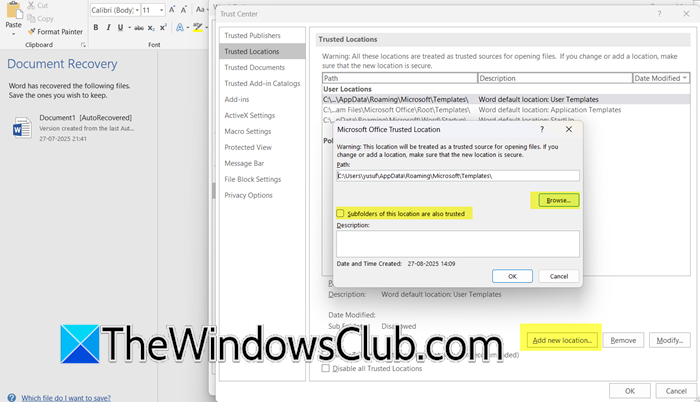
Office’s Protected View security feature prevents previews for files from untrusted network locations. By adding the network path to Trusted Locations, you exempt it from this security check, allowing the preview handler to work as intended. To add a Network Location to Office Trusted Locations, follow the steps below.
- First of all, open Excel or Word.
- Now, go to File > Options.
- Click on Trust Center > Trust Center Settings.
- Go to Trusted Locations
- Click Add new location, browse to the network folder (e.g., \\NAS\Share), and select Subfolders of this location are also trusted.
- Restart File Explorer and test previews.
This resolves issues for files on NAS devices by exempting them from security blocks.
2] Repair Office Installation

A corrupted Office installation can break or misregister the specific components (preview handlers) needed to generate file previews. Running a repair replaces damaged files and correctly registers these components with Windows. This restores the essential link between File Explorer and your Office applications, allowing the preview pane to function again. To repair the Office installation, follow the steps mentioned below.
- Launch Settings by Win + I.
- Go to Apps > Installed apps.
- Search for “Office”, once you see the Office installation, click on the three dots, and select Modify.
- Select Quick Repair or Online Repair
- Once the process starts and completes, restart your computer.
Finally, check if the issue is resolved.
3] Manually Register Preview Handlers via Registry
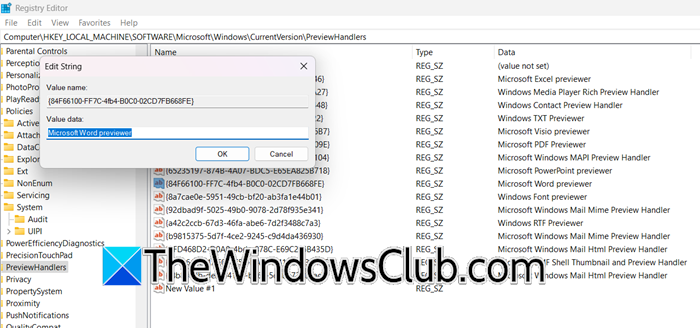
Windows relies on specific registry entries to associate file types with their corresponding preview handlers. If these entries are missing or corrupted, Explorer cannot find the necessary components to generate a preview. Manually adding these keys ensures that Windows properly associates Office files with their respective previewers. We will make some changes to the registry to achieve the same goal. However, first create a registry backup and then follow the steps mentioned below.
- Open Registry Editor from the Start Search Menu.
- Now, go to the following location.
HKEY_LOCAL_MACHINE\SOFTWARE\Microsoft\Windows\CurrentVersion\PreviewHandlers
- Look for {84F66100-FF7C-4fb4-B0C0-02CD7FB668FE} in the right pane.
- If it is not available, right-click on the right pane and select New > String Value, name it {84F66100-FF7C-4fb4-B0C0-02CD7FB668FE}, and set its value to Microsoft Word Previewer.
- For Excel, {00020827-0000-0000-C000-000000000046} should be the key name, and Microsoft Excel Previewer.
Finally, exit Registry Editor and reboot your computer.
Read: File Explorer Navigation Pane missing in Windows 11
4] Adjust Office Protected View Settings

The Protected View security feature treats files from networks or the internet as potentially unsafe, blocking all active content, including preview generation. Disabling this feature for those locations removes the security barrier that prevents the file from being fully read. This allows the Windows preview pane to access the file’s content and display it normally. Follow the steps mentioned below to adjust Office Protected View settings.
- Open Word or Excel.
- Navigate to File > Options.
- Go to Trust Center > Trust Center Settings > Protected View.
- Uncheck Enable Protected View for files originating on the Internet and Enable Protected View for files located in potentially unsafe locations.
- Click Ok and restart Office apps.
Finally, check if the issue is resolved.
5] Enable Preview Pane for the File Handler folder
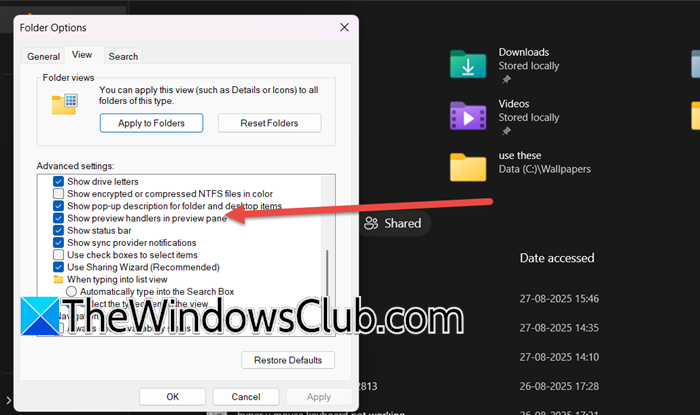
The preview pane requires these specific settings to be enabled to function. The first option activates the underlying handlers that generate previews, while the second ensures Explorer displays actual file content instead of just application icons. Correcting these settings removes the configuration block that was preventing the preview from loading.
- Launch File Explorer.
- Click on the three dots and click on Options.
- Go to the View tab and ensure Show preview handlers in preview pane is checked, and Always show icons, never thumbnails is unchecked.
- Click Apply.
Finally, check if the issue is resolved.
Hopefully, with the help of these solutions, you will be able to resolve the issue.
Read: Enable or Disable Thumbnails in Explorer in Windows 11
Why is Preview not working in File Explorer?
The Preview pane in File Explorer may not work due to incorrect settings, a corrupted thumbnail cache, or issues with preview handlers. This can often be resolved by ensuring the preview pane and preview handlers are enabled in Folder Options, clearing the thumbnail cache, or repairing specific preview handlers for certain file types. You can check our guide to know what to do when the File Explorer preview is not working.
Also Read: Enable or Disable Thumbnails in Explorer in Windows 11.
