
If you see the message Windows was unable to create a required installation folder, Error 0x8030002F during Windows installation or upgrade process, then this post will be able to help you resolve the issue. You need to follow all these solutions one after another to get rid of this problem.
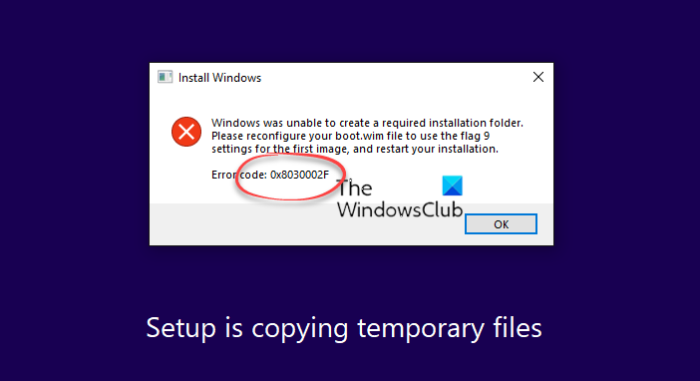
The entire error message says:
Windows was unable to create a required installation folder, Please reconfigure your boot.wim file to use the flag 9 setting for the first image, and restart your installation, Error Code 0x8030002F.
Fix Error 0x8030002F, Windows was unable to create a required installation folder
To fix Windows was unable to create a required installation folder error, follow these steps:
- Rebuild BCD
- Re-create installation media
- Run CHKDSK
- Disable security software
- Unplug external devices
To learn more about these steps, continue reading.
1] Rebuild BCD
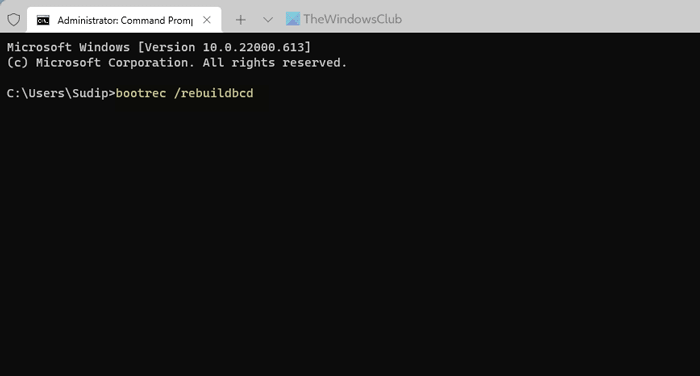
The first thing you need to do in order to fix the Windows was unable to create a required installation folder error while installing Windows 11 or Windows 10 is to rebuild BCD or Boot Configuration Data.. As BCD (Boot Configuration Data is a kind of database that stores boot-time configuration data, if it gets corrupted, you won’t be able to continue the installation. Therefore, it is better to rebuild the BCD to eliminate this problem. For that, you need to use this command: bootrec /rebuildbcd.
2] Re-create installation media
If you are using a customized version of the Windows 11/10 ISO, you may encounter this error. Therefore, it is better to re-create the installation media and try again. You can follow this guide to download the ISO from the official website and create the Windows bootable installation media.
3] Run CHKDSK
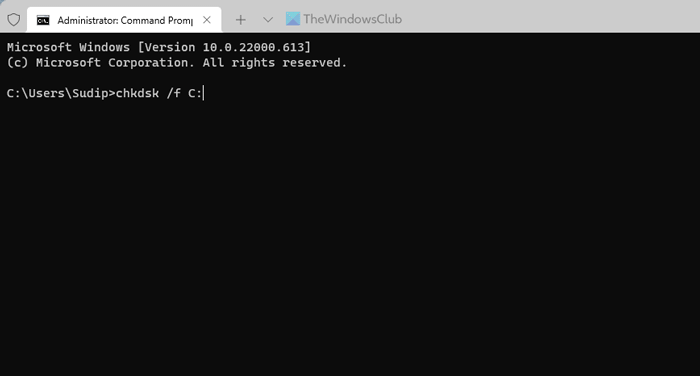
This problem might occur when you have a corrupted hard drive, or there are some issues on your hard disk. If so, chkdsk is probably the best way to get rid of that problem. However, you need to run this utility via Command Prompt. To use chkdsk using Command Prompt, follow this guide.
4] Disable security software
At times, additional security software could cause this issue on your computer. If you recently installed a security shield on your PC and the error started occurring after that, it is recommended to disable the security software. It could be an antivirus, adware removal tool, firewall software, app blocker, etc.
5] Unplug external devices
If you have plugged in multiple external devices, such as a USB drive, USB cable, external hard drive, Ethernet adapter or Wi-Fi adapter, it is recommended to disconnect all but the required one. There may be times when those devices could create a conflict during the operating system installation. If that happens, there is a chance of getting the aforementioned error message. If so, you can troubleshoot the issue by unplugging all the external devices from your computer.
Related: Windows was unable to locate required install file boot.wim.
How do I fix error code 0x8030002F?
To fix error code 0x8030002F on Windows 11/10, follow the aforementioned tips and tricks. You need to start troubleshooting by unplugging all external devices and disabling any external security software you installed. Following that, you must reconfigure the Boot Configuration Data.
How do I fix Windows was unable to create a required installation directory?
To fix “Windows was unable to create a required installation directory or folder,” you can try the above-mentioned solutions. You need to rebuild the Boot Configuration Data on your computer, which you can do using Command Prompt. If that doesn’t resolve the issue, you might need to re-create the installation media and restart the installation process.
