
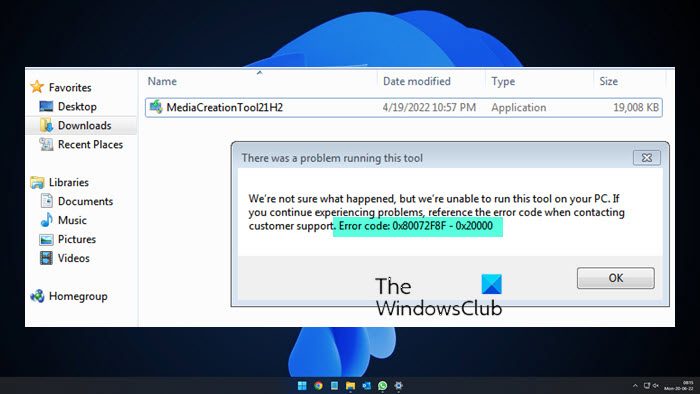
Many Windows users can’t upgrade their Windows Operating System using the Media Creation Tool. When they run the application, the following error pops up.
There was a problem running this tool
We’re not sure what happened, but we’re unable to run this tool on your PC. If you continue experiencing problems, reference the error code when contacting customer support, Error code: 0x80072F8F – 0x20000
In this post, we will be talking about the 0x80072F8F – 0x20000 Windows Upgrade error and see what you can do to resolve it.
What does Error Code 0x80072f8f 0x20000 mean?
Error Code 0x80072f8f 0x20000 is a Media Creation Tool error and it appears when a user tries to run the tool to upgrade their OS. It can happen for various reasons: it may be a glitch that resolves with a restart, or the tool may require administrative privileges or need to be unblocked.
You may also see this error code if TLS, or the Transport Layer Security protocol, is disabled. It is a security protocol and is used to designate encrypted connections to send data into the applications over the network.
Other reasons include a misconfigured registry, corrupted temporary files, etc. Let us go to the troubleshooting guide to resolve this issue.
Fix 0x80072F8F – 0x20000 Windows Upgrade error
If you are facing Fix 0x80072F8F – 0x20000 Windows Upgrade error, try the following solutions.
- Run the Media Creation Tool as an administrator
- Unblock Media Creation Tool
- Move Media Creation Tool to the Desktop and try
- Delete Software Distribution Folder
- Edit Registry
- Enable TLS
- Troubleshoot in Clean Boot
Let us talk about them in detail.
1] Run the Media Creation Tool as an administrator
Let us start by running the Media Creation Tool as an administrator. Just right-click on the tool and then select Run as administrator. You will see a UAC box asking you to confirm your action, so, click on Ok. Now, you can just use the tool normally and upgrade.
2] Unblock Media Creation Tool
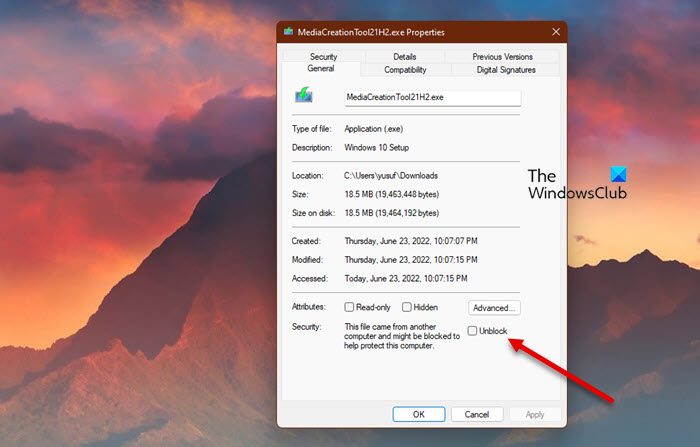
Some users resolved the issue by unblocking the Media Creation Tool. Try the same and see if it works for you. Follow the prescribed steps to unblock the Media Creation Tool.
- Right-click on the Media Creation Tool and select Properties.
- Make sure you are on the General tab and tick Unblock.
- Click Apply > Ok.
Now, try running the tool and see if that helps.
3] Move Media Creation Tool to the Desktop and try
For some users, the solution was as simple as moving the downloaded Media Creation Tool to the Desktop. You can try this too, since it won’t take much time. Right-click the Media Creation Tool and select Copy, then go to your Desktop and press Ctrl + V to paste the file. Or, drag the tool from your File Explorer to the Desktop in the right panel. This will do the job for you.
4] Delete Software Distribution Folder
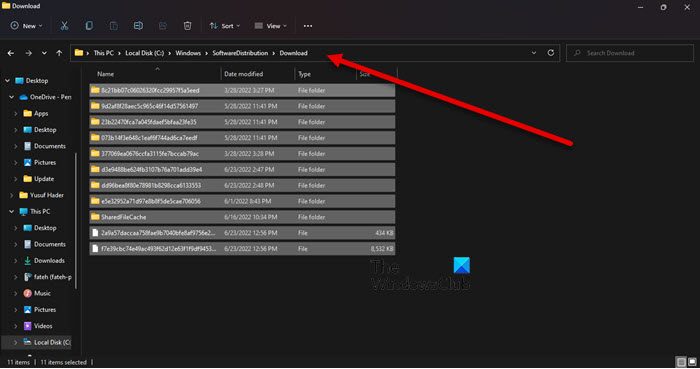
The Software Distribution Folder contains temporary files that can interfere with the process and cause the error code in question. We’ll clear the contents of that folder and see if that works.
First of all, open Command Prompt as an administrator and run the following command.
net stop wuauserv
net stop bits
Now browse to the C:\Windows\SoftwareDistribution\Download folder and delete all the files and folders inside. Press Ctrl + A to select all content, then press Ctrl + D to delete it.
Now in the Command Prompt window, type the following commands one at a time, and hit Enter:
net start wuauserv
net start bits
Finally, execute the following command.
wuauclt.exe /updatenow
Now, you can restart your computer and run the Media Creation Tool. Hopefully, it will work this time.
5] Edit Registry
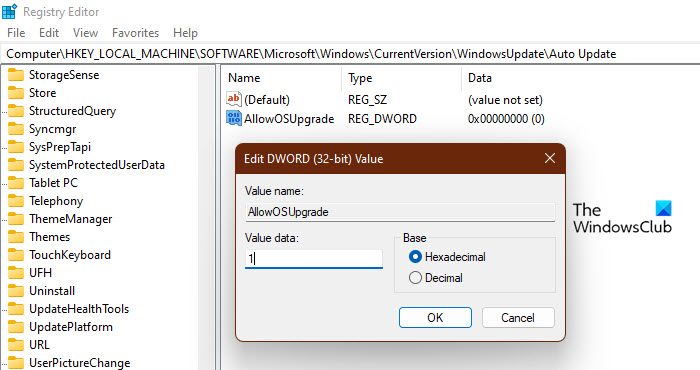
If clearing the SoftwareDistribution folder didn’t work, edit the registry to see if that helps. For some users, a misconfigured Registry Editor caused the issue, and the following steps fixed it.
Open Registry Editor by searching it out of the Start Menu.
Navigate to the following location.
Computer\HKEY_LOCAL_MACHINE\SOFTWARE\Microsoft\Windows\CurrentVersion\WindowsUpdate\Auto Update
Right-click on the empty space, and select New > DWORD (32-bit) Value.
Name it AllowOSUpgrade and set the Value data to 1.
Save the changes by clicking Ok.
Finally, restart your computer and try running Media Creation Tool. Hopefully, this time, you will be able to upgrade.
6] Enable TLS
TLS or Transport Layer Security is protocol and it is necessary to run the tool. If the protocol is disabled, you may see the error code in question when trying to upgrade your OS with Media Creation Tool. So, let’s enable it and see if that helps.
Before moving forward, you should make a backup of your Registry if something goes wrong. Once registries are backed up, open Notepad and paste the following content.
Windows Registry Editor Version 5.00

[HKEY_LOCAL_MACHINE\SOFTWARE\Microsoft\Windows\CurrentVersion\Internet Settings\WinHttp]
"DefaultSecureProtocols"=dword:00000a00

[HKEY_LOCAL_MACHINE\SOFTWARE\Wow6432Node\Microsoft\Windows\CurrentVersion\Internet Settings\WinHttp]
"DefaultSecureProtocols"=dword:00000a00

[HKEY_LOCAL_MACHINE\SYSTEM\CurrentControlSet\Control\SecurityProviders\SCHANNEL\Protocols\TLS 1.1\Client]
"DisabledByDefault"=dword:00000000
"Enabled"=dword:00000001

[HKEY_LOCAL_MACHINE\SYSTEM\CurrentControlSet\Control\SecurityProviders\SCHANNEL\Protocols\TLS 1.2\Client]
"DisabledByDefault"=dword:00000000
"Enabled"=dword:00000001
Now, save the file with any name, but make sure to add .reg as the extension. It is better to save the file on the desktop and with an easy-to-remember name for easy access.
Finally, double-click on the file from the Desktop, and the registry will be added.
The only thing left now is to restart your computer and use the Media Creation tool.
6] Troubleshoot in Clean Boot
If nothing works, then we are going to perform Clean Boot. This will stop all other processes and run only this one. So, perform Clean Boot and manually enable processes. Once you identify the cause, you can remove it and resolve the issue.
Hopefully, you can now use the Media Creation Tool to upgrade your PC.
Similar: Fix 0x80072F8F Windows Update, Activation and Microsoft Store Error
How do I fix error 0x80072f8f?
You can fix the Media Creation error code 0x80072f8f using the solutions mentioned here. But there are some other errors with the same code. You can check our guide on how to resolve the 0x80072F8F errors for Windows Update, Activation, and Microsoft Store. We have solutions that will fix your error easily.
Also Read: Windows Media Creation Tool not working.
