
If Windows Update Standalone Installer is stuck on Searching for updates on this computer, or Preparing the installation, this post will help you resolve the issue.
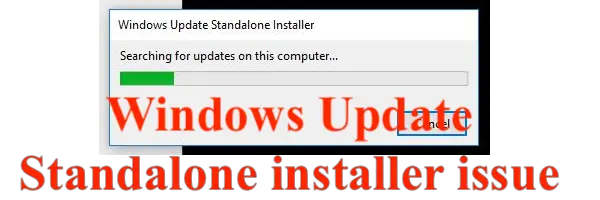
Many a time, we download a standalone installer directly from Microsoft. It’s faster, and even though it’s not completely offline, it is better. That said, I won’t be surprised if you get stuck with that too. Sometimes installers have dependencies, so they end up searching for a related update. That’s where you encounter the issue of the Windows Update Standalone Installer getting stuck.
Windows Update Standalone Installer stuck and taking a long time
These suggestions will help you if the Windows Update Standalone Installer is stuck on Searching for updates on this computer, or Preparing the installation.
- Try in Clean Boot State
- Install the Latest Servicing Stack Update (SSU)
- Clear the SoftwareDistribution folder contents
- Troubleshoot Windows Installer Service.
- Download Update Manually
- Reset Windows Update components
- Use WSUS tool for offline update
Make sure to follow the steps in the mentioned sequence.
1] Try in Clean Boot State
Perform a Clean Boot and then try. See if this helps.
2] Install the Latest Servicing Stack Update (SSU)
Microsoft recommends applying the latest SSU for your Windows version before you proceed.
3] Clear the SoftwareDistribution folder contents
Clear the contents of the SoftwareDistribution folder and then try again.
4] Troubleshoot Windows Installer Service
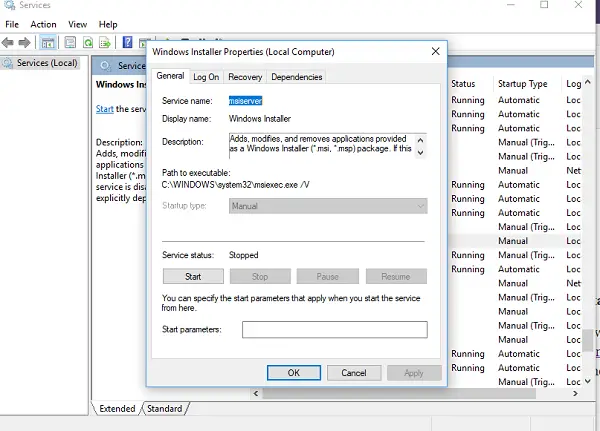
Windows Installer service of MSI is solely responsible for installing anything on Windows including updates. So if the standalone installer fails, there’s likely an issue with the installer service. Read our guide on what steps you should take to fix the Microsoft Installer (MSI) application if it keeps failing.
Read: Windows Update Standalone Installer Error
5] Download the Update manually
If the problem is with a particular update, you can try downloading it from the Microsoft website and then installing it on your computer. Here is our full guide on how to update manually. It will work because the updater already has the file, and there is no need to search for the update.
6] Reset Windows Update components
Reset the Windows Update components and then try again.
7] Use WSUS Offline Update Tool
WSUS Offline Update is a free tool you can use to update Microsoft Windows or Microsoft Office without an Internet connection. There is a bit of a learning curve if you are using it for the first time, but once you get the hang of it, you will use it often. A similar tool Enterprise users can consider is ManageEngine WSUS.
Read: How to update Windows and Office without Internet connection
We hope these solutions and workarounds help to resolve the issue.
Related: Windows Update Standalone Installer Error 0x80096002 or 0x8007000d.
Windows Update Standalone Installer stuck on Searching for updates on this computer
If the Windows Update Standalone Installer is stuck on Searching for updates on this computer, install the Latest Servicing Stack Update (SSU), clear the SoftwareDistribution folder contents, and make sure the Windows Installer Service and Windows Update related services are started and running. The solutions mentioned in this post will help you further.
Related: Windows Update Standalone Installer stuck on Copying packages to the Windows Update cache
Windows Update Standalone Installer stuck on Preparing the installation
If the Windows Update Standalone Installer is stuck on Preparing the installation, restart your PC and try again. If it does not help, clear the contents of the Software Distribution folder, ensure a stable internet and sufficient disk space and then try again.
Related: The update is not applicable to your computer: Windows Update Standalone Installer.
