
Microsoft regularly pushes updates to its supported versions of Windows to improve them and defend them against various vulnerabilities. Pushing fixes to billions of active Windows devices every now and then is no easy task. This calls in for a complex Windows Update delivery module. The complexity can lead to errors such as error code 0x80004005.
There were problems installing some updates, but we’ll try again later. If you keep seeing this and want to search the web or contact support for information, this may help: 0x80004005.
This error occurs during either the download or installation of an update. In this article today, we will explore how to get rid of this issue.
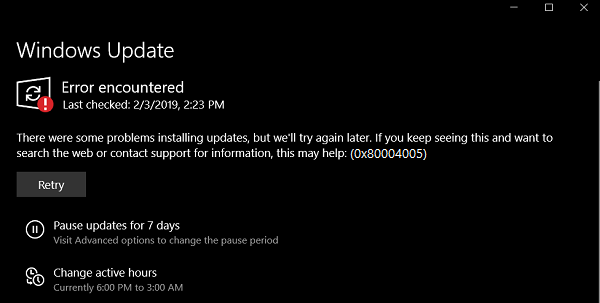
Fix Windows Update error 0x80004005
We will be undertaking the following potential fixes to get rid of error 0x80004005 for Windows Updates-
- Replace the dpcdll.dll file.
- Use Windows Update Troubleshooter.
- Reset Windows Update related folders.
- Download the Update manually.
1] Replace the dpcdll.dllfile
The dpcdll.dll file is located on this path-
- For x86: C:\Windows\System32.
- For x64: C:\Windows\SysWOW64.
You have to replace this system file. In order to do that, you need to get a good copy of this dpcdll.dll file from another computer with the same file version number.
Then, you need to boot into Safe Mode. After that, navigate to the path mentioned above and replace the file using a USB Drive or other external storage device.
Next, open Command Prompt by searching for cmd in the Cortana search box and run it with Administrator level privileges.
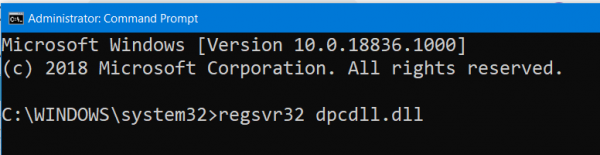
Type in the following command and hit the Enter key-
regsvr32 dpcdll.dll
Reboot your computer for the changes to take effect.
2] Use Windows Update Troubleshooter
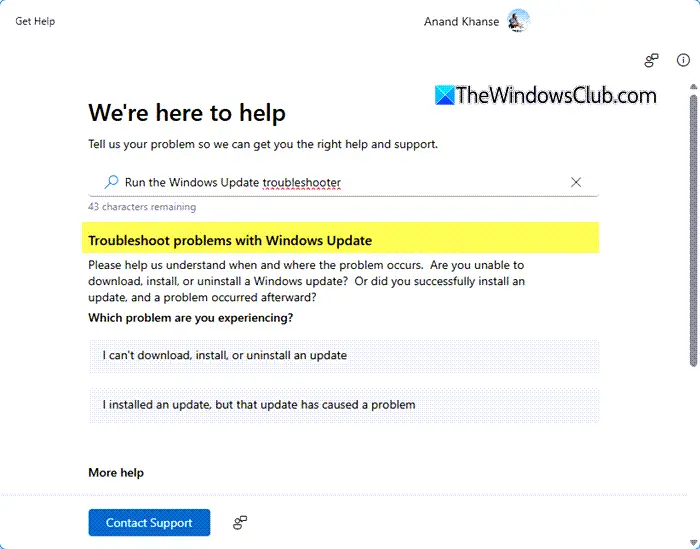
You can run the Windows Update Troubleshooter and check if that is any help in fixing any of your issues.
3] Reset Windows Update related folders
You need to delete the contents of the SoftwareDistribution folder & reset the Catroot2 folder.
4] Download the Update Manually
If it’s not a feature update, and only a cumulative update, you can manually download and install the Windows Update. To find which update has failed to follow the steps:
- Go to Settings > Update and Security > View Update History
- Check which particular update has failed. Updates that have failed to install will display Failed under the Status column.
- Next, go to Microsoft Download Center, and search for that update using the KB number.
- Once you find it, download, and install it manually.
You could use Microsoft Update Catalog, a service from Microsoft that provides a listing of software updates that can be distributed over a corporate network. The Microsoft Update Catalog can be a one-stop location for finding Microsoft software updates, drivers, and hotfixes.
Hope this helps.
