
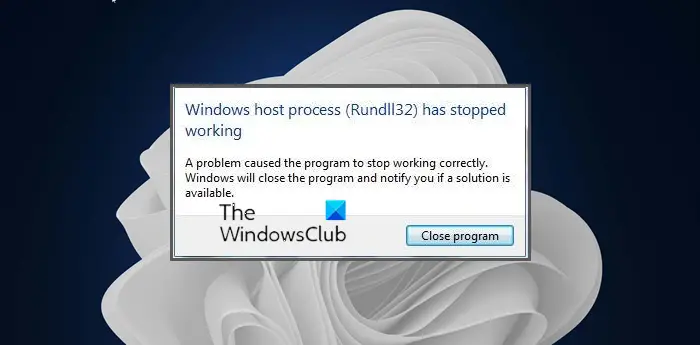
This post will help you fix Rundll32.exe error in Windows 11/10. If you get error message Windows Host Process Rundll32 has stopped working read on!
Rundll32.exe is a process that loads DLLs and places their libraries in memory so applications can use them more efficiently. This program is important for the stable and secure running of your computer and should not be terminated or deleted. If you delete it, you will encounter issues while running some applications on your system. Check and ensure that the particular rundll.exe is situated in the WinSxS, System32 or SysWOW64 folders. If so, it is the legitimate Microsoft process; else it could be a virus.
The following is primarily based on the fruitful discussion at Microsoft TechNet, and the important points have been culled out from there and presented here.
Windows Host Process (Rundll32) has stopped working
If you get this error message frequently, here are a few troubleshooting steps you may try:
Fix Rundll32.exe error
1] Update Windows
First and foremost, ensure that your Windows is fully updated.
2] Turn off Thumbnails view
If you get the error when opening folders that contain video files, turn off the thumbnails view and see if it helps:
Open Control Panel > Folder Options > Always show Icons, Never Thumbnails
3] Check program installations
Try to remember when this error started popping up.
Was it after installing a particular program? Was it after installing, say, Nero ? if yes try this:
Open This PC > C Drive > Program files > Common Files > Ahead > DSfilter. Rename “NeroVideoProc.ax” to say “1NeroVideoProc.ax”. Also rename “NeVideo.ax” to say “1NeVideo.ax”
Reboot.
Maybe you could update or uninstall Nero software and see if it helps.
Related: COM Surrogate exe has stopped working
4] Update Codec Pack
The Intel ViiV software and the K-Lite Codec Pack too are known to cause this problem. If you have installed any of them, update them or uninstall them and see if it helps.
5] Troubleshoot in Clean Boot State
Follow these steps to try and find out, which software is causing this issue.
Run msconfig to open up the System Configuration Utility window. Click on Services, and check the “Hide all Microsoft services” checkbox. Click on “Disable All” button.
Now click on the “Startup” tab, and then click on “Disable All” button again. Press the OK button and then “Restart” button on the following window.
Effectively, you have turned off all non-Microsoft services and startups.
If the issue is resolved, open System Configuration Windows again and then enable all the services from Services tab and then check the issue after restarting the computer in the same way as mentioned above disabling one service at a time.
6] Disable DEP
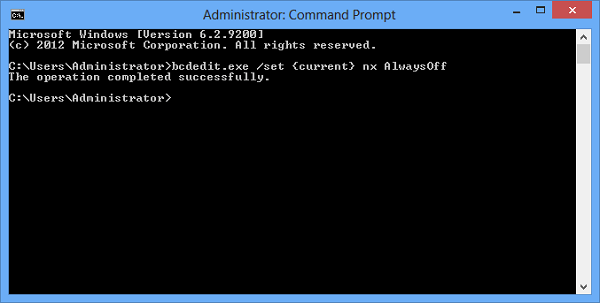
Turn off Data Execution Prevention and see if it helps. But remember that this is a security feature that is there to help protect your computer.
7] Run Windows Troubleshooter
Run the Microsoft Windows File and Folder Troubleshooter and see if it helps.
This way, you will have to enable/disable services and start-ups to narrow down on the culprit. Agreed, this is a lengthy and painfully boring process, but it will help you identify the culprit.
This post will help you if you receive Windows Shell Common Dll has stopped working message.
How do I know if rundll32 is a virus?
The developer digitally signs every application running on a Windows computer. By viewing the digital signature, you can easily determine whether a program or file is a virus. To do so, open the Properties of a file and select the Digital Signatures tab. You will see the digital signatures there. If the Digital Signatures tab is not available in rundll32 properties, you can view its copyright under the Details tab. You can also scan the rundll32 file with your antivirus or Windows Defender.
