
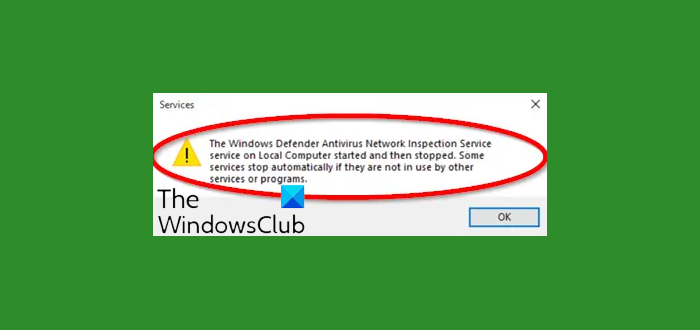
Even if you have no third-party antimalware programs running on your computer, Windows Defender can sometimes behave erroneously and display an error, bearing the following message –
The Windows Defender Antivirus Network Inspection Service on Local Computer started and then stopped. Some services stop automatically if they are not in use by other services or programs.
What is Microsoft Defender Antivirus network inspection service?
Microsoft Defender Antivirus Network Inspection Service is a feature within Windows Defender that analyzes network traffic for potential threats, such as malware. Inspecting data in real-time helps prevent security breaches, ensuring enhanced protection for your system. This service may use significant processing power to effectively monitor and secure your network activity.
Windows Defender Antivirus Network Inspection Service started and then stopped
The Windows Defender Antivirus Network Inspection Service helps guard against intrusion attempts targeting known and newly discovered vulnerabilities in network protocols.
Although Windows Defender offers robust security protections that you can trust, it doesn’t mean it doesn’t have issues. When starting the Windows Defender Antivirus Network Inspection Service, users sometimes encounter issues that prevent the service from starting, and consequently, the Windows Security app can’t be activated. To solve this issue, you can:
- Edit a Registry entry
- Use the Command Prompt to start the Service.
Please note that using Registry Editor incorrectly can cause serious, system-wide problems that may require reinstalling Windows to correct them. Exercise extreme caution while using this method.
1] Edit Registry entry
Press Win+R to launch the ‘Run’ dialog box, type ‘Regedit’ in the empty field provided and hit the ‘OK’ button.
Now, in the left pane of Registry Editor window, go to the following path address –
HKEY_LOCAL_MACHINE\SYSTEM\CurrentControlSet\Services\WdNisSvc
Switch to the right pane of WdNisSvc folder, and look for the ‘Start’ entry.
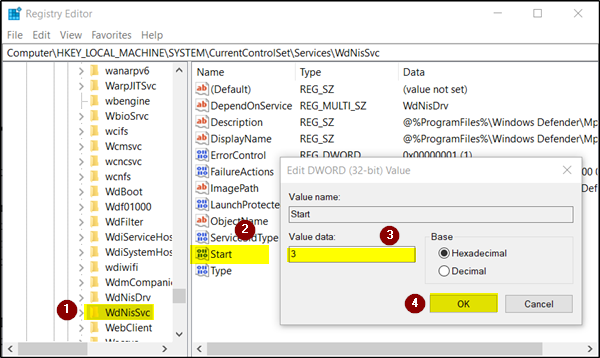
When found, double-click on the entry to modify its Value data.
Set the Value data to 3 and click OK. Close Registry Editor and restart your machine.
After restarting, see if the problem persists.
2] Use Command Prompt
In Windows Search, type ‘Command Prompt’, right-click it and select ‘Run as Administrator’ option.
Now, in the Command Prompt window that opens, type the following and press Enter key-
sc start WdNisSvc
If this command execution is successful, the service should be started, and you’re done.
I hope this helps!
Why does Microsoft Defender web protection keep turning off?
Microsoft Defender web protection may keep turning off due to battery-saving features on mobile devices. These features may prevent apps that require running in the background, such as Microsoft Defender, from removing their necessary accessibility permissions. To prevent this, ensure Microsoft Defender has battery optimization exemptions or manually adjust the app settings to maintain its active status.
How to fix Windows Defender Threat Service has stopped?
To fix the “Windows Defender Threat Service has stopped” issue, start by restarting the service. Open the ‘Services’ app, locate ‘Windows Defender Antivirus Service,’ right-click, and select ‘Start.’ If the issue persists, update Windows and run a system scan using the ‘sfc /scannow’ command in Command Prompt to fix any corrupted files.
Related reads:
