
Sometimes, when trying to run Windows Defender, you may see this message Threat Service has stopped, Restart it now. If you click on the Restart now button, and the Service starts, and the message disappears, well and good! However, if you don’t and instead see a message ‘Unexpected error. Sorry, we ran into a problem,’ then here’s what you can try to fix the issue on your Windows 11/10.
Unexpected error, Sorry, we ran into a problem Windows Security error
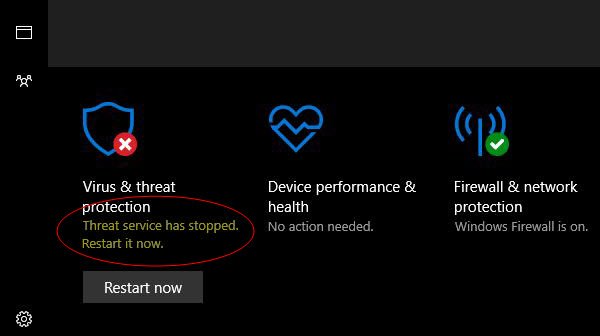
Threat Service has stopped in Windows Defender
If Windows Defender Threat Service has stopped working, follow these suggestions to fix the issue on Windows 11/10.
1] Ensure that Windows Defender Services are started
The Windows Defender Advanced Threat Protection service helps protect against advanced threats by monitoring and reporting security events that happen on the computer. You need to ensure that this and other required Services are set to their default values and started.
Open Windows Services Manager and locate the following Services and ensure that their Startup type is set to their default values:
- Windows Defender Advanced Threat Protection Service – Manual
- Windows Defender Antivirus Network Inspection Service – Manual
- Windows Defender Antivirus Service – Manual
- Windows Defender Firewall Service – Automatic.
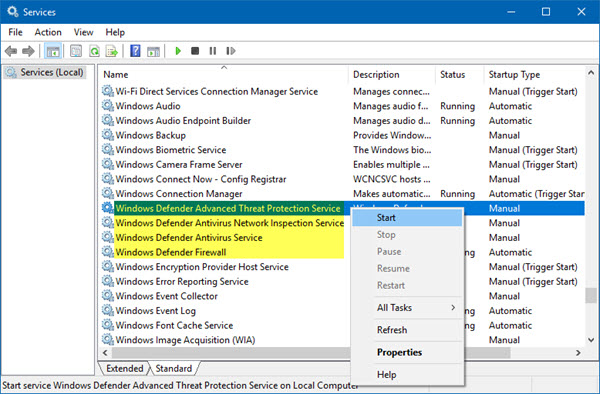
You may right-click on each of them and select Start to start the Service.
To change the Startup types, you have to double-click on the Services and select the correct option from the drop-down menu of Startup type, in its Properties box.
When found, double-click on each of the services and set up their Startup type to Automatic and click on the Start if the services are not already running.
Click Apply, then OK, and check if this has resolved the issue.
2] Edit the Registry
If the above method did not help, try this.
Run regedit to open the Registry Editor and go to the following path –
HKLM\Software\Policies\Microsoft\Windows Defender
If the DisableAntiVirus and DisableAntiSpyware DWORDs are present in the right pane, change the value to 0.
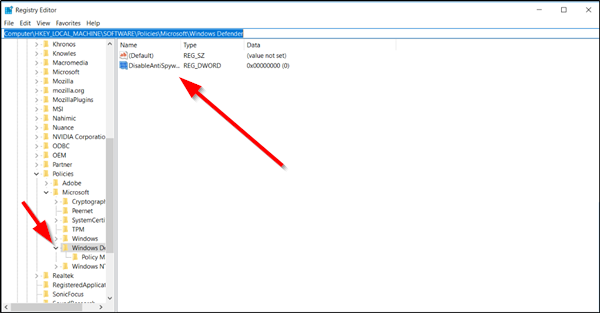
If they are not present, then create the two DWORDs and give them a value of 0 each. To do this, in the right pane, right-click on an empty spot, select New > DWORD, name them as mentioned above. Then double-click on them and give them each a value of 0.
3] Check if the required services are missing
Open Registry and navigate to the following locations to determine if either of the Services is actually missing in your OS:
HKey_Local_Machine\System\CurrentControlSet\Services
- For Security Center, scroll down to SecurityHealthService
- For Windows Defender Antivirus Service scroll down to WinDefend
If either is missing in your Registry, you need to repair Windows using installation media.
This should help!
Is it OK to stop Windows Defender?
Windows Defender is a free antivirus from Microsoft that comes pre-installed on Windows computers. It protects your system from threats. You can also run an antivirus scan manually using Windows Defender. Sometimes, antivirus software conflicts with other applications or blocks the installation of new software on your system. In such cases, you can disable Windows Defender temporarily. But it is not recommended to permanently disable Windows Defender.
How long does Windows Defender take to remove threats?
Windows Defender offers various types of scans, including Quick Scan, Custom Scan, and Full Scan. When you run a Quick Scan, it scans all the installed programs and the locations where viruses and malware are most likely to be hidden. Hence, Quick Scan is completed in a short time. But if you run Full Scan, Windows Defender will scan your entire system. This scan will take a lot of time, depending on the number of files stored on your system.
