
Some users have recently reported an intermittent issue where the Windows Upgrade process gets stuck at the Choose your keyboard layout screen. This screen appears during the upgrade process, where you need to select the keyboard layout for your computer from the available options. However, users have reported that they are not able to operate even the mouse or keyboard on this screen and thus, they can’t select anything on this screen and are stuck in the process. This post offers some troubleshooting tips to resolve this issue.
Windows Upgrade stuck at Choose your keyboard layout screen
The situation may seem unexplainable where all your mouse, keyboard, and other input devices were working a while ago and then stop responding all of a sudden. However, it’s still not hard to guess that this can be a potential driver issue.
When you are upgrading to Windows 11/10 using an in-place upgrade, things may go south and your PC eventually suffers from driver dysfunction.
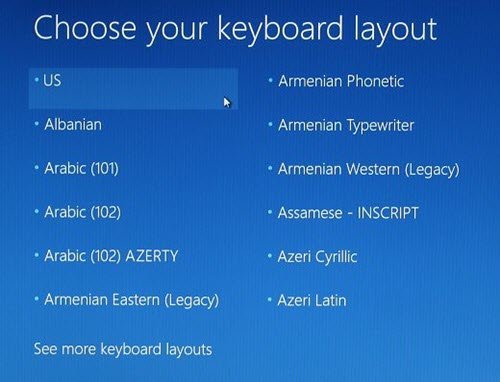
Digging deeper into the issue, it has been found that it pertains to USB port drivers, where all of them stop working at that stage. An in-place upgrade can take a toll sometimes as your PC is supposed to function as usual even after the upgrade. Nonetheless, the issue can be resolved easily using the steps given below:
1. You’d need another computer to create a bootable USB drive with Windows 11/10. If you already have the ISO files in hand, you can use Rufus to create a bootable USB drive otherwise, you can use Windows 10 Media Creation Tool to boot the USB drive with the latest version of Windows.
2. Once your bootable USB stick is ready, plug it into your device that is facing the problem and reboot the device.
3. During reboot, head into the Recovery Menu (Choose an option screen) and select Troubleshoot > Command Prompt (under Advanced Options menu).
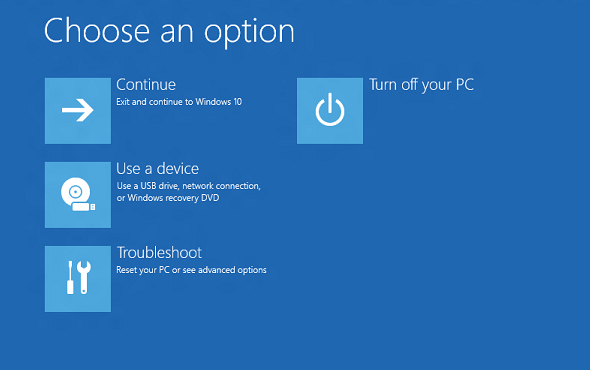

This should launch the CMD prompt where you can type in the below commands one by one to repair the MBR and press Enter:
chkdsk c: /f
bootrec /fixmbr
bootrec /fixboot
bootrec /rebuildbcd
bcdboot c:\windows /s c:
4. Once done with the above commands, restart your computer and see if the problem is fixed.
However, if the problem persists, it may be due to incompatible drivers installed for a previous version of Windows before installing Windows 11/10. In this case, your best bet would be to perform a fresh install of Windows 11/10 on your computer and install the correct, compatible device drivers.
What to do if Windows 11 is stuck on Welcome screen?
If Windows 11 is stuck on the Welcome screen, performing an Automatic Repair will help. But for this, you have to enter Windows Recovery Environment. To do so, force turn off your computer, then turn it on. When you see a Windows logo or a manufacturer’s logo, turn it off again. Doing this three or four times will bring up Windows RE on the screen. In addition, you can try running System Restore.
Why is my PC stuck on Choose an option?
If your PC is stuck on Choose an option screen, your system files need to be repaired. Or there is some hardware issue. In this case, click on the Continue option and see if Windows starts normally. If not, select Troubleshoot and select the Automatic Repair or the System Restore option. If nothing works, your computer needs to be repaired. Take it to the service center.
Read next: Can’t remove a Keyboard layout in Windows 11.
