
A Windows 10 product key should work for a Windows 11 activation because Microsoft provides a free upgrade path. However, some are noticing that the same product key is not working on Windows 11. In this post, we will address this peculiarity and see why the Windows 10 product key is not working on Windows 11.
Why is my product key not working in Windows 11?
Your product key may not work due to a license type mismatch, such as using a non-transferable OEM key on a new device, attempting to activate a different Windows edition than your key is for, or having reached the activation limit on a retail key.
Windows 10 product key not working on Windows 11
Windows 10 product usually works with Windows 11, but the problems occur if your Windows 10 license is an OEM license (tied to original device hardware and not transferable) rather than a Retail license (transferable to a new device). Other common reasons include installing a different Windows edition (e.g., trying to activate Pro with a Home key), reaching the activation limit on a retail key, or making significant hardware changes like a new motherboard. If the Windows 10 product key is not working on Windows 11, you need to follow the solutions mentioned below.
- Verify your License and Edition
- Run the Activation Troubleshooter
- Reactive Windows after a hardware change
- Reset the Windows Activation State
Let us talk about them in detail.
1] Verify Your License and Edition
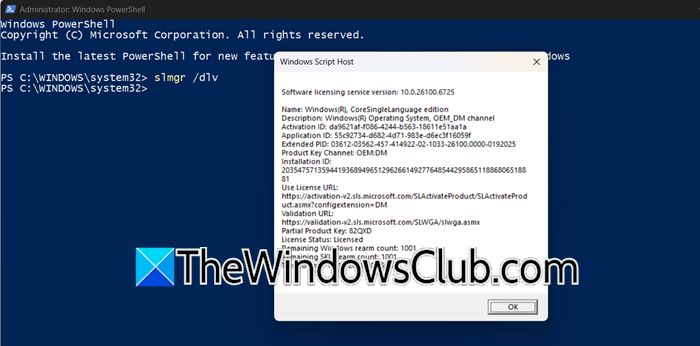
First, confirm you have a transferable license and the correct Windows edition. On your old PC (if accessible), run slmgr /dlv in Windows PowerShell (Admin) to check if the license is Retail or OEM. On your new PC, go to Settings > System > Activation to ensure your installed Windows 11 edition (Home/Pro) matches your Windows 10 license edition.
Read: How to activate Windows 11
2] Run the Activation Troubleshooter
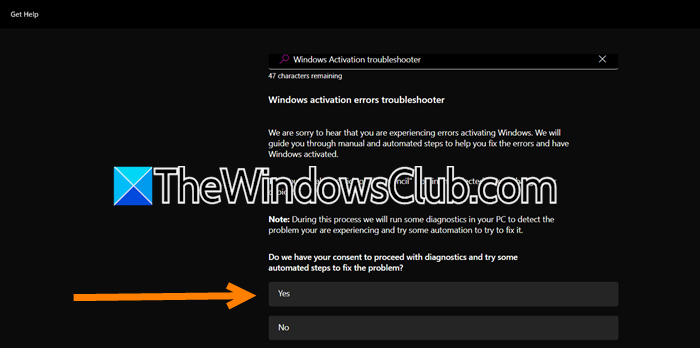
The Activation troubleshooter enables you to scan for the issue and rectify it if it falls within its scope. We can use the Get Help troubleshooter to resolve the issue. To do the same, please follow the steps outlined below.
- Open the Get Help troubleshooter by searching for it in the Start Menu.
- Search for “Windows Activation Troubleshooter”.
- You will see self-help articles and the prompt to start diagnostics.
Finally, check if the issue is resolved.
Read: Find Windows Product Key using Command Prompt or PowerShell
3] Reactivate Windows after a hardware change
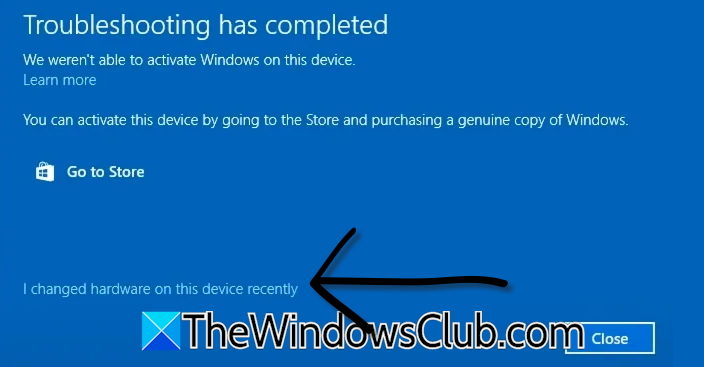
If you have replaced your motherboard or built a new PC, Windows may not automatically activate because the digital license is tied to your old hardware. Using the troubleshooter to report this change allows Microsoft to transfer your license.
Ensure you are signed in with a Microsoft account (not a local account) that is linked to your digital license. Then, go ahead and activate Windows 11 after the hardware change. Finally, check if the issue is resolved.
Read: Which Edition of Windows 11 will you be upgraded to?
4] Reset the Windows Activation State
Sometimes, the Windows activation system can encounter internal glitches or hold onto incorrect product key information. Resetting its state can clear these errors. Open Command Prompt as an administrator and then run the following commands one by one.
SLMGR.VBS /CPKY - Clears the product key from the registry.

SLMGR.VBS /CKMS - Clears the Key Management Service (KMS) information.

Net stop Sppsvc - Stops the Software Protection service.

CD C:\Windows\System32\SPP\Store\2.0 - Navigates to the license store folder.

Ren Tokens.dat Tokens.old - Renames the license data file as a backup.

SLMGR.VBS /RILC - Re-installs all system licenses (may take a few minutes).
After the commands complete, restart your computer.
Once rebooted, try activating Windows again by going to Settings > System > Activation and entering your product key.
Hopefully, you will be able to resolve the issue using the solutions mentioned here.
Read: Things to do before installing or upgrading to Windows 11
Will my Windows 10 product key work on Windows 11?
Yes, your Windows 10 product key should work to activate Windows 11. Microsoft provides a free upgrade path, allowing most valid retail Windows 10 licenses to activate Windows 11. However, this typically applies to Retail licenses; OEM licenses (those that came pre-installed on a device) are often tied to the original hardware and may not be transferable to a new computer. If you encounter issues, you can use the Activation Troubleshooter in Windows Settings to help resolve them.
Also Read: Check Licensing Status and Activation ID of your Windows 11 OS.
