
Some users complain that the WiFi disconnects when the Windows laptop is locked. According to the reports, the issue also happens when users log out of their systems. There can be multiple causes of this problem, such as a corrupt driver, a conflicting application or service, or incorrect power management settings. If you encounter this issue, the solutions provided in this article will help.
WiFi disconnects when the Windows laptop is locked
Use the following fixes if WiFi disconnects when your laptop is locked:
- Run the Network and Internet troubleshooter
- Disable Roaming Aggressiveness
- Disable the Power Management setting
- Roll back or reinstall the Network adapter
- Change the Link State Power Management setting
- Check the issue in a Clean Boot state
- Reset your network
All these fixes are explained in detail below.
1] Run the Network and Internet troubleshooter
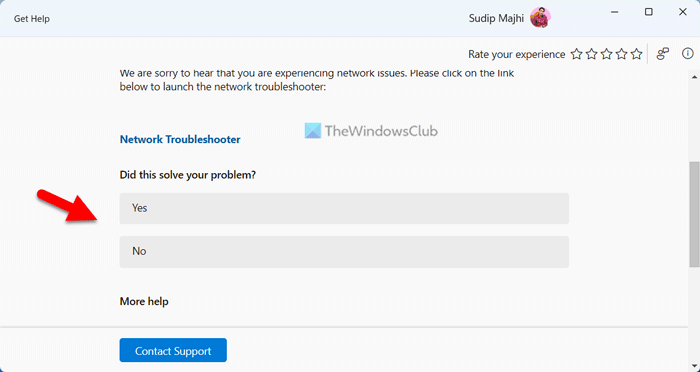
The Network and Internet Troubleshooter in Windows 11 helps fix internet issues. Before trying advanced fixes, run this troubleshooter and see if it helps. You can launch it through Windows 11 Settings or the Get Help app.
2] Disable Roaming Aggressiveness
Roaming Aggressiveness is a WiFi adapter setting that determines how quickly your device searches for and switches to another WiFi access point with a strong signal. It is mainly useful in networks that have multiple routers. If your home has only one router, you can disable this feature.
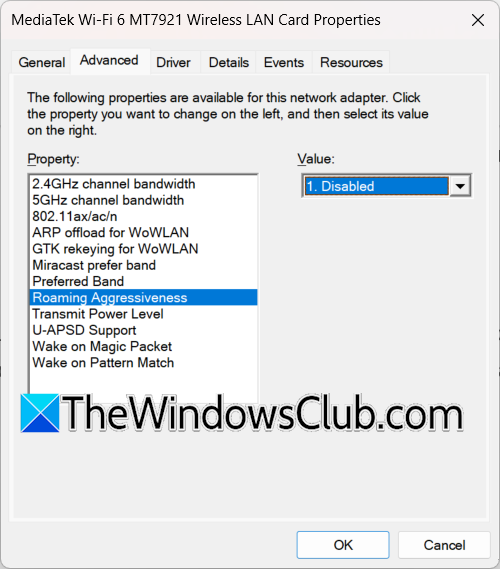
Follow these steps:
- Open the Device Manager.
- Expand the Network adapters branch.
- Right-click on your WiFi adapter and select Properties.
- Navigate to the Advanced tab.
- Select Roaming Aggressiveness.
- Select Disabled in the drop-down.
- Click OK to save changes.
3] Disable the Power Management setting
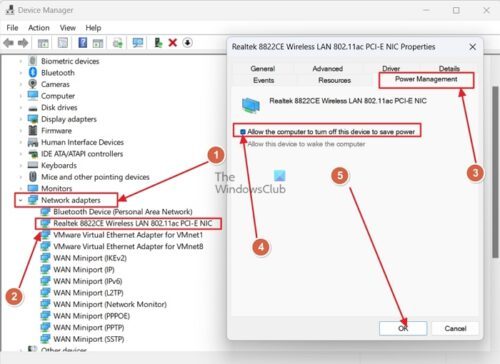
The Power Management setting can temporarily turn off the device to save power when Windows detects it is not actively in use. If your device has this setting, it might be causing this problem. Modern computers have the Modern Standby S0 mode that handles device drivers differently. That’s why the Power Management setting is missing on such devices.
If this setting is available for WiFi on your system, follow these steps to disable it:
- Open the Device Manager.
- Expand the Network adapters branch.
- Right-click on your network adapter and select Properties.
- Select the Power Management tab.
- Uncheck the Allow the computer to turn off this device to save power checkbox.
- Click OK to save changes.
4] Roll back or reinstall the Network adapter
Windows also updates device drivers automatically with Windows Updates. This might be the case with you. Rolling back the WiFi adapter driver can help in such a case.
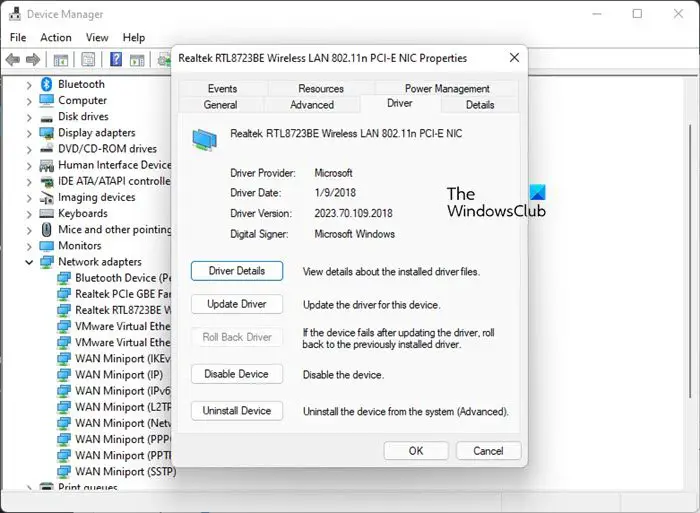
Follow these steps:
- Open the Device Manager.
- Expand the Network adapters branch.
- Right-click on your WiFi adapter and select Properties.
- Go to the Driver tab and click Roll Back Driver.
- Follow the on-screen instructions to install an earlier version of the Network adapter.
If the Roll Back driver option is grayed out, you can try other ways to install the previous version of your Network adapter.
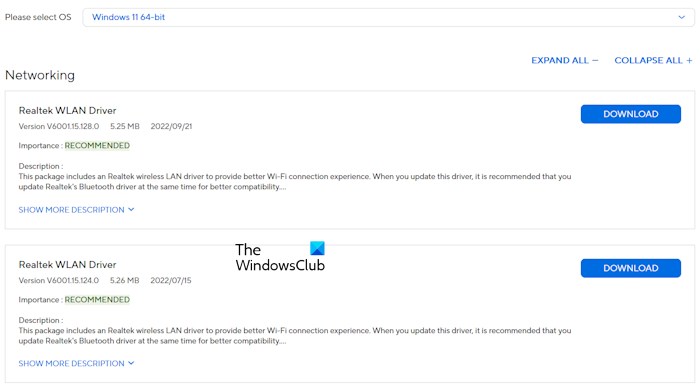
If the issue persists, you can try reinstalling your Network driver. Visit your computer manufacturer’s official website and download the latest version of your Network driver. Run the installer file to install the driver.
5] Change the Link State Power Management setting
The Link State Power Management is a power-saving feature on Windows for PCIe devices. If the issue persists, change this setting and see if it helps.
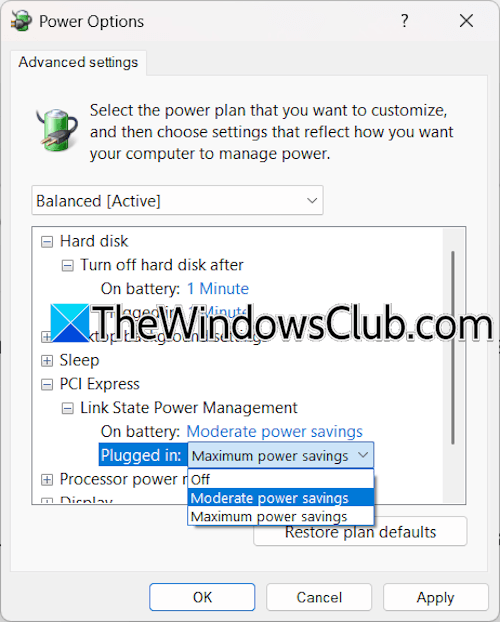
Follow these instructions:
- Open the Control Panel.
- Type power in the Control Panel search box.
- Click Power Options from the search results.
- Click Change plan settings and then click Change advanced power settings.
- Expand the PCI Express branch, then expand the Link State Power Management branch.
- Select Moderate power settings for On battery and Plugged in states.
- Click Apply, then click OK.
6] Check the issue in a Clean Boot state
A third-party application or service might be responsible for this problem. To verify this, troubleshoot in a Clean Boot state. Launch MSConfig and disable the third-party services. Be careful while performing this action, as disabling all the services by mistake will make your system unstable, and you will have to reinstall Windows.
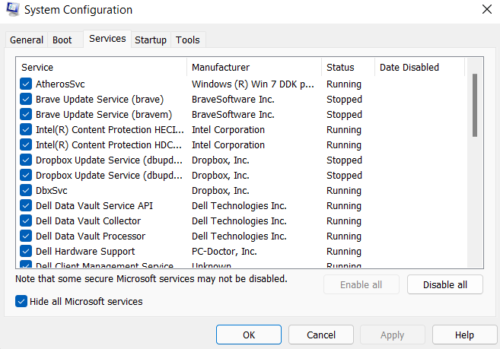
Once you are in Clean Boot state, check if the issue persists. If WiFi does not disconnect when you lock or log out of your system, a third-party service is responsible. Now, you have to find that problematic service. To do this, enable the disabled services and restart your system. Check if the issue persists. If yes, one of the services you have just enabled is the culprit. Once you find the problematic service, consider uninstalling its respective application.
7] Reset your network
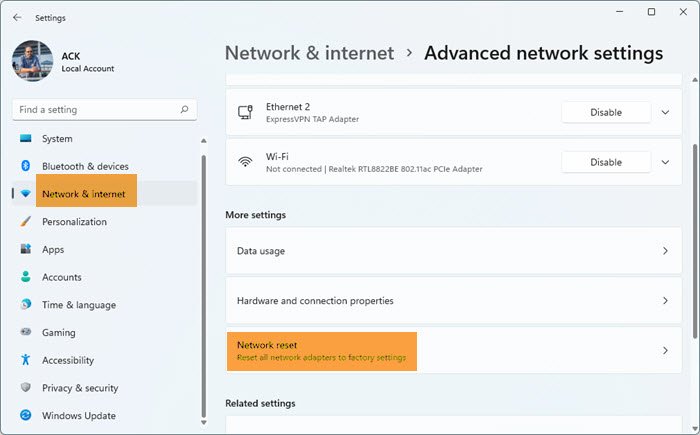
If the issue persists, you can try resetting your network. This action usually fixes most network issues. Windows takes 5 minutes to reset your network. After that, your system reboots automatically. Therefore, save all your pending work before performing this action.
That’s it. I hope this helps.
How to fix the WiFi keeps disconnecting on Windows 11?
If WiFi keeps disconnecting on Windows 11, the problem may be with your network adapter. Try running the Network and Internet troubleshooter. If this does not work, reset your network.
What are the signs of a hacked WiFi network?
If your WiFi router is hacked, you may encounter symptoms such as slow internet speeds, router login failures, browser redirects, or downloads of unfamiliar software.
Read next: Can’t connect to this network WiFi error.
