
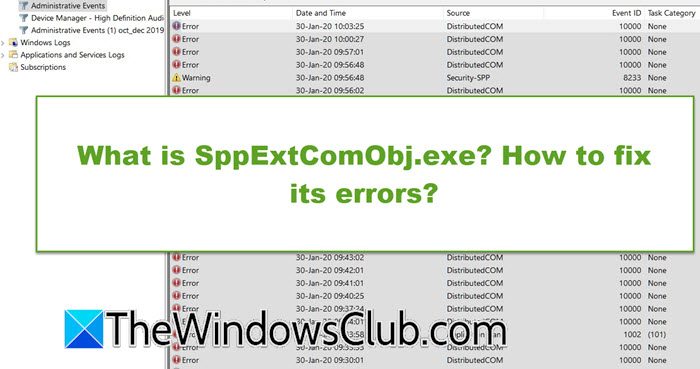
SppExtComObj.exe is a legitimate part of Windows responsible for managing software activation, but it can sometimes cause errors. In this post, we are going to discuss this process and the errors flooding your Event Viewer Logs.
What is SppExtComObj.exe?
SppExtComObj.exe is a legitimate part of the Microsoft Windows Operating System, known as the KMS Connection Broker. This process is essential for the Software Protection Platform (SPP) and works with Microsoft’s Key Management System (KMS). It is written as managed code and runs using the Common Language Runtime (CLR), which means the .NET Framework needs to be installed on the computer. You can usually find this file in the C:\Windows\System32 folder, and it is digitally signed by Microsoft, confirming that it is genuine.
What is SppExtComObj.exe used for?
The main job of SppExtComObj.exe is to manage and activate Microsoft software licenses and product keys. It connects to a Key Management Service (KMS) server, which Microsoft uses to activate software such as Windows and Office in businesses or schools. This process works with others, like sppsvc.exe, to verify that software licenses are valid. It is an important part of the system that should not be disabled or removed. Properly functioning SppExtComObj.exe helps keep your Windows operating system and other Microsoft products activated and compliant with licensing terms.
Fix SppExtComObj.exe errors in Windows 11/10
Errors related to SppExtComObj.exe can manifest in various ways, including runtime error messages, high CPU or memory usage, and DCOM error with Error “5” (which means “Access Denied”), which is related to the Windows license management system.
To fix SppExtComObj.exe errors, you can follow the solutions mentioned below.
- Re-register the Software Protection Service Components
- Grant Explicit Permissions via Component Services (DCOMCNFG)
- Repair System Files
Let us talk about them in detail.
1] Re-register the Software Protection Service Components
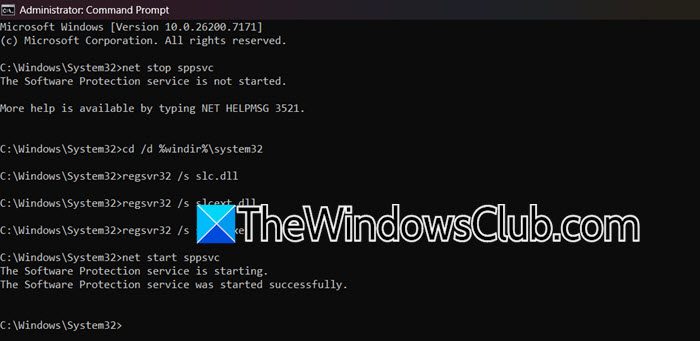
In this solution, we will re-register the specific DLL files used by the Software Protection Platform, including the SppExtComObj.exe component. This process reinstates their proper registration in the system and often resolves the permission conflict.
You need to open the Command Prompt as an administrator and then run the following command.
net stop sppsvc
cd /d %windir%\system32
regsvr32 /s slc.dll
regsvr32 /s slcext.dll
regsvr32 /s slui.exe
sc config sppsvc start= demand
net start sppsvc
Restart your computer. After the restart, check Event Viewer to see if the error has stopped.
2] Grant Explicit Permissions via Component Services (DCOMCNFG)
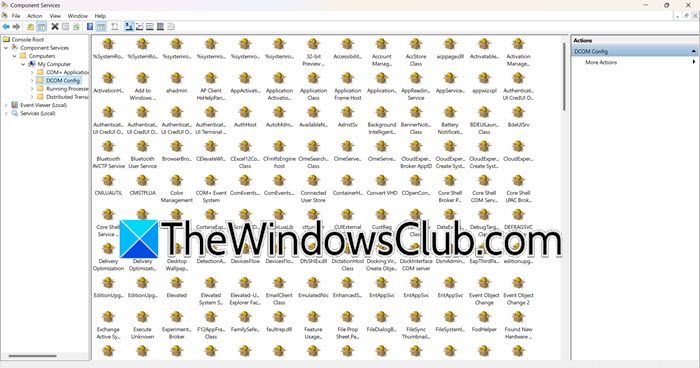
If you go through the error message of the Event Viewer’s log, you would notice that you got an “Access is Denied” error by the NETWORK SERVICE account, which has explicit launch permissions for the specific component. Since you don’t have the permission, you encountered this issue. Therefore, follow the steps mentioned below to do the same.
- Hit Win + R, type dcomcfg, and press Enter to open the Component Services.
- In the left pane, go to Console Root > Component Services > Computers > My Computer > DCOM Config.
- In the long list on the right, look for the entry with the CLSID (the one you see in the error message).
- Right-click on it and select Properties.
- Go to the Security tab.
- Under “Launch and Activation Permissions,” click Edit.
- In the new window, click Add.
- In the Enter the object names to select field, type NETWORK SERVICE and click Check Names. It should resolve to a full name. Click OK.
- In the Permissions for NETWORK SERVICE list below, check the Allow box for Local Launch and Local Activation.
- Click OK to close all windows and restart your computer.
Finally, check if the issue is resolved.
Read: What is wab.exe file on my Windows? Is it malware?
3] Repair System Files
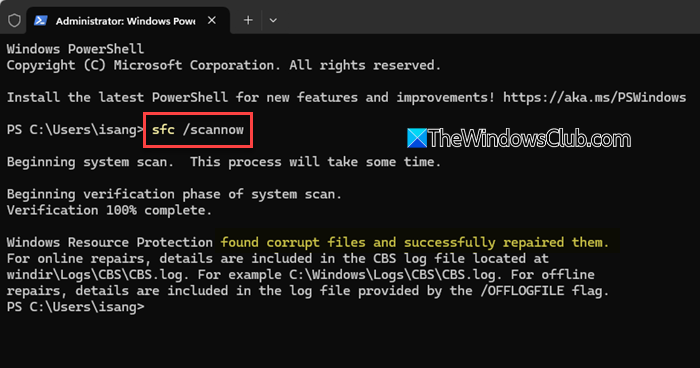
The core system files responsible for licensing may be damaged beyond what simple commands can repair. A Repair Install (also called an In-Place Upgrade) reinstalls Windows from within the OS, keeping all your personal files, apps, and most settings intact. However, before doing that, you need to run SFC and DISM and see if that helps.
You can download the Windows Media Creation Tool from the official Microsoft website, then run the tool and select Upgrade this PC now. Finally, follow the prompts to complete the repair.
The process will take some time, but it will replace all system files with clean versions, which should permanently resolve the DCOM error.
Hopefully, with the help of these solutions, your issue will be resolved.
Read: EXE files getting deleted randomly in Windows 11
Is SppExtComObj.exe malicious?
No, SppExtComObj.exe is not inherently malicious. It is a legitimate and critical Windows system file developed by Microsoft that manages software licensing and activation, particularly through the Key Management Service (KMS). However, as with any system file, malware can sometimes disguise itself by using the same name to avoid detection. To confirm its legitimacy, you should verify that it is located in the C:\Windows\System32 folder and that Microsoft has digitally signed it.
Read: Fix FileCoAuth.exe application error.
