
If you encounter the FileCoAuth.exe application error on your Windows 11 computer, the solutions provided in this article will help you. The FileCoAuth exe file is associated with OneDrive. Some users have reported that Windows displayed this error while installing or running a program.
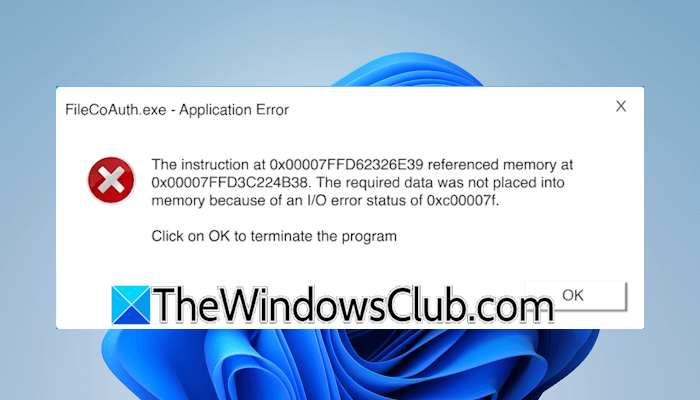
FileCoAuth.exe – Application Error
The instruction at <error code> referenced memory at <error code>. The required data was not placed into memory because of an I/O error status of <error code>.
Clicking OK closes the error window but does not fix the error. Hence, the same error message reappears after a few minutes.
What is FileCoAuth.exe used for?
The FileCoAuth.exe file is associated with OneDrive. It is a co-authoring executable process used when you edit or share Office documents with other users. It runs in the background and manages collaboration tasks for the documents stored on OneDrive.
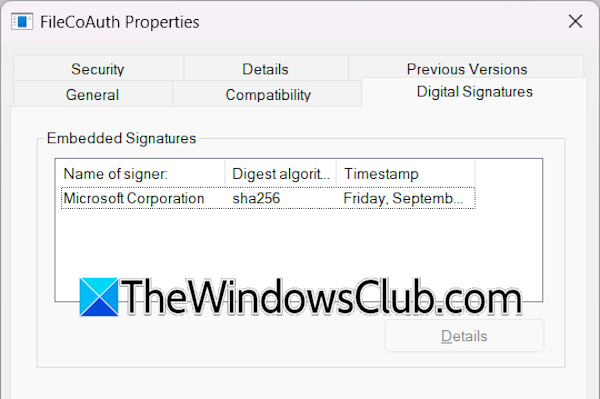
You will find it under the Details tab in the Task Manager. To check its legitimacy, right-click on it and select Open file location. Windows will open File Explorer, highlighting the FileCoAuth executable file. Now, right-click on the file and select Properties. Go to the Digital Signatures tab, and you will see Microsoft Corporation as the signer of this file.
Fix FileCoAuth.exe application error in Windows 11
To fix the FileCoAuth.exe application error on Windows 11/10, use the following suggestions:
- Reset OneDrive
- Uninstall and reinstall OneDrive
- Repair your system image files
- Free up space on your hard drive
- Troubleshoot in a Clean Boot state.
All these fixes are explained below in detail. Before proceeding, restart your system, as sometimes issues occur due to minor glitches.
1] Reset OneDrive
Reset your OneDrive to fix this error. To do so, open the Run command box by pressing the Win + R keys and type the following command. Click OK after that.
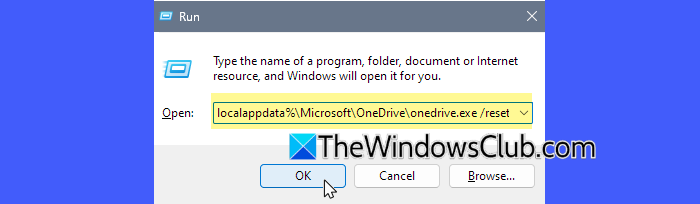
%localappdata%\Microsoft\OneDrive\onedrive.exe /reset
If you see the “Windows cannot find” error message, execute the following command in the Run command box:
C:\Program Files\Microsoft OneDrive\onedrive.exe /reset
If the above command does not work, use the following command:
C:\Program Files (x86)\Microsoft OneDrive\onedrive.exe /reset
This process takes a few seconds. The OneDrive folder will open automatically when the reset is completed.
2] Uninstall and reinstall OneDrive
If resetting OneDrive does not help, uninstall and reinstall OneDrive. Open Windows 11 Settings and go to Apps > Installed apps. Search for OneDrive. Click on the three dots next to it and select Uninstall. Follow the on-screen prompts to uninstall it.

Now, restart your computer and reinstall it from the Microsoft Store.
3] Repair your system image files

Corrupt system image files can also cause this error. Therefore, I suggest you repair your system image files. You can use the built-in command line tools, System File Checker, and DISM to repair the corrupted system image files. The scan will take time. Do not turn off your computer till the scan completes.
4] Free up space on your hard drive
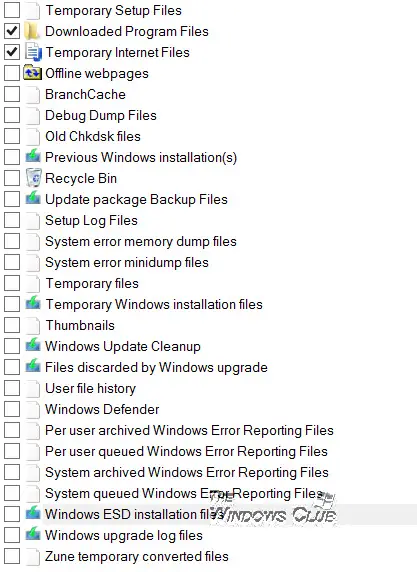
This error might occur if your hard drive is full and OneDrive tries to sync data. If your hard drive is full, free up some disk space by moving your files to another hard drive partition or an external storage device.
5] Troubleshoot in a Clean Boot state
A third-party background application or service might be triggering this error. You can confirm this by troubleshooting in a Clean Boot state. First, disable all startup apps via the Task Manager and restart your computer. Now, see if the error occurs. If it does not, one of the startup apps is the culprit. Find the problematic startup application and uninstall it.
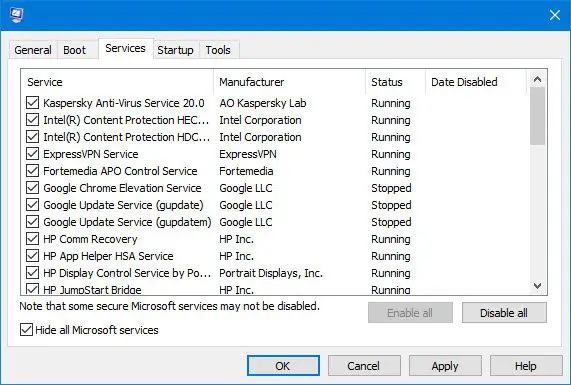
If disabling the startup apps does not help, use MSConfig and disable all third-party services to enter the Clean Boot state. Be careful while performing this action, as disabling all the services will put you in trouble. If the error does not occur in the Clean Boot state, one of the third-party services is triggering this error.
To identify the problematic service, enable some of the disabled services, and restart your computer. Check if the error reappears. If yes, one of the services you have just enabled is the culprit.
How to fix the explorer.exe application error?
The explorer.exe application error occurs due to many causes, such as corrupt system image files, faulty RAM, malware infection, etc. To fix this error, you can try some solutions, like repairing your system image files, performing a chkdsk scan, scanning your PC for malware, etc.
Read next: Bad Image Error Status 0xc000012f.
