
There are a ton of processes running in the background that we are oblivious of and one of them is SearchApp.exe. You may have stumbled upon this task while probing the Task Manager. In this article, we are going to see what is SearchApp.exe and can you disable it.

What is SearchApp.exe in Windows 11/10?
If you are a Windows 11/10 user, then you might be familiar with the Start Menu and the Search Bar associated with it. It is probably something you use all the time to search files, launch apps, shut down your computer, and do other things. The SearchApp.exe is the process of the Search bar. It was previously known as SearchUI.exe when integrated with Cortana. When you try to search for something, the process is triggered.
This process is not supposed to take up a lot of your resources, and if it is, you’ve got a problem. Later in this guide, we will discuss why, when, and how you should disable this process.
Is SearchApp.exe safe?
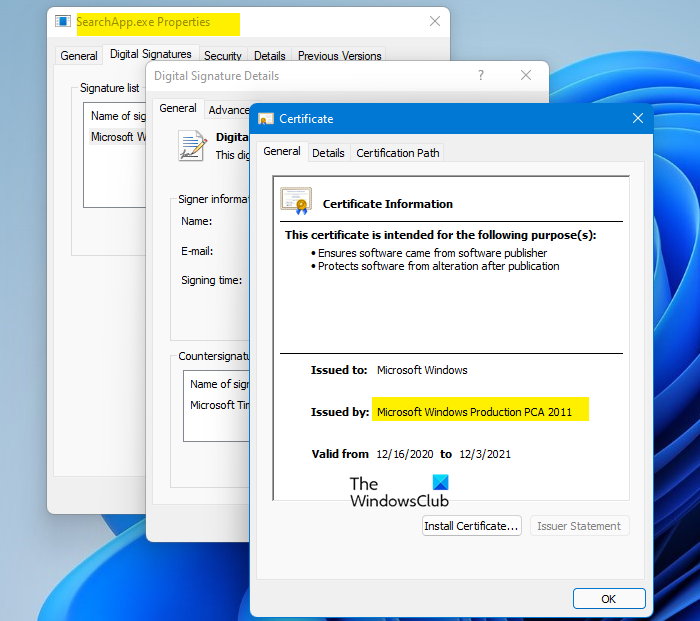
Yes, SearchApp.exe is a genuine Windows process. It is a light process that takes very little resources and does not cause any trouble, more often than not. However, there are instances reported by users in which the process starts exhibiting unusual behavior.
Even though SearchApp is not a virus in itself, many viruses can masquerade as the process; that’s why it is important to know the condition of your file. To do that, you should check the file’s location and certificate.
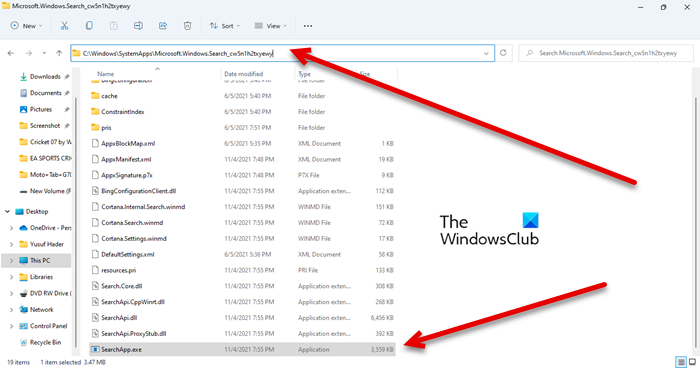
The following is the genuine location of SearchApp.exe.
C:\Windows\SystemApps\Microsoft.Windows.Search_cw5n1h2txyewy
You will SearchApp.exe process there, just right-click on it and select Properties. Go to Digital Signatures and click Details. Then, click View Certificate. If you see a certificate issued by Microsoft Windows, then your process is genuine.
Should you disable SearchApp.exe?
You should not just straight away disable SearchApp.exe, it is an integral part of your system. Sometimes, disabling the feature can also system crashes, that is why it is important to create a System Restore point if you decide to go that route.
When talking about disabling the process, you should have a valid reason to do so. If the process is causing high CPU usage or other issues, disable it. However, we recommend that you disable SearchApp.exe in the order listed below.
Read: Access denied, Please log in with administrator privileges and try again
How do I turn off SearchApp?
There are two ways to disable SearchApp.exe, they are.
- Using Task Manager
- Using Command Prompt.
Let us talk about them in detail.
1] Using Task Manager
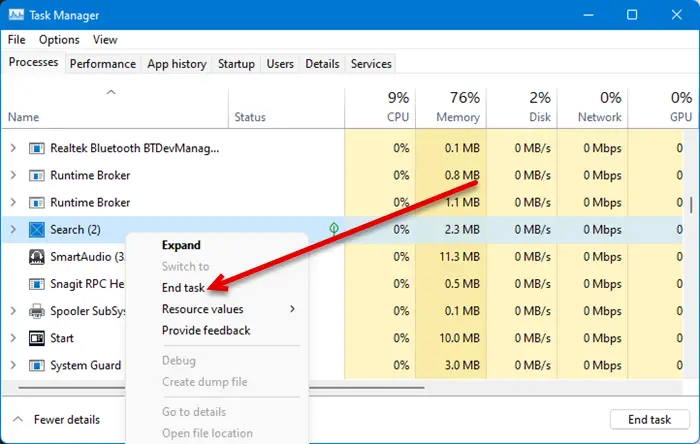
The first method is pretty simple and if you are experiencing high CPU usage, then this can also resolve the issue. So, open Task Manager by searching it out of the Start Menu or by Ctrl + Shift + Esc. Then look for Search or SearchApp.exe, right-click on them and select End Task.
Finally, restart your system and check if the issue persists.
2] Using Command Prompt
Many users were able to resolve the high CPU usage issue caused by SearchApp by running some cmd commands. We are going to do the same. Open Command Prompt as an administrator by searching it out of the Start Menu.
Then, execute the following commands one after the other.
cd %windir%\SystemApps
taskkill /f /im SearchApp.exe
move Microsoft.Windows.Search_cw5n1h2txyewy Microsoft.Windows.Search_cw5n1h2txyewy.old
Once you are done with that, restart your computer, and the process will be disabled, temporarily resolving the issue in question.
That’s it!
Also Read:
