
Are you unable to see today’s weather for your city on your Windows 11 taskbar? Is the weather widget not working properly or showing up on your taskbar? Many users are reporting that the weather widget is not showing up on the taskbar in Windows 11 after the update. In this post, we have covered this issue and found the probable causes and how you can fix it.
Why does the weather not show on my taskbar?
Here are the possible causes why the Weather widget might not be showing up on your taskbar:
- Disabled Weather Widget – There are chances that the weather widget is not enabled in Windows settings. Although, it is enabled by default. But, make sure your weather widget is not disabled on your system.
- Temporary Bug – Probably there are some temporary bugs or corruption that may affect the operating system and prevent some features from working properly.
- Windows OS Corruption – It may be possible that your Windows is corrupted and is not allowing certain features to work properly. You can try resetting your PC to default settings to fix the issue. If that doesn’t help, you can perform a clean installation of Windows.
There can be some other underlying reasons for the issue at hand. In any case, you can fix it using the solutions we have mentioned in this post.
How do I get the weather back on my taskbar Windows 11?
To get the weather widget back on your taskbar in Windows 11, you can re-enable it from Windows Settings. Simply open the Settings app, go to Personalization > Taskbar > Widget and enable it. We have discussed the full steps in detail below.
Fix Weather widget not showing on Taskbar in Windows 11
If you are unable to view the Weather widget on your Windows 11 taskbar, follow these suggestions to resolve the issue:
- Enable the Weather widget.
- Log out of your account, then log in again.
- Update Windows.
- Update Apps from Microsoft Store.
- Reset Windows.
- Perform a clean installation of Windows.
Let us discuss the above methods in detail now.
1] Enable the Weather widget
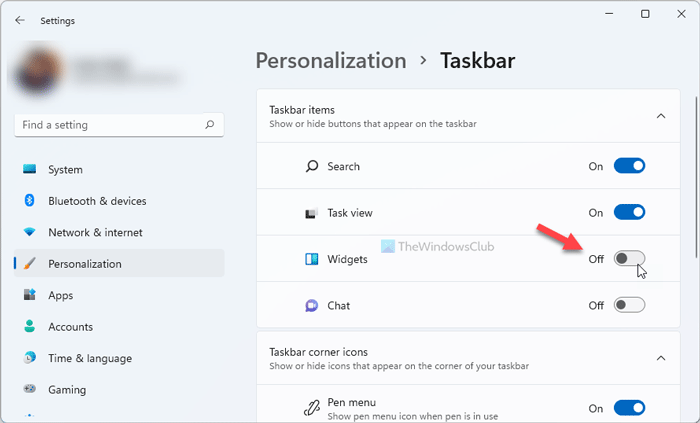
This is the most common fix for this issue. You have to make sure the Weather widget is enabled on your system, as it is likely disabled in Windows Settings. Hence, re-enabling it can solve the issue.
To enable the weather widget, you must follow the steps below:
- Firstly, press the Win + I hotkey to open the Settings app.
- Now, go to the Personalization tab in Windows Settings.
- Next, click on the Taskbar option on the right-hand side.
- In the taskbar menu, check for the Widget option and see if the Toggle next to the Widget is enabled or not. If not, enable it.
You should now be able to view the current weather in your city on your taskbar.
If the Weather widget is enabled and you are still not able to view it on your taskbar, try the next potential fix to resolve the issue.
2] Log out of your account, then log in again
There is a possibility that you are dealing with a temporary glitch on your system, which may be causing some features to not work properly. Hence, logging out of your account and logging back in might resolve this issue. Since many reported users have confirmed this fix works for them, you can try it and see if it works for you.
To log out, you must follow the steps below:
- Firstly, press the Start button or Windows key on the keyboard.
- Now, click on the profile icon appearing below.
- Next, select the Sign out option to log out of your current account.
- After that, login back to your account on Windows and check if the Weather widget is working properly or showing up on your taskbar or not.
If the issue persists even after trying this method, you can move on to the next potential fix.
See: How to change News and Interests Feed Language?
3] Update Windows
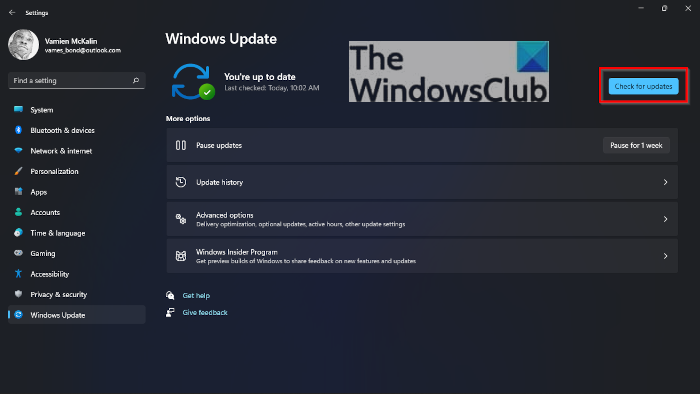
Updating Windows may resolve the issue as new updates address bugs and issues like these. So, make sure you have updated your Windows to the latest build. To update Windows, you can open the Settings app using Windows + I hotkey and then go to the Windows Update tab. After that, click the Check for updates button, then download and install any pending updates. Windows will restart upon installing the new updates. You can then check whether the Weather widget is showing up. If not, try the next potential fix to resolve the problem.
4] Update Apps from Microsoft Store
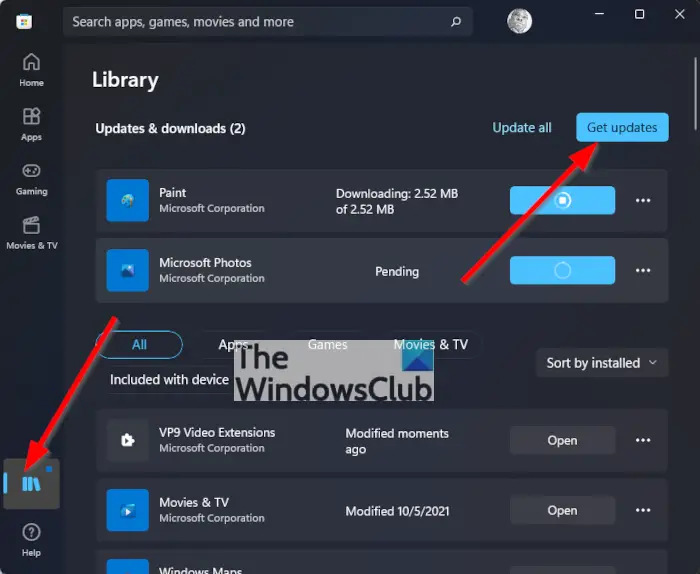
The outdated app can also cause functional issues, which may be another reason the app hasn’t been updated for a very long time. Third-party or local apps need to be updated regularly to work properly, as new versions are launched with bug fixes and improvements to the app. To update applications on Microsoft Store, follow the steps:
- First, go to the Search option on the taskbar and type Microsoft Store.
- Now, click on the Microsoft Store app to open it.
- Next, go to the Library option on the left pane.
- After that, click the Get Updates button in the top-right corner.
- When all the apps are updated, reboot your PC and see if the issue is resolved or not.
Read: How to enable or disable Widgets in Windows 11 using Registry or Group Policy Editor
5] Reset Windows
If none of the above fixes worked for you, it is clear that you are dealing with corruption in Windows caused by recent changes on your PC. If the scenario is applicable, resetting your PC to factory settings can solve this issue, and it can be done without data loss.
To reset your Windows, follow the steps:
- First of all, open the Settings app using Windows +I key combination.
- After the Setting app opens, go to the System tab.
- Now, scroll down to the Recovery option and click on it.
- In the Recovery section, click on Reset PC.
- Next, choose to keep your files and apps, then continue with the reset process.
- Finally, the PC will restart and you should be able to view the Weather widget in your taskbar.
See: Weather app is not working or opening in Windows 11.
6] Perform a clean installation of Windows
The last resort to fix the issue is to reinstall your Windows. You might be dealing with some stubborn corruption that can’t be resolved by resetting your PC. Hence, you will need to install a fresh Windows installation on your PC to resolve this issue. There is a chance that severe OS corruption has caused the app to malfunction. Reinstalling Windows will solve the problem, as it will replace the older OS with the new one and erase the corruption.
That’s it!
Now read:
- News and Interests not showing or missing in Windows 11.
- Change the Weather app Temperature from Celsius to Fahrenheit.
