
You may see We can’t find a required component to run Teams when trying to run Teams. As the error message indicates, one or more files or system components on which Teams depends are missing, corrupted, or not loading correctly. In this article, we will explore the reasons for the issue and possible fixes to resolve it and bring you back online in no time.

We can’t find a required component to run Teams
If you encounter the ‘We can’t find a required component to run Teams’ error message, execute the solutions mentioned below.
- Repair the Microsoft Edge WebView2 Runtime
- Reinstall the WebView2 Runtime manually via the standalone installer
- Resolve Registry conflict and reinstall WebView2
- Make WebView2 visible and reparable via Registry
- Force install via command line
Let’s get started with the troubleshooting guide.
1] Repair the Microsoft Edge WebView2 Runtime
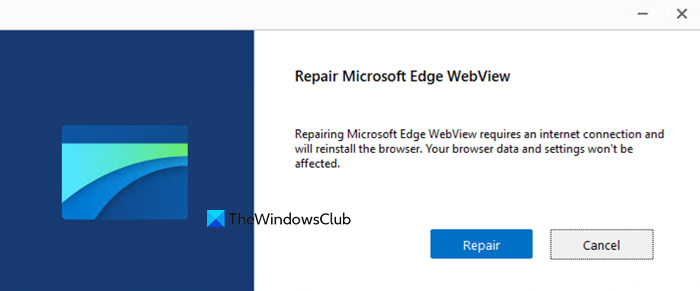
Teams depend on the WebView2 Runtime to render its interface. Teams can’t load the components it needs to launch if the Runtime is installed but damaged. To fix corrupted or missing files and correctly re-register them within the system, use the built-in Repair option; here’s how to do it.
- Click Win + I to open Settings, go to Apps, and then select Installed Apps.
- In the search bar, type Microsoft Edge WebView2, and click the three dots menu next to it.
- Select Modify, and in the prompt that appears, click on the Repair option.
Wait for the process to complete, and then reboot the PC. Once it restarts, relaunch Microsoft Teams. If Teams still shows the error after this, proceed to the next solution.
2] Reinstall the WebView2 Runtime manually via the standalone installer
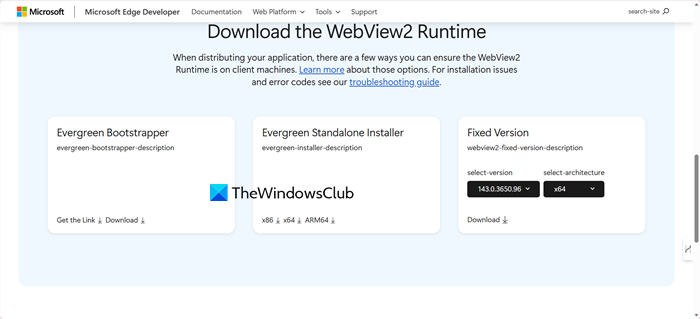
Sometimes WebView2 is missing entirely or not installed properly. A fresh standalone installation ensures all required components are installed.
- Go to the official Microsoft Edge WebView2 Runtime download page (developer.microsoft.com), and scroll to the Download the WebView2 Runtime section.
- Download the Evergreen Standalone Installer, then locate the file and right-click it.
- Select Run as administrator option, follow the installation prompts, and restart the computer once it finishes.
Try opening Teams again, and go to the next solution if the issue persists.
3] Resolve Registry conflict and reinstall WebView2
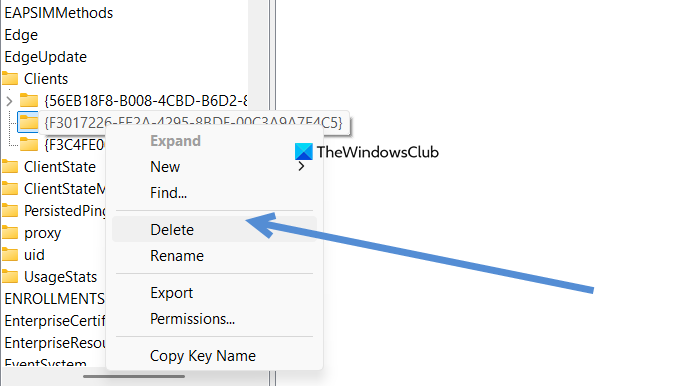
In some cases, a Windows Registry entry can incorrectly indicate that WebView is installed when it isn’t. Deleting the specific registry key resets the installation state for WebView2.
- Click Win + R to open the Run dialogue box, type regedit, and hit Enter to open the Registry Editor.
- Navigate to the path mentioned below:
HKEY_LOCAL_MACHINE\SOFTWARE\WOW6432Node\Microsoft\EdgeUpdate\Clients
- There, look for the subkey named {F3017226-FE2A-4295-8BDF-00C3A9A7E4C5}, and delete it.
Close the registry, then repeat the clean installation from the second solution. After the steps are completed, reboot the PC, and verify the situation. Slide to the next situation if the issue persists.
4] Make WebView2 visible and reparable via Registry
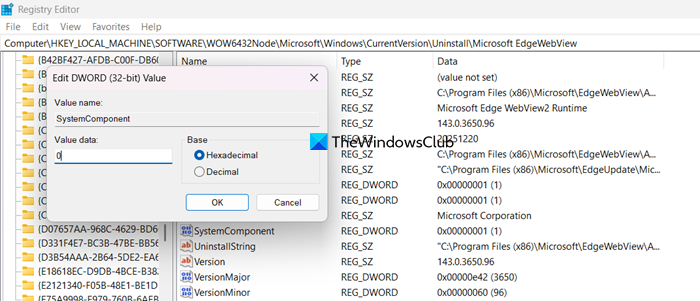
The WebView2 is marked as a system component and hidden from the app list. This makes the Repair option inaccessible. To unhide the WebView2 entry, change the SystemComponent Value data to access the Modify menu and run the built-in repair utility.
- Click Win + R to open the Run dialogue box, type regedit, and hit the Enter button to open the Registry Editor.
- Navigate to the following location:
HKEY_LOCAL_MACHINE\SOFTWARE\WOW6432Node\Microsoft\Windows\CurrentVersion\Uninstall\Microsoft EdgeWebView
- In the right-pane, find and double-click the SystemComponent DWORD value, and change its Value Data from 1 to 0.
- Click OK, close the Registry Editor, and then go to Settings, select Apps, and click on Installed Apps.
- Search for Microsoft Edge WebView 2, and follow the steps from 1st solution.
If Teams still show error after this, see the next solution.
5] Force install via command line
When the GUI installer fails, we will force the installation via the command line to bypass detection issues and reinstall the runtime directly.
- Launch the Run dialogue box, type cmd, and press Ctrl + Shift + Enter to open Command Prompt with administrative rights.
- Execute the following command to trigger Microsoft’s own update services to download and install the Microsoft Edge WebView 2 Runtime.
"C:\Program Files (x86)\Microsoft\EdgeUpdate\MicrosoftEdgeUpdate.exe" /install appguid={F3017226-FE2A-4295-8BDF-00C3A9A7E4C5}
- Wait for the command to execute and then reboot the PC.
Hopefully, there won’t be any more issues regarding this error in Teams.
That’s it!
Read: Fix msedgewebview2.exe has stopped working on Windows 11
Why am I not able to install Microsoft Teams?
There can be various reasons why users are unable to install Microsoft Teams. One of the reasons is missing or corrupted system components, such as WebView 2, outdated Windows versions, or corrupted previous Teams files. Network restrictions, antivirus interference, and incomplete uninstallation are among the other reasons contributing to a failed Teams installation.
Read: Unable to run AutoCAD. Microsoft Edge WebView2 Runtime missing
How to fix Teams we ran into an issue?
Users may sometimes encounter issues when accessing Teams. The error usually points to missing or corrupted components, or to connectivity issues or temporary glitches. It is usually resolved after restarting the app, clearing the cache, or updating the app.
Also Read: Microsoft Teams webhook 403 errors.
