
Encountering a 403 error when sending a message to your Microsoft Teams webhook can halt your automated notifications and integrations. This Forbidden status code means your request is understood but actively rejected by the server. In this post, we will see what you can do if you receive Microsoft Teams webhook 403 errors.
![Microsoft Teams webhook 403 errors [Fix]](https://www.thewindowsclub.com/wp-content/uploads/2025/12/http-error-403-teams.png)
Fix Microsoft Teams webhook 403 errors
A 403 Forbidden error when posting to a Microsoft Teams incoming webhook indicates that the server received your request but explicitly refused authorization, preventing your message from reaching the channel. This authorization failure almost always occurs because the webhook URL itself is incorrect, has been deleted, or the request violates a tenant-level security policy, rendering the unique URL invalid as a credential.
If you receive 403 errors from the Microsoft Teams webhook, follow the solutions below.
- Recreate the Webhook URL Entirely
- Verify the JSON Playload Structure Team
- Check for Webhook Expiration
- Inspect for IP Address Restrictions
Lets us talk about them in detail.
1] Recreate the Webhook URL Entirely
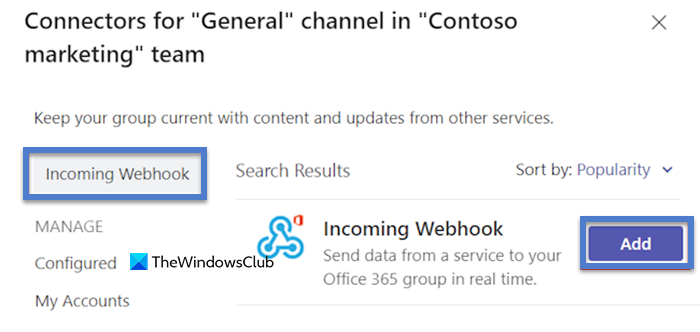
The 403 error is caused by using an invalid or deactivated URL as your credential; generating a new one provides a fresh, valid key that the Teams server will authorize for posting. To do this, in your Teams channel, click the “…” More options menu, select Connectors, find and configure the Incoming Webhook connector, create a new webhook, and then completely replace the old URL in your script or application with the newly generated URL.
2] Verify the JSON Payload Structure Team
A malformed request can be rejected as unauthorized; ensuring your JSON structure and headers exactly match what Teams expects eliminates this potential cause of the 403 error. To verify, first, confirm your request’s Content-Type header is set to application/json. Next, validate that your JSON payload is syntactically correct and includes at least a text field. Finally, test by sending a minimal, known-good payload like {“text”: “Test”} to rule out formatting issues.
3] Check for Webhook Expiration
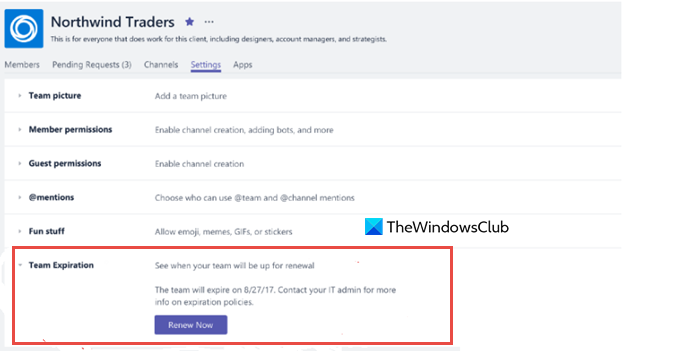
If your organization has security policies enabled, the created webhook may have had an expiration date set. Return to the channel’s Connectors settings, locate your webhook, and Manage. If it has expired, you will need to update its expiration date or, more reliably, create a new one without an expiration (if allowed by policy). Follow the steps mentioned below to do the same.
- In your Teams channel, go to More options (…) > Connectors.
- Click Manage for the Incoming Webhook connector to view your configured webhooks.
- Check if your webhook has an expiration date and if it has passed.
- Either update the expiration to a future date or, more reliably, create a brand new webhook to get a fresh, active URL.
This should do the job for you.
4] Inspect for IP Address Restrictions
A 403 error can happen if your organization only allows requests from certain IP addresses. If the server sending the webhook isn’t on that list, the request will be blocked. To fix this, ask your admin to allow-list the server’s IP or send the request from an approved location.
Hopefully, with the help of the solutions mentioned earlier to resolve the issue.
Read: MSTeams.exe Bad Image Error Status 0xc0000020 in Windows 11
Webhook message delivery failed with error: Microsoft Teams endpoint returned HTTP error 403
This error means the Teams server received your message but refused to deliver it due to an authorization failure. The most common cause is that the webhook URL you are using has been deleted, has expired, or is no longer valid. To resolve this, you will need to generate a completely new webhook URL from your Teams channel’s Connectors settings and update your application with it.
Read: Microsoft Teams Error code caa70004
Can a webhook expire on its own, and how long does it last?
Yes, a webhook can expire automatically if an expiration date was set when it was created. There is no default expiration, so its lifespan depends entirely on the optional setting chosen by the person who configured it, it could be any timeframe or never expire. You must check the webhook’s settings in the channel connectors to see if an expiration date was applied and has passed.
Read: Fix Microsoft Teams Sign in Error Codes and Problems
What information should I give my IT admin when reporting this error?
Provide your admin with the exact error (HTTP 403), the channel name where the webhook is configured, and the public IP address of the service or server from which you are sending the webhook request. This information is crucial for them to check messaging policies, tenant restrictions, and IP allow lists.
Also Read: Fix CAA20004 Microsoft Teams Sign in Error.
