
Windows Activation errors are one of the most common errors users face post-upgrade, or even switching to a new Windows 11/10 PC. This is, of course, a problem with the Windows Activation server, which either fails to validate or recognize the license associated with the digital account. In today’s post, we look at an activation error in an organization. The exact error message says “We can’t activate Windows on this device as we can’t connect to your organization’s server, Error code 0x8007007B“.
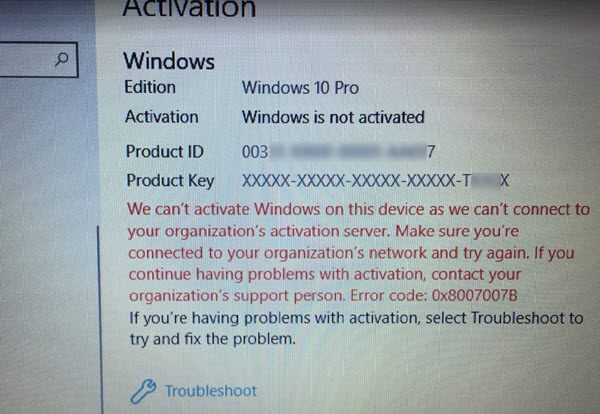
This error message further details the following:
We can’t activate Windows on this device as we can’t connect to your organization’s activation server. Make sure that you’re connected to your organization’s network and try again. If you continue having problems with activation, contact your organization’s support person. Error code 0x8007007B.
In organizations, multiple computers are activated via KMS (Key Management Server) licensing. Computers activated through this process do not get a permanent activation. Instead, they need to stay connected with the organization at least once in 7 months or 180 days. It is usually seen in Pro and Enterprise versions deployed in bulk, at least on hundreds or thousands of computers.
Imagine somebody using a Personal computer at the office, and after he leaves the organization, he will have an activated Windows Key. The above method makes sure this doesn’t happen. Another possible reason for this error message is that somebody used an organization key. Later, the PC underwent an upgrade or downgrade to a version that was not appropriate for that copy of Windows.
Fix We can’t activate Windows on this device as we can’t connect to your organization’s server error
- Connect to the network and activate it
- Change the license key
- Activate via Phone
- Run Activation Troubleshooter
To learn more about these steps, continue reading.
1] Connect to the network and activate it
If you know that this PC belongs to an organization, you need to connect and activate it to the network. To check if this actually belonged to an organization, run this in an elevated command prompt:
slmgr.vbs /dlv
Check if the Product Key Channel says GVLK – In this case, your system is activated via volume licensing.
Related: Fix 0xC004F074 Windows Activation error code
2] Change the license key
If you have left the organization, it’s time you buy another copy of Windows, and change the license key. However, make sure the key is for the same version of Windows. If it’s different, you will have to format your PC.
3] Activate via Phone
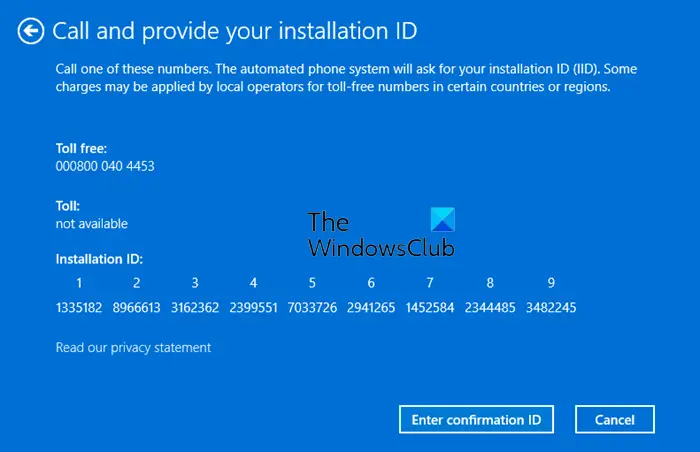
Try activating Windows via Phone.
Beginning December 3, 2025, the traditional telephone-based product activation process has been discontinued. Offline activation remains available, but users need a second device with an active internet connection to log into the online activation portal and follow its instructions to get the job done.
4] Run Activation Troubleshooter
If you think it’s merely because of a hardware change, you can use the Activation Troubleshooter to see if it can fix the issue for you.
Apart from these, you must check the following things:
- You must enter a valid product key. If the key you entered is invalid, you will waste your time.
- Your purchased product key and the installed Windows 11/10 version must match. If you purchased a product key of Windows 11/10 Home and you enter it on a Windows 11/10 Pro copy, it won’t work.
- It is recommended to use a single product key on a single computer. If you haven’t used it on another PC, you cannot use it on the second computer.
We weren’t able to activate Windows on this device
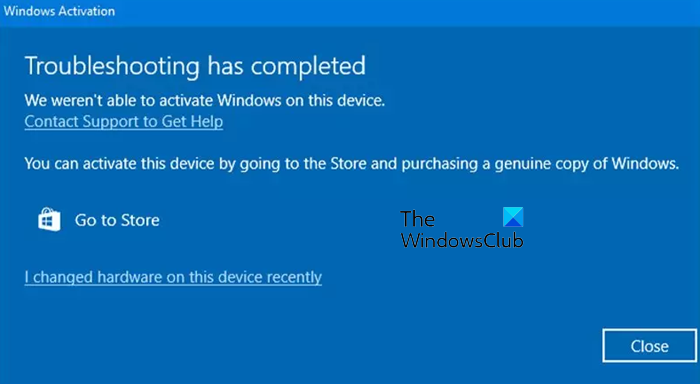
Some users may see a similar error We weren’t able to activate Windows on this device. If you face this issue, make sure you are using a Genuine copy of Windows and then go to the Microsoft Store to activate it. Additionally, you may run the Activation troubleshooter, Activate using the Command Prompt, or contact Microsoft Support to activate via Phone, as described in this post.
Can’t activate your copy of Windows, Make Sure that you’re connected to the internet and try again
If you receive the “Can’t activate your copy of Windows” error message, make sure you’re connected to the internet. Restart your PC and router, and ensure that you have a stable internet connection, and try again. If that does not help, then use the Phone to activate Windows.
How do you fix We can’t activate Windows on this device because you don’t have a valid digital license?
To get started, you can use the Activation Troubleshooter on your computer for a quick fix. If that doesn’t work, you must check if you have a valid digital license or not. In case you don’t have it linked to your Microsoft account, you need to purchase one.
What to do when you can’t activate Windows?
Depending on the exact error message, different guides are recommended to resolve the issue. You can start by using the given Activation Troubleshooter. You can also rebuild the activate tokens.dat file, change the product key, etc.
People often get their hands on these keys and activate Windows. It works for a while but starts showing these errors after a few days, which can cause the owner problems. If someone is trying to sell you a key and claims it’s genuine, you can try the command mentioned above to check whether the key is from an organization.
Resources that may help you:
- Windows Installation or Upgrade Errors
- Cannot activate Windows, Product Key blocked
- Windows is activated but still keeps asking for Activation.
