
VMware Horizon Client authentication failure halts connections, especially when logging in from external networks, and is usually a sign of an SSL/TLS certificate validation failure or a network-level security conflict between the client and the connection server. In this post, we are going to see what to do if VMware Horizon Client Connection Server’s authentication failed.
The Connection Server authentication failed. The tunnel server presented a certificate that didn’t match the expected certificate. Contact your administrator.

The Connection Server authentication failed. The tunnel server presented a certificate that didn’t match the expected certificate
This authentication failure occurs when a problem occurs during the TLS handshake between your Horizon Client and the Connection Server. The main reason for this is a break in the trust chain for SSL certificates. This often occurs when a network proxy, firewall, or security software (like a Cloud SWG Agent) intercepts your traffic and replaces it with its own certificate. This leads the client to reject the connection due to its certificate pinning feature. Other common reasons include using a server certificate that the client’s operating system does not trust, having an outdated or mismatched TLS protocol version, or failing to download the Certificate Revocation List (CRL). This failure can cause the authentication process to hang and eventually fail.
If VMware Horizon Client’s Server authentication failed, follow the solutions mentioned below.
- Configure an SSL Bypass for the Horizon Domain in your Proxy
- Bypass Proxy Tools
- Import the Connection Server’s Root Certificates as Trusted
- Adjust the Client’s Security Protocol to Match the Server
Let us talk about them in detail.
1] Configure an SSL Bypass for the Horizon Domain in your Proxy
VMware Horizon Client uses a strict security measure called certificate pinning, which expects the exact certificate from the Connection Server. When a proxy or WSS agent intercepts and decrypts your SSL traffic, it substitutes its own proxy certificate, triggering the client to reject the connection. By adding the Horizon domain to the SSL bypass list, you prevent the proxy from inspecting that traffic, allowing the original, untampered certificate to reach the client and complete the trusted handshake.
First, identify the fully qualified domain name (FQDN) or static IP address of your VMware Horizon environment (e.g., https://horizon.yourcompany.com).
Add this exact domain or IP address to the SSL Bypass or Decryption Exclusion list in your proxy server or WSS Agent settings.
2] Bypass Proxy Tools
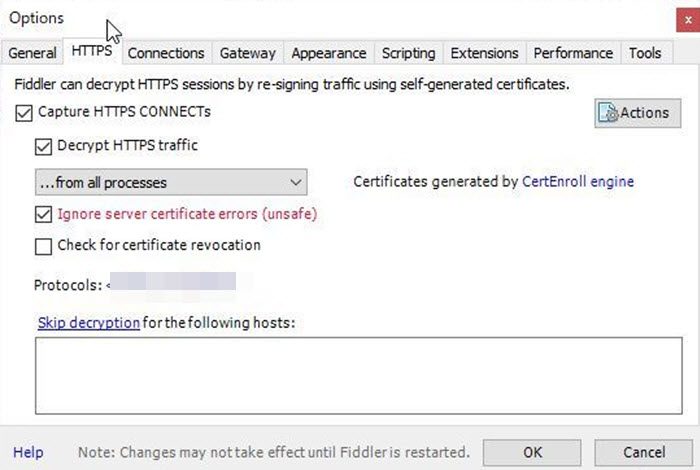
If there is a conflict caused by local debugging tools, bypassing the proxy tool will resolve the issue. It acts as a man-in-the-middle (MITM), decrypting secure traffic and causing the client’s TLS 1.2 security mechanism to fail due to missing client certificates. To do the same, follow the steps mentioned below.
- Go to Fiddler, navigate to Tools > Options > HTTPS.
- Now, go to Skip decryption for the following hosts.
- Then, add &.vmware.com and your specific Horizon server address to this list.
Finally, try connecting to your VDI and see if that helps.
3] Import the Connection Server’s Root Certificate as Trusted
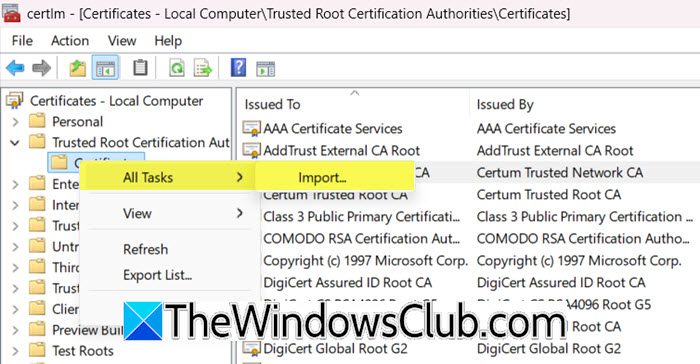
The Horizon Client uses the Windows certificate store to check the SSL certificate from the Connection Server. If the server has a certificate from an internal or private Certificate Authority (CA) that is not in the client’s Trusted Root Certification Authorities store, the client cannot confirm the certificate’s trust. This causes an authentication failure because the client worries about a potential man-in-the-middle attack. To fix this, you can manually add the root CA certificate to the trusted store. This tells Windows and the Horizon Client to trust any certificate signed by that CA, allowing the secure TLS handshake to finish successfully.
Follow the steps mentioned below to do the same.
- Obtain the root CA certificate file (.crt or .pem) from your Horizon administrator.
- Press Windows + R, type certlm.msc, and press Enter to open the Local Machine Certificate Manager.
- In the left pane, expand Trusted Root Certification Authorities, then right-click on Certificates.
- Select All Tasks > Import to launch the Certificate Import Wizard.
- Click Next, then browse and select the root CA certificate file you obtained.
- Click Next, ensure that Place all certificates in the following store is set to Trusted Root Certification Authorities.
- Click Next, then Finish.
Restart the Horizon Client and try connecting again.
4] Adjust the Client’s Security Protocol to Match the Server
If your Horizon Client attempts to use a modern TLS protocol (like TLS 1.3) that the Connection Server does not support, the handshake will fail with a TLS/SSL protocol version or cipher suite mismatch.
In Group Policy Management Editor, navigate to Computer Configuration > Policies > Administrative Templates > VMware Horizon Client Configuration > Security Settings. Open the SSL/TLS Protocols policy, set it to Enabled, and ensure that only protocols supported by your Connection Server (e.g., TLS 1.2) are selected. Apply the Group Policy.
That’s it!
Read: VMWare Horizon Client not opening
How to fix Omnissa Horizon Client?
First, clear the client cache by deleting %AppData%\Omnissa\Horizon Client and %LocalAppData%\Omnissa\Horizon Client. Next, reinstall the latest client from Omnissa’s official site. If connection issues persist, disable IPv6 on your network adapter or switch to a wired connection. For SSL errors, import the root CA certificate via certlm.msc into Trusted Root Certification Authorities. Finally, ensure your firewall allows ports 443 and 8443 to the Connection Server.
Read: VMware Horizon Client not working on WiFi
What to do when server authentication failed?
Add your Connection Server’s FQDN to any proxy or WSS agent’s SSL bypass list to prevent certificate interception. Import the server’s root CA certificate as trusted on your local machine. Force the client to skip CRL checks by setting vmware.view.skip-crl-revocation-check in the registry. Adjust TLS versions in Group Policy: enable only TLS 1.2. As a temporary diagnostic, lower certificate verification to “No verification” in client settings.
Also Read: VMWare Horizon Client freezing or stuck at connecting.
