
You try to create a quiesced snapshot of your Windows 11 virtual machine, but the operation fails because the VMware Snapshot Provider service is completely absent from the services list. This essential component, delivered with VMware Tools, integrates with Microsoft Volume Shadow Copy to provide application‑consistent backups. Without it, VMware falls back to crash‑consistent snapshots or refuses to take a snapshot at all. In this post, we will see what to do if the VMware snapshot provider service is missing.
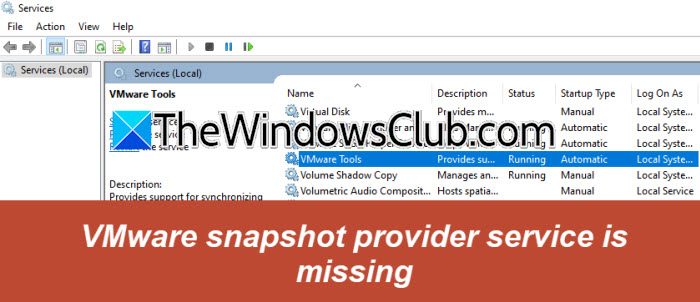
The VMware Snapshot Provider service is part of the Volume Shadow Copy Services (VSS) sub‑feature inside VMware Tools. If you install VMware Tools with the default Typical setup, the VSS component remains unchecked and does not copy the required files or register the service. Corrupted VMware Tools upgrades, scripted silent installations that omit the VSS feature, or group policies blocking VSS installation can also leave the service missing. Sometimes a Windows update or a repair operation removes the service’s registry entries while leaving the DLL file intact, making the service invisible to the Service Control Manager.
VMware snapshot provider service is missing
If the VMware snapshot service is missing, follow the steps mentioned below.
- Add the VSS component via VMware Tools modification
- Remove stale COM+ registration and reinstall the VSS Components
- Re-register the VMware Snapshot manually
Let us talk about them in detail.
1] Add the VSS component via VMware Tools modification
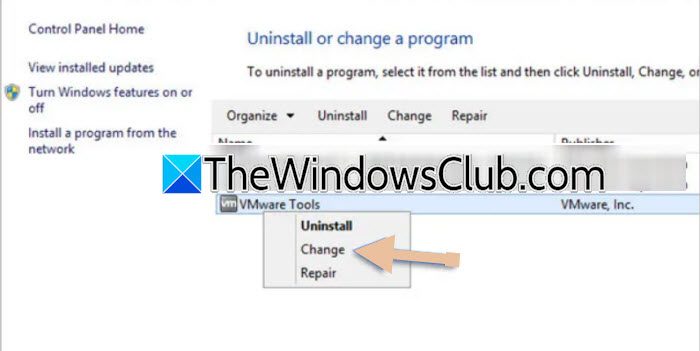
The Modify option lets you selectively install the Volume Shadow Copy Services Support feature without removing other VMware Tools parts. It places the snapshot provider DLL in the correct folder, registers the service, and configures its startup type automatically. Follow the steps mentioned below.
- Press Windows + R, type appwiz.cpl, and press Enter to open Programs and Features.
- Locate VMware Tools in the list, right‑click it, and select Change.
- In the VMware Tools setup wizard, choose Modify and click Next.
- Expand VMware Device Drivers > Volume Shadow Copy Services Support, click the drop‑down arrow, and select This feature will be installed on local hard drive.
- Click Next, then Modify, and follow the prompts to complete the installation.
Restart the virtual machine and confirm that the VMware Snapshot Provider service now appears in services.msc.
You can also try repairing the installation. A repair re‑registers all VMware Tools components and restores missing registry keys and files. If the snapshot provider files still exist on disk but have lost their service configuration, a repair rewrites everything correctly. To do so, follow the steps mentioned earlier, but after clicking on Change, select Repair > Next, and allow VM to finish installation. Now, reboot the VM, and check services.msc for the VMware Snapshot Provider service and set its startup type to Automatic if it is not already running.
2] Remove stale COM+ registration and reinstall the VSS component
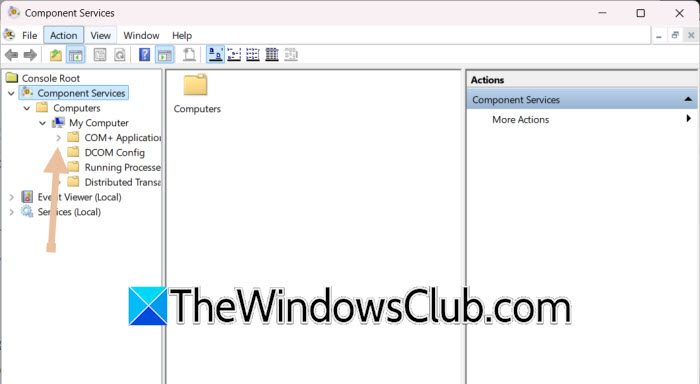
An in-place Windows upgrade or an interrupted VMware Tools upgrade can cause problems with COM+ registration for the VMware Snapshot Provider. Even if you reinstall VMware Tools, Windows may still refer to the outdated COM+ object. This can stop the Snapshot Provider service from being recreated. To fix this, you need to remove the old COM+ entry first. Reinstalling the VSS component will then force VMware Tools to register the provider again. Follow the steps below to do this.
- Hit Win + R, type comexp.msc, and hit Enter.
- Now, expand Component Services > Computers > My Computer > COM+ Applications.
- Locate VMware Snapshot Provider.
- Right-click it and select Disable, then Delete.
- Open Programs and Features.
- Now, right-click on VMware Tools, go to Change > Modify > Volume Shadow Copy Service Support > Entire feature will be unavailable.
- Complete the wizard and reboot if prompted. Now, repeat the Modify wizard.
- This time, select the Entire feature will be installed on local hard drive.
- Finally, finish the installation and restart the VM.
After Windows starts, open Services.msc, and verify that the VMware Snapshot Provider is listed.
3] Re-register the VMware Snapshot Provider manually
If the required VMware files still exist but Windows has lost the service registration, you can manually register the Snapshot Provider without reinstalling VMware Tools. This is especially useful after Windows feature upgrades or registry corruption.
Open the Command Prompt as an admin, run the following command.
"C:\Program Files\Common Files\VMware\Drivers\vss\comreg.exe" -register "C:\Program Files\Common Files\VMware\Drivers\vss\VCBSnapshotProvider.dll" "VMware Snapshot Provider" "vmvss" "VMware Snapshot Provider"
Once the command completes, restart the VM, and open Services.msc, verify that the VMware Snapshot Provider is now present, and retry creating a quiesced snapshot. If the command reports that the DLL cannot be found, reinstall or repair VMware Tools first.
Read: VMware does not support the user level monitor of this host
What is VMware Snapshot Provider Service?
The VMware Snapshot Provider Service is a component of VMware Tools that integrates with Microsoft Volume Shadow Copy Service (VSS) to create application-consistent snapshots of Windows virtual machines. Before a snapshot is taken, it coordinates with VSS to temporarily pause write operations and flush cached data to disk, ensuring that applications such as Microsoft SQL Server and Exchange Server remain in a consistent state. Without this service, VMware typically creates only crash-consistent snapshots.
Read: How to access and use BIOS in VMware Workstation
How to enable snapshot in VMware?
To enable quiesced snapshots in VMware, first install or update VMware Tools on the guest operating system and ensure the Volume Shadow Copy Services Support feature is installed. Verify that the VMware Snapshot Provider service is present and that Microsoft Volume Shadow Copy Service (VSS) is functioning correctly. When creating a snapshot, select the Quiesce guest file system option in the VMware interface to generate an application-consistent snapshot instead of a crash-consistent one.
Also Read: VMware Workstation failed to power off virtual machine.
