
You may have noticed your VM doesn’t turn off at times, not because it is stuck, as everything else works, but it doesn’t respond to the Power off signal. This is a very common issue and can be fixed quickly by forcing the machine off or fixing corrupted files. In this post, we are going to see what you can do if your VMware Workstation fails to power off a virtual machine.
This issue usually happens for one of two reasons. First, the VMware Workstation VMX service, which is the main process running your virtual machine, might freeze or get damaged. This can leave the virtual machine stuck in a power state that cannot be changed. Second, a damaged suspended state file (.vmss) or leftover lock files (.lck) can make VMware think the virtual machine is still running or suspended when it isn’t. This blocks any new power actions. These problems often occur after an improper shutdown, a system crash, or an interrupted snapshot operation.
Fix VMware Workstation failed to power off virtual machine
If VMware Workstation fails to power off a virtual machine, follow the solutions mentioned below.
- Terminate the stuck VM Process via Task Manager
- Use the command line Force-Kill
- Delete corrupt Suspend and Lock Files
- Perform a VMware Workstation Repair Installation
Let us talk about them in detail.
1] Terminate the stuck VM Process via Task Manager
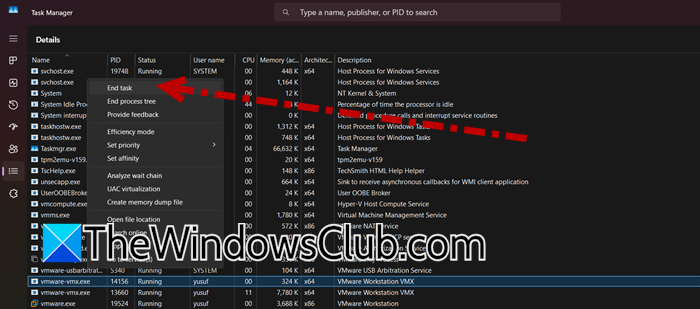
Every running VM has a dedicated vmware-vmx.exe process. When a VM gets stuck during power-off, this process becomes unresponsive but remains active, tying up system resources and preventing any new power commands. Killing this process immediately terminates the VM’s virtual hardware, forcing it to power off completely.
Open Task Manager by Ctrl + Shift + Esc, navigate to the Processes tab, look for VMware Workstation VMX, right-click on it, and select End Task.
After ending the process, close and reopen VMware Workstation. Your VM should now appear as Powered Off.
2] Use the command line Force-Kill
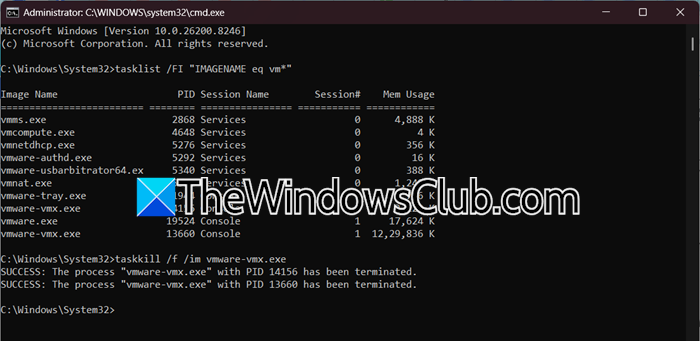
Sometimes the VMX process is so deeply hung that even Task Manager can’t terminate it normally. The taskkill command with the /f (force) flag bypasses standard shutdown routines and terminates the specified process immediately, regardless of its state. This is the digital equivalent of pulling the power cord.
Open Command Prompt as an admin, then run the following command.
tasklist /FI "IMAGENAME eq vm*"
Now, note the exact process name, which is usually – vmware-vmx.exe, then, force-kill using the command mentioned below.
taskkill /f /im vmware-vmx.exe
For more precision (if you have multiple VMs running), find the specific PID from Task Manager and use it.
taskkill /f /pid [ProcessID]
Once the process is terminated, restart VMware Workstation.
3] Delete corrupt Suspend and Lock Files
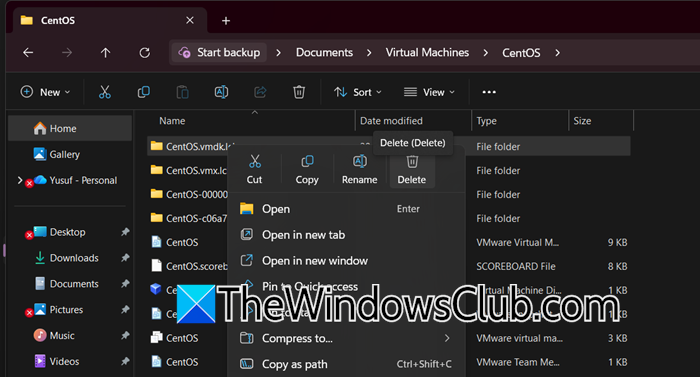
VMware uses .vmss files to store a VM’s suspended memory state and .lck folders as lock files to prevent multiple instances of the same VM. When a power-off fails, these files can become corrupted or remain locked, leading VMware to believe the VM is still suspended or active. Deleting them forces VMware to treat the VM as cleanly powered off.
First, completely close VMware Workstation. Now, navigate to your virtual machine’s folder (the one containing the .vmx file). The default location is usually Documents\Virtual Machines\.
The .vmss file (this is the suspended state file). If present, removing it immediately turns off the VM.
Any folders or files ending with .lck (these are lock files). Right-click and delete them.
For safety, also open the .vmx file in Notepad, find any line starting with checkpoint.vmState, and set it to checkpoint.vmState = “”.
Restart VMware Workstation and power on the VM normally.
4] Perform a VMware Workstation Repair Installation

When core VMware services, like the Authorization Service or VMX components, are corrupted, simply killing the process won’t help. A repair installation reinstalls system files, restores registry entries, and refreshes service configurations without affecting your virtual machine data. This resolves deep software corruption that can lead to power operation failures.
- Open Settings by Win + I.
- Then, go to Apps > Installed apps.
- Now, look for VMware Workstation in the list, click on the three dots, and select Modify.
- Click on Next > Repair.
- Follow the on-screen instructions to complete the process.
Do not touch or move your VM folders during this process. Your virtual machines will remain intact. Finally, reboot your computer and see if that helps.
Read: VMWare Workstation crashing on Windows 11
How to force shutdown a virtual machine on VMware?
To force shutdown a stuck VM, open Task Manager as Administrator, locate vmware-vmx.exe under Details, right-click it, and select End Process Tree. This instantly terminates the VM’s virtual hardware without waiting for the guest OS to cooperate. Alternatively, run taskkill /f /im vmware-vmx.exe from an elevated Command Prompt.
Read: How to enable AutoStart of VMs on VMware ESXi and Workstation
How do you power off a VM in VMware?
The normal way is to right-click the VM in the inventory, select Power > Power Off. For a clean OS shutdown, first press Ctrl+Alt+Del inside the VM, or use the guest shutdown option if VMware Tools is installed. If the VM hangs during power-off, use the Force Power Off option from the Power menu. Avoid force methods unless necessary, as they may cause data loss.
Also Read: Module VPMC Power on failed on VMware Workstation.
