
This tutorial shows how to view, export, or delete Gaming Copilot conversations in Windows 11. Gaming Copilot is a new feature in Game Bar on PC for Xbox Insiders and the Xbox mobile app that embeds Copilot directly into the PC gaming environment. You can speak or chat with Gaming Copilot (ask questions about a game, your account history, or play history, game recommendations, etc.), and all those conversations are stored so you can access and use them later. You can view and delete an individual conversation or export and delete all Gaming Copilot conversations at once.
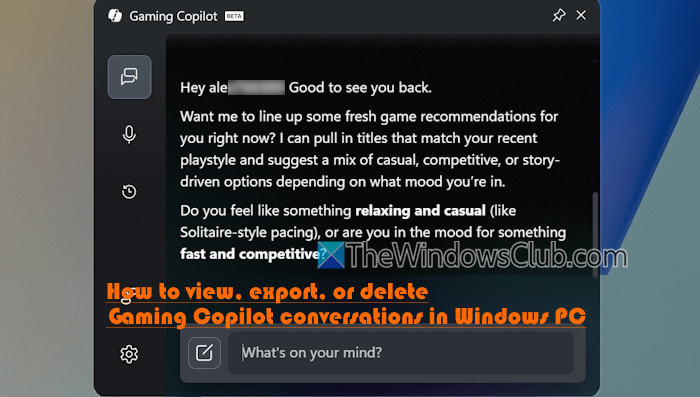
How to view, export, or delete Gaming Copilot conversations in Windows 11
You can view, export, or delete Gaming Copilot conversations in Windows 11 in two ways. These are:
- View and delete Gaming Copilot conversations using Game Bar in Windows 11
- Export and delete all Gaming Copilot conversations in Windows 11 using Copilot activity history.
Let’s check both options.
1] View and delete Gaming Copilot conversations using Game Bar in Windows 11
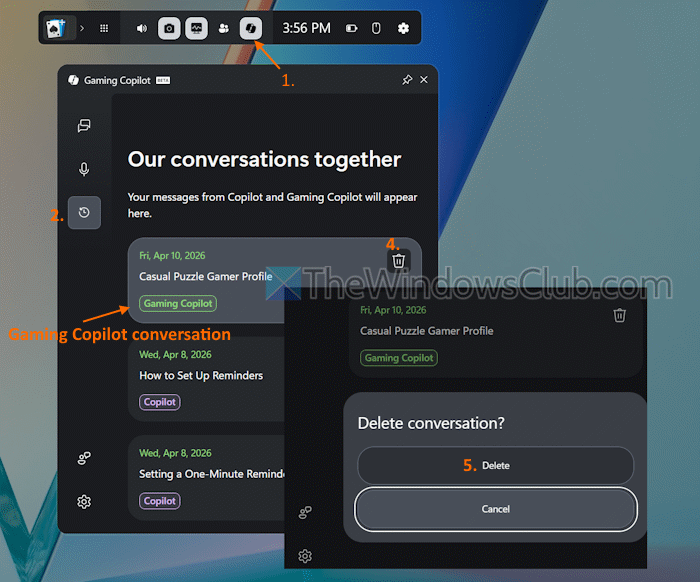
Using this option, you can view and delete your conversations for a particular day. Here are the steps to view and delete Gaming Copilot conversations using Game Bar in Windows 11:
- Press Win+G hotkey to open the Game Bar in Windows 11
- In the Widget Menu, click on the Gaming Copilot icon to open its separate window. If you don’t see the Gaming Copilot icon, add it first. In the Widget Menu, click on the Settings icon > More settings > Widgets > and turn on Gaming Copilot (available under the Show in widget menu section). Now, click the Widget Menu icon, and a pop-up will appear. Mark Gaming Copilot as a Favorite to show it in the Widget Menu bar
- In the Chat section of the Gaming Copilot window, you will see your recent conversation
- Select the History option from the left side. You will see your messages from Gaming Copilot and Copilot. For each conversation, you will see the conversation date and time, title, and a Delete icon. Clicking on the conversation title will show you all the chats related to it
- To delete a conversation, click on the Delete icon
- Confirm the action using the Delete button.
Repeat these steps to view or delete other individual Gaming Copilot conversations.
Here, you might miss a Search box to find a particular chat (especially if there are tons of conversations) and a filter to show only Gaming Copilot conversations and not Copilot conversations. These options might come in the future as the feature progresses.
Related: How to use Copilot for Gaming on Xbox?
2] Export and delete all Gaming Copilot conversations in Windows 11 using Copilot activity history
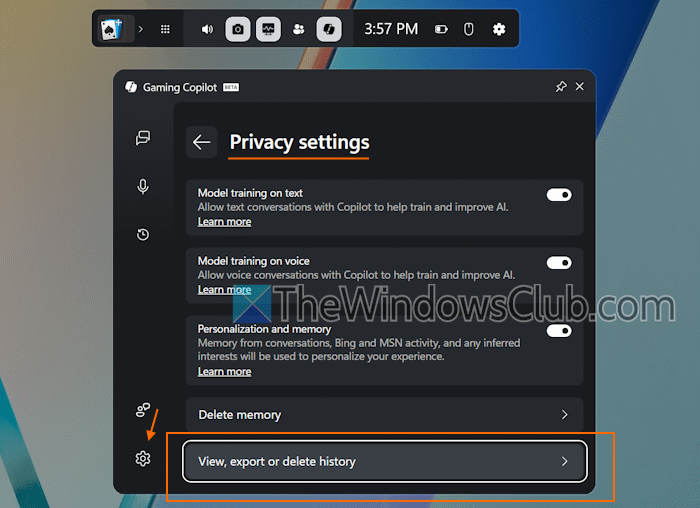
You need to access your Copilot activity history to export and/or delete all Gaming Copilot conversations in Windows 11 because a direct option to delete or export only Gaming Copilot conversations is not available yet. Here are the steps:
- Open the Game Bar in Windows 11
- Select the Gaming Copilot icon in the Widget Menu
- Click on the Settings icon in the bottom-left corner of the Gaming Copilot window
- Select Privacy settings
- Click on the View, export or delete history option
- This will open your Microsoft Account page in a new tab of your default web browser. Sign in with your account credentials
- Go to Privacy > Copilot to access the Manage your Copilot activity history page
- Expand the Copilot apps section (in the Your Copilot Activity history section)
- Use the Export all activity history option to save a CSV file
- Open that CSV file in Excel. You will see Conversation (Title), Author (Human and AI), Time, and Message columns. Now you need to find and access chats you had with Gaming Copilot, as the exported CSV file includes other chats.
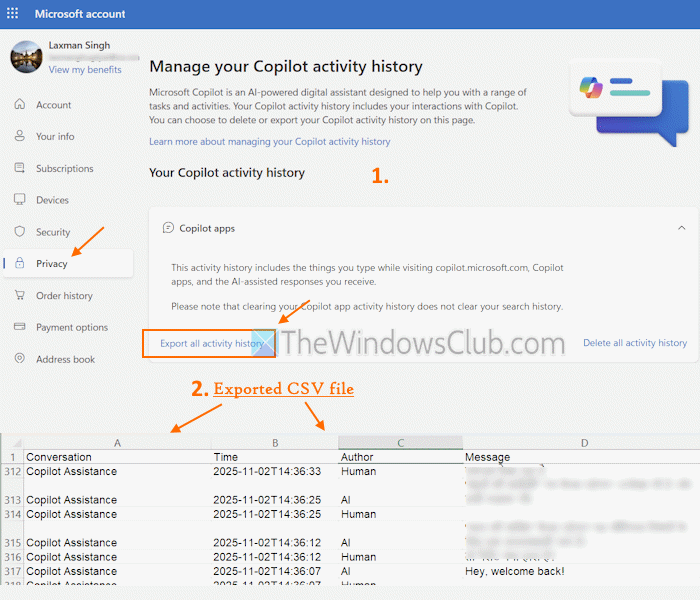
To delete the entire Gaming Copilot conversations, you can use the Delete all activity history option in the Your Copilot Activity history section of your Microsoft Account page. However, do remember that it will also wipe all activity history, including the prompts you type while visiting the Copilot web app, other Copilot apps, and the responses you receive.
That’s all.
Now read: How to Manage or Delete Copilot Memory in Windows PC
How to export Microsoft Copilot activity history?
To export your Microsoft Copilot activity history, log in to your Microsoft Account and access the Privacy settings from the left section. Under Your Copilot activity history, expand the Copilot apps, Copilot in Microsoft 365 apps, and Copilot in Windows apps sections, and use the Export all activity history, Export all Copilot Chat, and Export all Copilot in Microsoft 365 apps activity history.
What can I do with my Copilot Chat history?
With your Copilot Chat history, you can go back to or revisit a chat you had with Microsoft 365 Copilot Chat earlier. You can also continue the conversation, rename a conversation, delete it, or add a conversation to your Copilot notebooks.
Read next: How to use Copilot in Windows PC [Getting Started Guide].
