
If you’re bored with your current browser and want a fresh take on security and a clean interface, consider Yandex Browser. This fast, free alternative to Chrome and Edge is gaining popularity and offers a blend of familiar features and unique tools for smoother browsing, including the integration of the Alice AI assistant. Here’s a quick guide on how to install and use Yandex Browser on your PC and the reasons to make the switch.
Install and use Yandex Browser on Windows 11
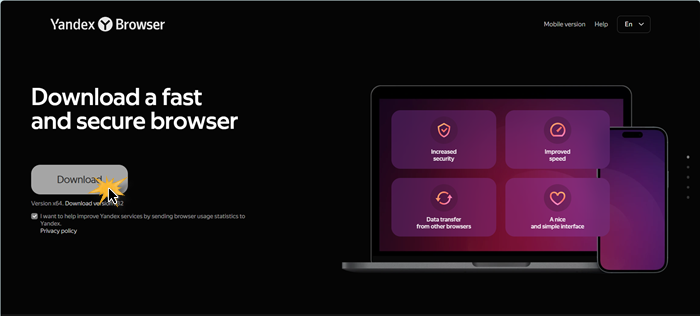
Before installing, always download software from the official source to avoid malware. You need to visit the clean site at browser.yandex.com, which should automatically detect your Windows version and recommend the 64-bit installer for modern PCs. The download is lightweight, typically around 85 MB, so it won’t take long even on slower connections.
Once the installer file is downloaded, open it. You might get a prompt from Windows User Account Control asking if you allow this app to make changes to your device. Click Yes.
The installation wizard is minimalistic. Unlike some other software that tries to trick you into installing toolbars or changing your search engine with hidden checkboxes, Yandex keeps it clean. You will be asked two simple questions:
- Set Yandex as my default browser: If you are just testing it out, you can uncheck this. You can always change it later.
- Send usage statistics: This is standard practice for most browsers to help improve the product, including its AI algorithms. Choose whatever you are comfortable with.
The actual installation takes about a minute. When it finishes, the browser will launch automatically and present you with a visually appealing start page called Tableau.
The new tab page features a clean design with Yandex’s visual bookmark system, Tableau. Your favorite sites are displayed as large square tiles or widgets, which you can rearrange and group by categories like Work or Social. You can also add a custom background image for personalization. Yandex makes it easy for users switching from other browsers by automatically offering to import bookmarks and saved passwords from Chrome or Firefox during the initial setup, saving you the trouble of starting over.
Best AI Features of Yandex
Let us look at some of Yandex’s best AI features.
Alice: Your Built-In Voice Assistant
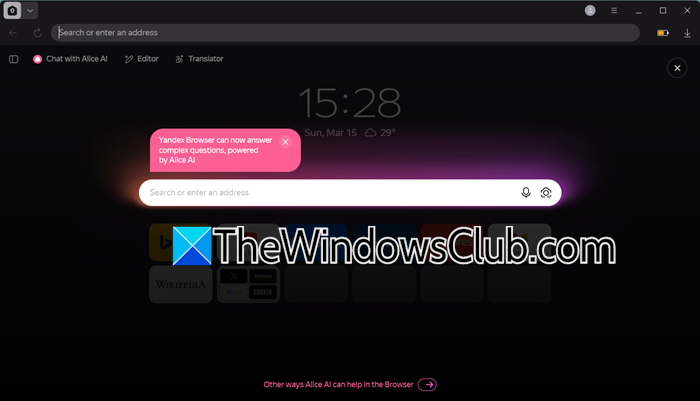
Yandex has Alice, a smart voice assistant that works well in a desktop browser. Unlike other assistants, Alice is fully part of the browsing experience. You can talk to her or type your questions while you browse. If you need to find a specific email without looking through your inbox, just ask Alice. If you want to know the weather without typing, click the microphone icon. Alice can tell jokes or summarize the news while you work. She understands context; for example, if you’re reading about a restaurant, and you ask, Is it any good? She knows you mean the restaurant you’re looking at.
AI-Powered “Zen” News Feed
When you open a new tab, you will see the Zen feed. This is a system that uses AI to recommend articles, videos, and news based on what you like to read. It works like TikTok’s “For You” page, but it focuses on text and videos. If you often read about technology or cooking, Zen will show you more of that content. It learns quickly; if you hide a topic you don’t want to see, the system changes right away. This is a great way to find interesting content without having to search for it.
SmartBox
Yandex’s address bar, called SmartBox, uses AI to predict what you need as you type. It does more than just autocomplete. For example, if you type weather, it shows the current forecast right away in a dropdown. If you enter a tracking number, it pulls up the delivery status. SmartBox also understands typos and casual language. If you type movies this weekend, it shows you local showtimes, focusing on what you mean rather than just matching the words.
Visual Translation with Neural Networks
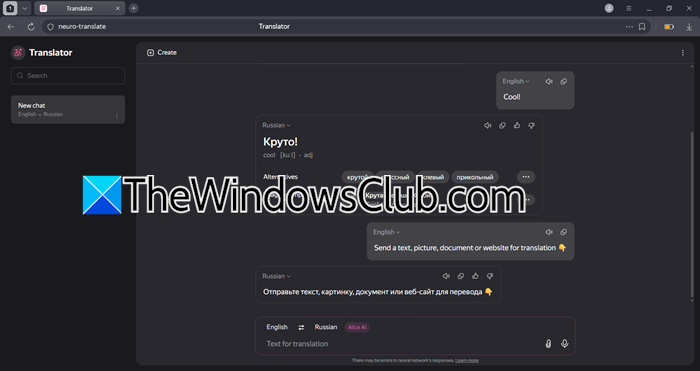
Yandex has one of the best translation tools on the internet. It uses its own neural network technology. When you visit a website in a different language, the browser will suggest an instant translation.
The AI is especially good at translating images. If you see a menu from a foreign country in a JPEG format or a sign in a photo, you can use the visual translation tool in the browser. This tool shows the translated text directly on the image in real time, keeping the original layout. This is a big improvement over the translation tools in other browsers.
That’s it!
Read: Best AI Extensions and Tools for Microsoft Edge.
Is Yandex a Russian browser?
Yandex Browser, developed by the Russian company Yandex, often called the Google of Russia, was first released in 2012 and has become a popular choice in Russian-speaking countries. Built on the open-source Chromium engine, it features a customized interface and security options, along with deep integration of AI services like the voice assistant Alice.
Read: What is Dia AI Browser? How is it useful for Windows 11?
Is Yandex better than Chrome?
The choice between Yandex and Chrome depends on your preferences. Yandex offers built-in AI tools like a smart voice assistant, a predictive news feed, and visual translation, as well as enhanced security for public Wi-Fi. However, if you regularly use Google services like Gmail and Google Docs, Chrome provides a more seamless experience. Yandex is a great option if you prioritize innovation and privacy features.
Read: Use the AI features in Chrome browser.
