
If the USB hub is not working or is very slow after connecting multiple devices in Windows 11, here is how you can fix the issue. As a power supply to corrupt drivers, anything could be the reason; we have listed some of the most common causes and solutions to get rid of this problem.
Why is USB hub not working or slow in Windows 11?
The USB hub is not working or is slow because of these reasons:
- You are using an incorrect USB port.
- Your USB hub is USB 2.0, whereas your devices support USB 3.0.
- Your USB hub driver is malfunctioning or corrupt.
- Your USB hub has a USB 2.0 cable.
- Device overload.
- Your USB hub doesn’t have the proper power supply.
USB Hub not working or slow in Windows 11
If the USB hub is not working or is slow in Windows 11, follow these solutions:
- Check the USB port
- Verify USB cable
- Disconnect some devices
- Check the power supply
- Reinstall USB hub driver
- Disable power saving
- Disable USB Selective suspend setting
To learn more about these solutions, continue reading.
1] Check the USB port
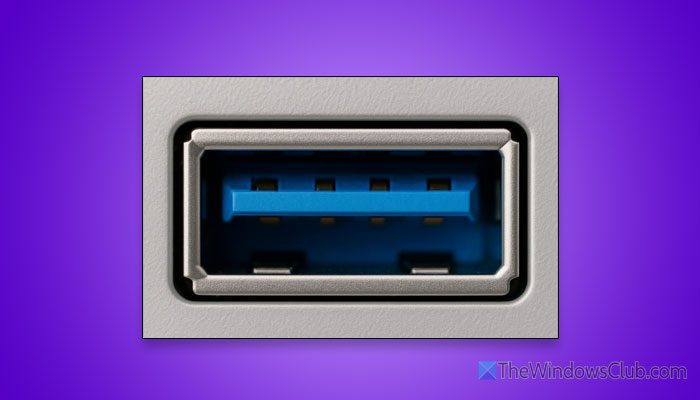
It is the very first thing you must do, since the USB port plays a vital role in determining whether your USB hub is faster or slower. If the USB hub supports USB 3.0 and you connect it to a USB 2.0 port, you will get the speed of a USB 2.0 port. No matter whether your connected devices support USB 3.0, you will still get the speed of USB 2.0.
That is why it is suggested to check the USB port. The best way to identify a USB 3.0 port is by checking the Device Manager. Apart from that, you can check the logo and color of the USB port (it should be blue).
2] Verify USB cable
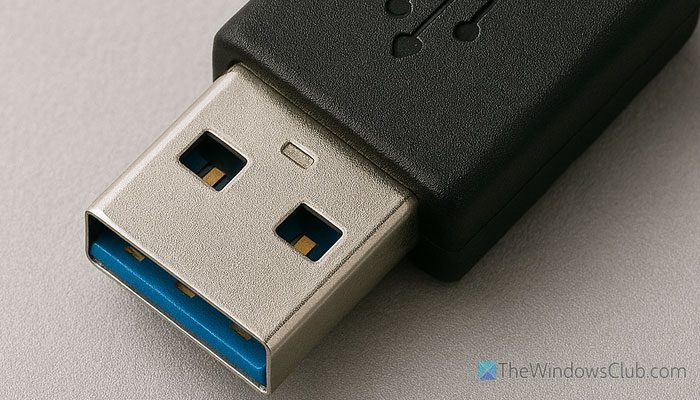
Like a USB port, it is also important to check the USB cable. A USB 2.0 cable doesn’t work as a USB 3.0 cable. Having said that, even if you connect your USB hub to a USB 3.0 port, it might not work or work slowly due to the cable. That is why it is recommended to check the USB cable version on your USB hub. Although it is pretty difficult, most companies use blue coating to cover the male port of the cable.
Read: USB-C Port not working, charging or recognized on Windows
3] Disconnect some devices
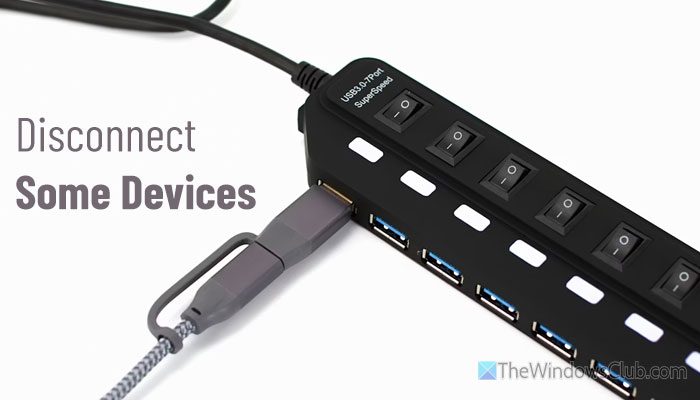
Let’s assume your USB hub has 4 ports and you are using all of them to transfer data simultaneously. For obvious reasons, your data transfer speed will be automatically slowed down. In some cases, your computer may take longer to recognize the device. Apart from that, your USB hub will heat up and stop working. That is why it is suggested to disconnect some devices and check if it solves the issue.
If it does, you should use fewer devices at the same time. However, if the problem persists when you connect only the mouse or keyboard to one external hard disk or SSD, it could be a sign of a low-quality USB hub.
Read: The last USB device you connected to this computer malfunctioned
4] Check the power supply
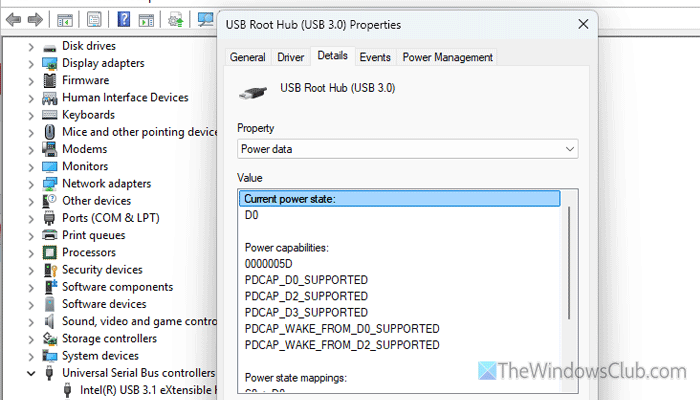
This solution is mainly for those whose USB hub comes with an additional power supply. If your USB hub is plug-and-play, check the power cable to see if it is connected.
You can also check the power output of a USB port using Device Manager. Another big issue arises when your computer shows a ” Power surge on the USB port” message. In that case, you can go through the aforementioned article. In short, you must install the USB hub driver.
5] Reinstall USB hub driver
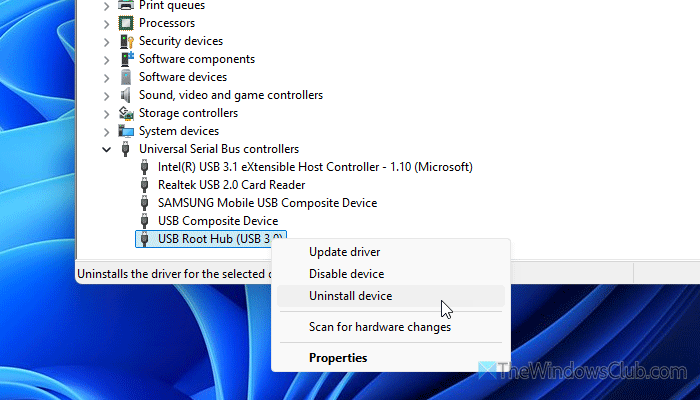
In most situations, you might not need an additional driver to use the USB hub with your computer. However, some high-tech devices require you to install the driver first. If your USB hub is one of them, it must be installed.
If you already have the driver and you are getting this issue, you have one thing to do. First, use the Device Manager to uninstall the existing driver. For that, open the Device Manager, right-click on the device, and select the Uninstall device option.
Then, head to the official website to download the driver for your USB hub and install it.
Note: As mentioned, DO NOT use any third-party website to download the driver.
6] Disable power saving
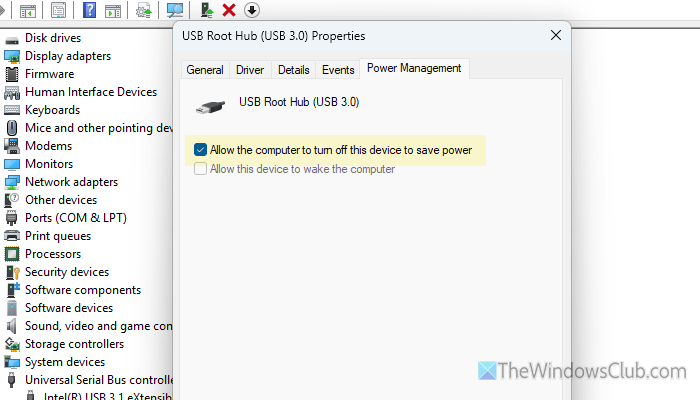
If you have enabled power-saving mode on the USB hub, you may encounter this problem when connecting the hub to your computer. Therefore, follow these steps to disable power saving for your USB hub in Windows 11:
- Press Win+X and select Device Manager.
- Expand the Universal Serial Bus controllers section.
- Right-click on the USB hub device and select Properties.
- Go to the Power Management tab.
- Remove the tick from the Allow the computer to turn off this device to save power checkbox.
- Click the OK button.
After that, check if the problem still exists or not.
7] Disable USB Selective suspend setting
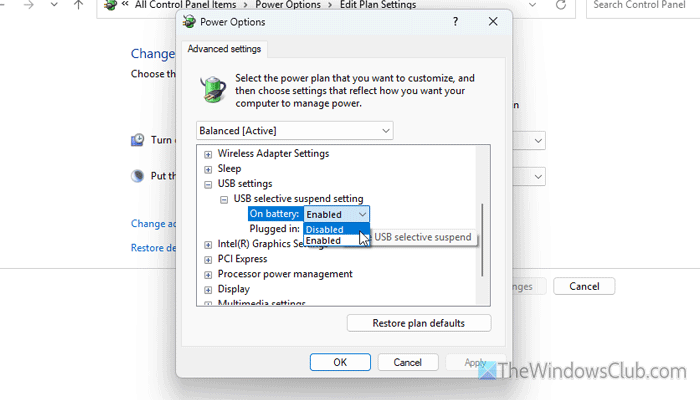
The selective suspend feature lets you suspend or put a specific device on idle in Windows 11. If you have enabled this feature, you may encounter this problem. That is why follow these steps to disable USB selective suspend in Windows 11:
- Open the Control Panel on your computer.
- Go to Power Options > Change plan settings > Change advanced power settings.
- Expand USB settings > USB selective suspend settings.
- Click the Enabled option and choose Disabled.
- Click the OK button.
Read: Selective Suspend causes USB devices on USB hub to stop functioning
How to fix slow USB transfer speeds in Windows 11?
The best way to fix slow USB transfer speeds in Windows 11 is to use a high-quality USB 2.0 device. On the other hand, it is always recommended to use a single data transfer process at a time to achieve the maximum output.
How to fix USB problems in Windows 11?
To fix any USB-related issue in Windows 11, check the corresponding driver first. After that, check the cable and port you use to connect the device to your computer.
Read: USB Devices not working in Windows 11.
