
Some users cannot cancel their Adobe subscription because of the “Unable to load data” error. This error can occur with any Adobe software, such as Photoshop, Creative Cloud, etc. If you encounter this error with any Adobe software, the solutions provided in this article will help you.
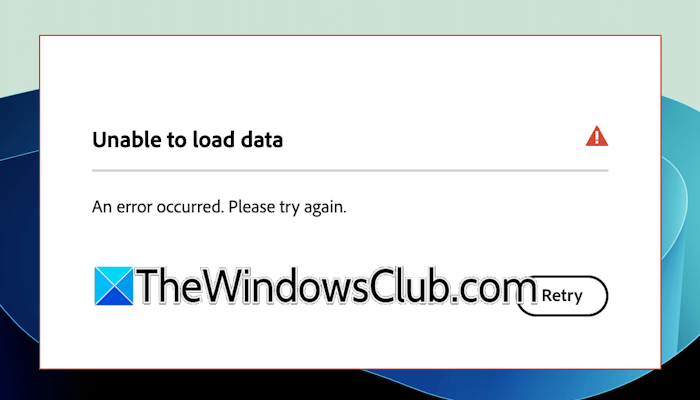
The complete error message is:
Unable to load data
An error occurred. Please try again.
Unable to load data, an error occurred on Adobe
If you cannot cancel your Adobe software subscription due to the “Unable to load data” error, use the following fixes:
- Check Adobe server status
- Switch to another network
- Disconnect from VPN (if applicable)
- Try in incognito mode
- Disable extensions
- Try another web browser
- Disable your antivirus and firewall
- Try with your mobile phone
- Contact support
All these fixes are explained in detail below.
Can’t cancel Adobe subscription
1] Check Adobe server status
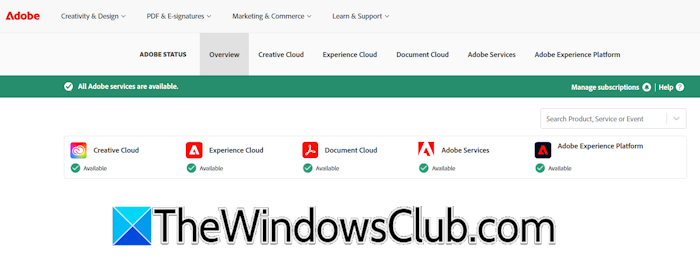
This issue can be temporary if there is a server outage. Check the Adobe server status. The Adobe Service Status page provides an overview of the service status of all Adobe products. You can select any of these products to view the real-time status of its associated services.
If there is a server outage, you need to wait till Adobe fixes the issue.
2] Switch to another network

If all the services are running smoothly, the issue might be on your end. Your internet connection might be unstable. Switch to another available internet connection. You can also use your mobile data to connect your system to the internet through a mobile hotspot.
3] Disconnect from VPN (if applicable)
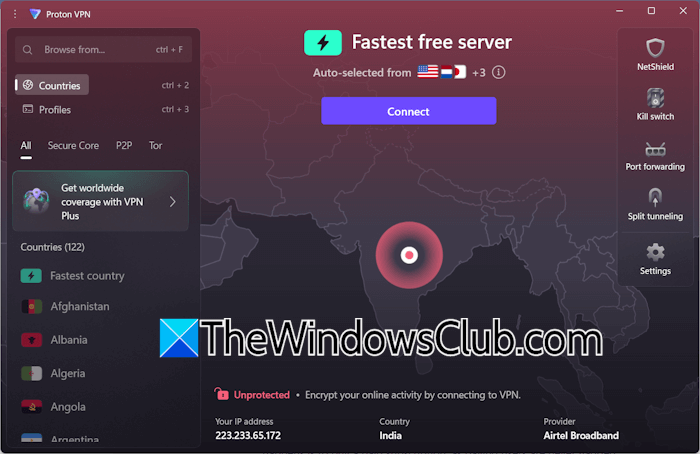
If you are connected to a VPN, disconnect it and check if you can cancel your Adobe subscription. VPN slows down the internet speed, which may sometimes cause issues with certain applications or services.
4] Try in incognito mode
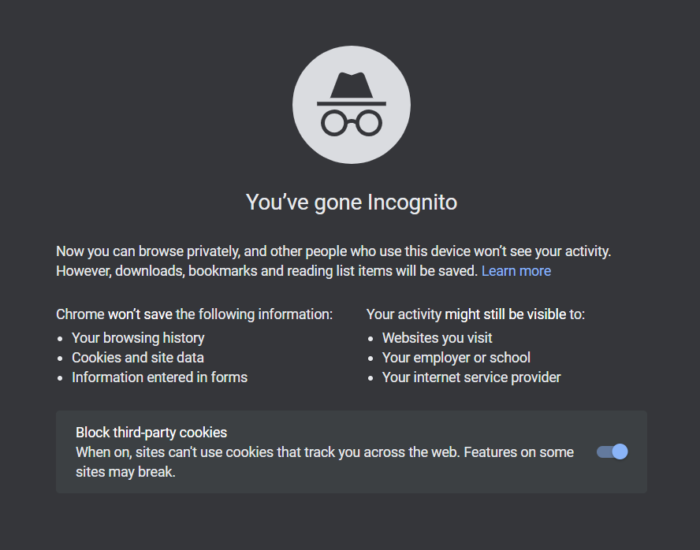
The corrupt browser cache and cookies cause several issues. This might be the case with you. To check this, log in to your Adobe account in incognito or private mode. If the error does not occur, you can cancel your subscription plan. To completely fix this issue, exit the incognito mode and clear your browser cache and cookies. The Ctrl + Shift + Delete key combination opens the Clear browsing data window in all web browsers.
5] Disable extensions
A browser extension might be causing this problem. To check this, disable all extensions and reload the Adobe page. If the error disappears, one of the installed extensions is causing this problem. Now, you can easily cancel the subscription. However, the problem can occur again after enabling the disabled extensions. Therefore, it is important to find the culprit.
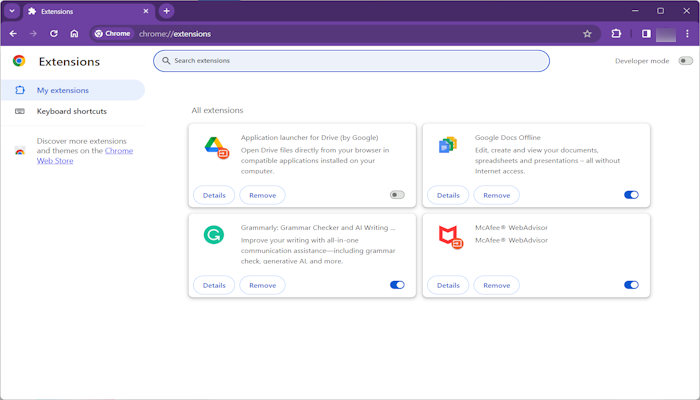
To find the problematic extension, enable each disabled extension one by one, then reload the Adobe website after enabling each. When the error reappears, the extension you have just enabled is the culprit. Now, uninstall that extension and search for its alternative.
6] Try another web browser
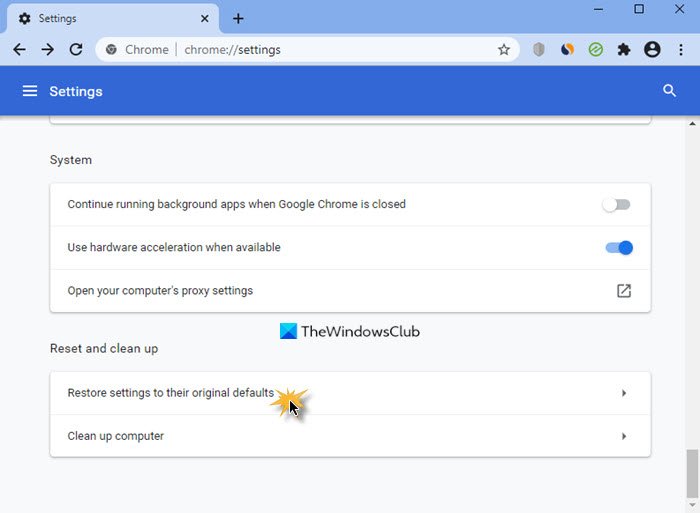
Sometimes, issues are associated with a particular web browser. This might be the case with you. Try another web browser. If the error does not occur in another browser, you can cancel the subscription. This also means that the issue is associated with the previous browser. You can reset the previous browser. Before resetting the browser, back up all the bookmarks and extensions, so you can restore them later. If you are already signed in to the browser, all your data, including bookmarks, browsing history, and extensions, is saved to the cloud.
7] Disable your antivirus and firewall
If the issue persists, your antivirus or firewall might be the cause. To check this, disable your antivirus or firewall. Now, reload the Adobe website and see if the error persists. If this fixes the issue, you can cancel your subscription.
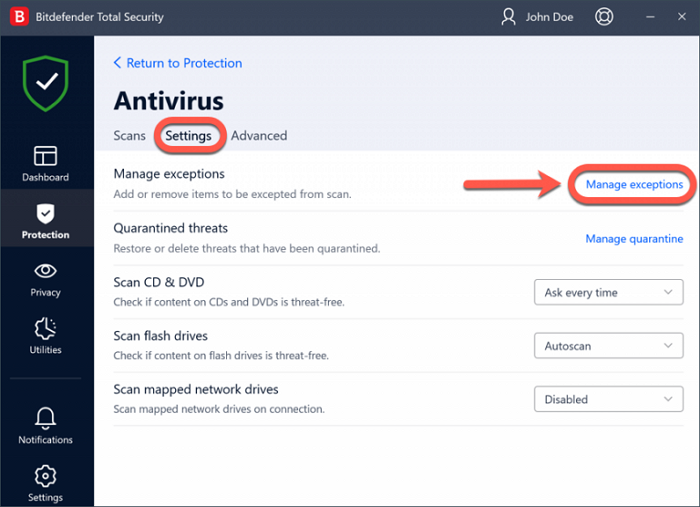
Additionally, to prevent the error from occurring in the future, you can add the website to the exception list of your antivirus.
8] Try with your mobile phone
Try to log in to the Adobe website using your mobile phone. If this works, you can cancel the subscription from your phone.
9] Contact support
If none of these fixes work for you, contact Adobe support. The support team at Adobe will assist you better and help you cancel your subscription plan.
That’s it. I hope this helps.
How to fix insufficient data for an image in Adobe?
The “Insufficient data for an image” error is associated with the Adobe Acrobat Reader. When you open a PDF in Adobe Reader, you may see this error. Incomplete or corrupted files, unsupported formats, network issues, outdated software, etc., are some of the causes of this error. To fix this error, you can optimize the PDF size or change Zoom settings in the software.
How to fix Adobe Acrobat failed to load its core DLL error?
The “Adobe Acrobat failed to load its core DLL” error usually occurs due to a corrupt installation. Repair the Adobe Acrobat installation to fix this error. If this does not work, you can disable the protected mode in Adobe Acrobat settings.
Read next: Adobe Genuine Software Verification Failure.
