
The Clone Stamp in Photoshop is an amazing tool in your design arsenal. You can use it to do many things that make your design easier. It can do a bit of what the Content-Aware tool can do in Photoshop, just that it would be slower, especially on larger images. The Clone Stamp can be a powerful tool for photo editing.
How to use Clone Stamp Tool in Photoshop
The Clone Stamp Tool can be used to add to images and blend images into other images. You may want to use a photo you took but there is an unwanted object in it, you can use the clone stamp to remove it. This can save you valuable time as you will not have to re-take the photo. This article will show how to use the Clone Stamp effectively in your projects.
Removing unwanted elements
The Clone Stamp Tool lets you remove unwanted elements from your image. To remove something from your image, clone a part of the image over the unwanted item. Choose a part of the image that blends well with the area where the unwanted object is. Always work on a separate layer, not directly on the photo. This helps if you need to make adjustments, such as warping or adding color, so the cloned part fits in better.
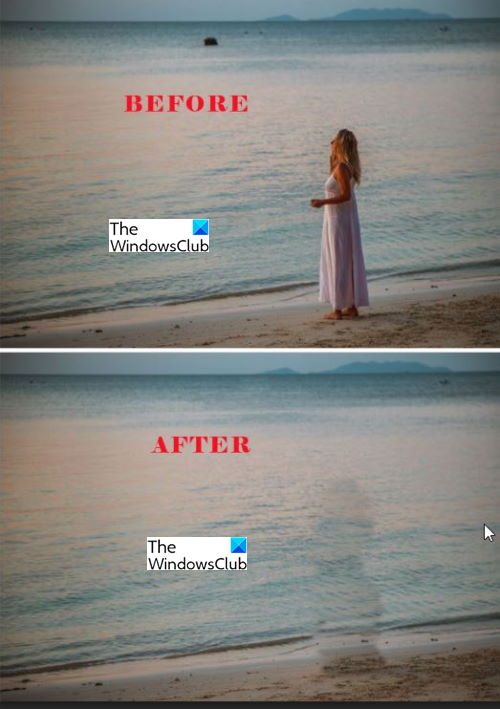
To start the cloning process, add the image to Photoshop, go to the left tools panel and select the Cloning Stamp Tool. Look for a good area that you want to use to cover the unwanted object then press Alt to sample the area. Go to the area you want to cover, hold the left mouse button, and paint over the unwanted item. You will notice that there is the sampling cursor and the cloning cursor moving. The sampling cursor will move at the same time as the cloning cursor and will move in whatever direction you move the cloning cursor. Be careful that you don’t go too far out or too close to the part that you want to be removed as the cloning cursor may start to clone unwanted parts of the image.
Adding things
The Clone tool cannot only remove but also add. You can use the Clone tool to add parts of one image to another. It works on the same principle as removing: you remove the background or an image by adding another over it. Cloning can help you design prints for T-shirts and other items. Cloning can give the image on the item a fade-in look. Here is a trick I learned when cloning: remove the background from the canvas, and make sure the image you’re cloning has no background. This will make sure that when you are cloning no piece of the background will get cloned. Another useful tip is to zoom in as close as possible so you can see the detail of the cloning process and you can see if any unwanted parts are not getting in. The clone stamp tool can be used to make full duplication of an image.
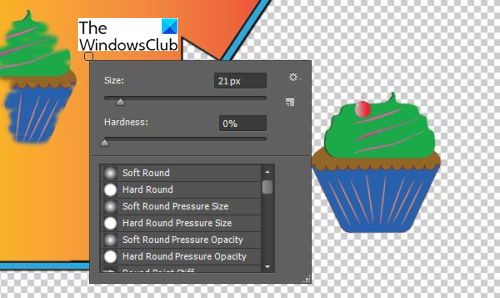
For both adding and removing you can change the clone stamp’s size, hardness and tip.
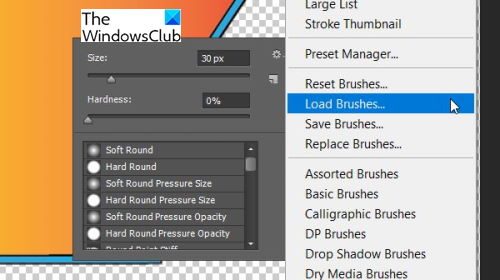
You can load brushes that you download or make custom brushes and load them to use.
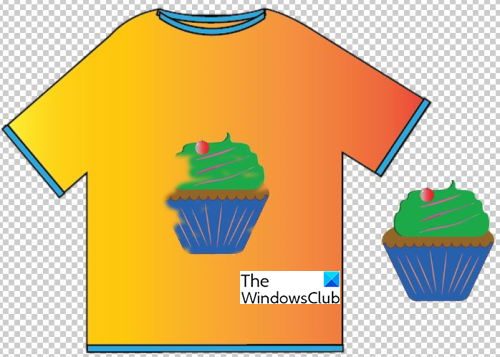
This is a picture of a cupcake cloned onto a T-shirt. The cupcake was not fully cloned so it has a faded or eaten-up look. Experiment with the Clone tool to create art to your liking.
Touchups and Corrections
Have you ever seen a photo of a person with perfect skin and wondered what their beauty regime is? Well, the Cloning Stamp Tool may be their beauty regime. Photographers usually do touch-ups and corrections using Photoshop, and the Clone Stamp Tool is good at covering up spots, pimples, and other things on the skin. For retouching and corrections, you can use the Clone Stamp Tool with other tools to make the photo look more realistic.
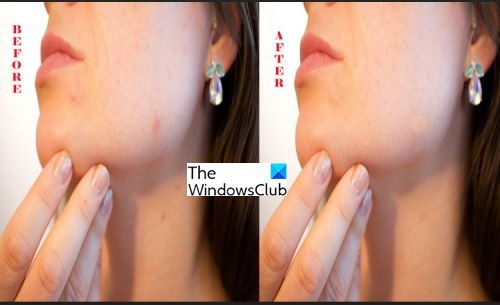
These are two photos, one with some acne and the other got the clone stamp tool acne remover.
Read: How to use Photoshop to remove Unwanted Objects from Photographs
What are the Advantages and the Disadvantages of the Clone Stamp Tool?
An advantage of the Clone Stamp Tool is that you can repair photos and images damaged by the elements or age. You just need to scan them to your computer, use Photoshop’s Clone Stamp Tool to correct the photographs, and then print. The disadvantage of the Clone Stamp Tool is that people can use it maliciously to manipulate photographs.
What can the Clone Stamp Tool be used for?
The Clone Stamp Tool can be used for photo correction and retouching. It can add or remove objects from photos. With so many graduations, shows, and other events where people want perfect photos, the Clone Stamp Tool is powerful for achieving that.
