
Adobe Illustrator is one of the most popular vector graphic software. Millions of people use Illustrator worldwide. People use Illustrator for logo creation, billboard design, book and magazine illustration, package design, and much more. Both hobbyists and professionals use Illustrator. There are times when some persons may find that Illustrator may crash, freeze, close unexpectedly, lag, or refuse to respond. This can be frustrating and may even cost you clients.

Illustrator keeps crashing, freezing, closing, lagging, or is not responding
Adobe Illustrator may begin to crash, freeze, close unexpectedly, lag, or refuse to respond on your Windows computer. These issues may be caused by Illustrator or by hardware or software problems. This article will look at some of the main reasons that will cause Illustrator to crash, freeze, close unexpectedly, lag, or refuse to respond:
- Hardware Issues: Make sure your PC meets hardware specs and upgrade where needed
- Software Issues: Ensure that your OS and software is updated
- Illustrator Issues: Check for known Illustrators’ problems & issues.
1] Hardware Issues
Illustrator may begin to give problems because your computer may be having problems. The computer may not have a major fault and the specifications may sound pretty good, however, Illustrator uses a lot of resources.
Computer overheating
The first problem this can cause is overheating. When there is a high demand for system resources, the computer will begin to overheat and you know when you hear the fan begin to spin faster if it is functioning well. If the computer can’t cool down properly, it will slow down to prevent overheating or crashing. When your computer slows down to compensate for cooling issues, Illustrator may crash, freeze, close unexpectedly, lag, or refuse to respond. To fix this, make sure your computer has proper ventilation, fans are clean and unobstructed, and you may need a cooling pad for laptops.
Power consumption
Illustrator uses a lot of resources to complete your design. This means the computer hardware will demand a lot of power. If your hardware cannot get the power it needs, it will slow down and that will affect Illustrator. Manufacturers can limit power to computer hardware to keep components cool. This happens when manufacturers want to attract buyers with high-spec parts but pair them with a low-budget chassis or cooling. If the power to components is limited then they will produce less heat but have low performance. Some laptops perform below the listed level when the charger is unplugged; this can make Illustrator slow or lag. Low power to hardware may also be caused by plugging too many devices into a power supply that can’t handle the load.
To fix this, install a power supply with higher output to handle your devices. Another issue that may cause low power or performance issues is honeycombing. Honeycombing is where the connections begin to break down over time. Components are soldered together, and the heat produced will cause the solder to become honeycombed; think of this like potholes on the road- traffic will slow down. To remedy this some people will just get a new computer, others who are more adventurous will try to use a heat gun to see if they can cause the solder to melt a bit to fill out the honeycombs.
Low disk space
Having low disk space can cause Illustrator to crash, freeze, close unexpectedly, lag, or refuse to respond. Think of it as you coming home with a lot of items but you already have many items in your home, you will have to search for space for the new items, and you may start to pull packages to put parts of items in different places. Your hard drive does the same, if space is low and lots of files are on the disc, it will begin to fragment files to make them fit. This makes the software run slower because it has to search for and store files all over the place. This will affect Illustrator’s performance.
Clean up unwanted files off the hard drive and check to see if the recycle bin has unwanted files and empty it. You may be using an old mechanical hard drive that is slow, and this will affect performance, you can remedy this by changing to a fast SSD, or you may use a hybrid of SSD and regular hard drive, you could use the SSD to install Illustrator and other software and use the regular hard drive for storage. Another advantage of the SSD is that it has no spinning parts so it will not heat up as fast as a mechanical hard drive.
Check system requirements
Illustrator may crash, freeze, close unexpectedly, lag, or refuse to respond if the system requirements are not met.
Processor
Multicore Intel processor (with 64-bit support) with SSE 4.2 or later or AMD Athlon 64 processor with SSE 4.2 or later.
RAM
8 GB of RAM (16 GB recommended)
Hard disk
2 GB of available hard-disk space for installation; additional free space required during installation; SSD recommended
Monitor resolution
1024 x 768 display (1920 x 1080 recommended)
To use Touch workspace in Illustrator, you must have a touch-screen-enabled tablet/monitor running Windows 10 (Microsoft Surface Pro 3 recommended)
Scalable UI Limitations: Minimum monitor resolution required is 1920 x 1080.
GPU
To enhance Illustrator performance with the GPU Performance feature, your Windows must:
- Have a minimum of 1 GB of VRAM (4 GB recommended)
- Support OpenGL version 4.0 or greater.
Limitations in Outline Mode: Minimum monitor resolution required is 2000 pixels in any dimension.
Ensure that you install and update your GPU device drivers.
Internet connection
An internet connection and registration are required for software activation, subscription validation, and access to online services.1
To find out what are the system requirements for Illustrator, you can visit adobe.com for details.
For best performance, Illustrator recommends a dedicated graphic card. If that is not available, some RAM will be used. This means an 8GB RAM system may use 2 GB to support the GPU. This means that Illustrator will have less RAM to carry out its work and it will begin to freeze, lag, and may even crash. At times, Illustrator may struggle to process commands when too many other apps are open because RAM is low. To fix this, just close the open apps.
2] Software Issues
Software issues can make Illustrator crash, freeze, close unexpectedly, lag, or refuse to respond.
- An outdated Operating System or outdated Illustrator can cause Illustrator not to function properly. Be sure to keep your operating system and Illustrator up to date.

To check for Windows Updates go to Start then Settings then Windows Update, and click Check for Update.
- Third-party plugins can cause Illustrator to not function properly. To check whether a plugin is causing the issue, remove them one by one and test Illustrator after each removal.
- Corrupt font or too many fonts may cause Illustrator to have problems. Try to remember whether the Illustrator issue started after you installed fonts. You may need to remove all non-default fonts, then install just a few new ones to see if that helps.

To get to fonts, go to Control Panel then Appearance then Fonts, or you may type Font into Windows Search. To delete a font, click on it and press Delete.
- Outdated hardware drivers may cause Illustrator to have problems. Make sure all your hardware drivers are up to date. Windows 11 will have some of the drivers for your hardware but it is always good to check the manufacturer’s website for updates. Some computer manufacturers have built-in software that you can use to check for updates.

You may also check the Windows Update History to see if there are any failed updates. To get to update history, go to Start then Settings then Windows Update, and click Update History.
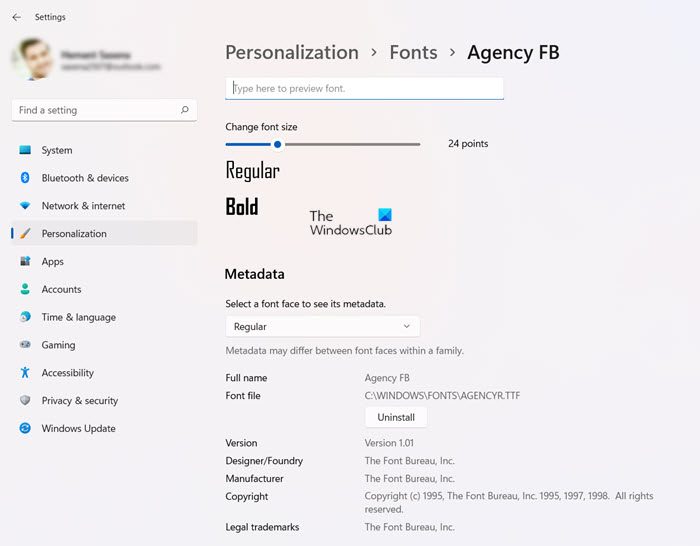
You can also manage fonts via Settings.
3] Illustrator Issues
Illustrator may have known issues that Adobe is working on. You should visit their website at adobe.com, in the search window, type known issues for Illustrator to see if there are known issues and solutions. Some issues may be caused by an update, Adobe may advise you to downgrade to an earlier version and wait for an update to fix the bug. Check the Adobe community to see whether others have the same issue and whether they suggest any fixes.
Read: Adobe Illustrator keeps changing my colors
What can cause Illustrator to Crash or Lag?
Illustrator may crash if the computer is low on hard drive space or RAM. If the RAM is low, Illustrator uses a lot of resources so it is good to have adequate RAM. It is best to use a computer with a good dedicated graphics card that can handle Illustrator. If there is no dedicated graphics card then the computer will use part of the RAM to process graphics.
What can be done to improve Illustrator’s performance if it is lagging?
You can get Illustrator to perform better by installing a good Solid State Drive (SSD). Mechanical hard drives are slower than SSD, especially if the hard drive is a 5400 rpm hard drive. You may upgrade to a faster 7200 rpm drive or an SSD. You may also remove unwanted files off the disc if it is getting full. Make sure that the computer is not overheating, when computers overheat they will slow down. You may also use a fan to cool down the computer.
Read next: Photoshop keeps crashing or freezing.
