
Visual Studio attempts to launch IIS Express as a child process to host the web application, but the integrated browser or debugger fails to establish a socket connection to the designated localhost port. The IDE subsequently says “Unable to connect to web server IIS Express,” interrupting development workflows in Visual Studio and preventing application debugging. In this post, we will see what you can do if you see Unable to connect to web server ‘IIS Express’ in Visual Studio.
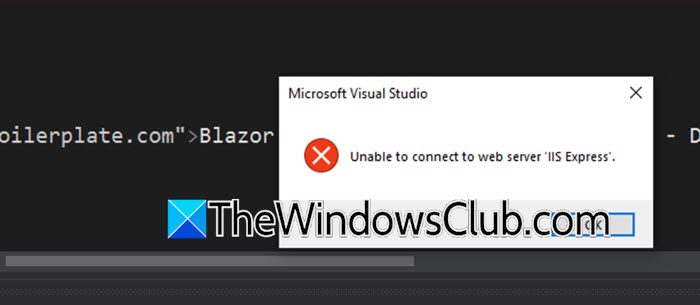
When Visual Studio launches IIS Express, your browser sometimes refuses to connect to localhost. The IDE waits for a response from the assigned port, then times out with a connection error instead of showing your landing page. In most cases, the culprit lies in configuration. Either the applicationhost.config file contains an outdated port mapping, the hidden .vs cache folder is holding onto corrupted settings from a previous crash, or the HTTPS certificate has quietly expired
Unable to connect to web server IIS Express in Visual Studio
If you are unable to connect to the IIS Express web server in Visual Studio, follow the solutions below.
- Delete the Corrupted IIS Express Configuration Folder
- Clear the Project-Specific .vs Cache Folder
- Reset the Localhost Port Reservation
- Repair IIS
Let us talk about them in detail.
1] Delete the Corrupted IIS Express Configuration Folder
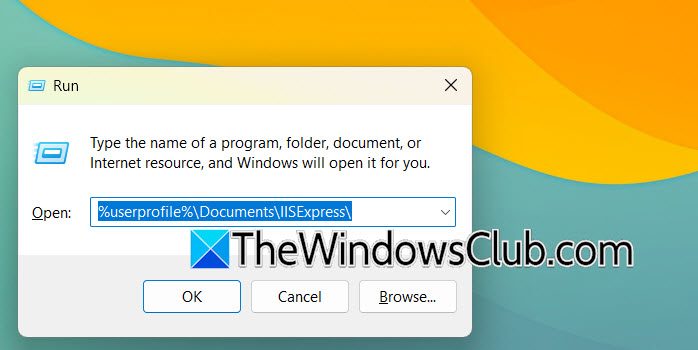
Visual Studio relies on a set of XML configuration files to launch IIS Express. If these files become corrupted, often after a system crash or an improper shutdown, the IDE cannot correctly parse the site bindings, leading to a connection failure. By deleting this folder, you force Visual Studio to regenerate a pristine configuration on the next project launch. Follow the steps mentioned below to do the same.
- Close all instances of Microsoft Visual Studio.
- Open the Windows Run dialog by pressing Windows Key + R.
- Type or paste the following path into the text box and press Enter: %userprofile%\Documents\IISExpress\.
- In the File Explorer window that opens, locate and right-click on the config folder.
- Select Delete from the context menu.
- Restart Visual Studio, open your project, and press F5 to start debugging.
A new, clean configuration folder will be automatically created.
2] Clear the Project-Specific .vs Cache Folder
Visual Studio maintains a hidden cache folder (.vs) in your solution’s root directory. This folder stores user-specific settings, including cached debugger bindings. When this cache becomes stale or desynchronized with the project’s actual configuration, Visual Studio may attempt to connect to a nonexistent server or port. Removing this folder forces the IDE to rebuild the solution’s state from scratch. Follow the steps mentioned below.
- Ensure Visual Studio is completely closed.
- Open File Explorer and navigate to the root folder containing your project’s .sln (Solution) file.
- Click the View tab on the File Explorer ribbon and check the box labeled Hidden items. This action reveals the .vs folder.
- Right-click on the .vs folder and select Delete.
- Reopen your solution file.
Visual Studio will take a few extra seconds to rebuild the cache, but the connection error will likely be resolved.
3] Reset the Localhost Port Reservation
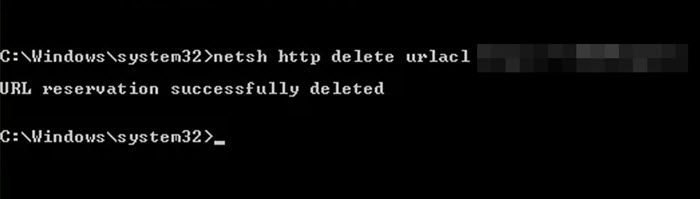
Windows uses the HTTP Server API to manage URL reservations. If a specific port (e.g., localhost:5000) is reserved by another user account or an orphaned process, IIS Express is denied the right to bind to that address. Clearing the reservation manually removes the conflicting entry and allows Visual Studio to claim the port correctly.
Press the Windows Key, type cmd, and then select Run as administrator to open an elevated Command Prompt.
Identify the port number your project is configured to use. You can find this by right-clicking your project in Solution Explorer, selecting Properties, and navigating to the Debug tab. Look for the App URL value (e.g., http://localhost:12345).
In the Command Prompt, execute the following command, replacing [PORT_NUMBER] with the actual number from your project settings
netsh http delete urlacl url=http://localhost:[PORT_NUMBER]/
You will see a confirmation message stating URL reservation successfully deleted.
Close the Command Prompt and run your project again from Visual Studio. IIS Express will request a new, valid reservation automatically.
4] Repair IIS
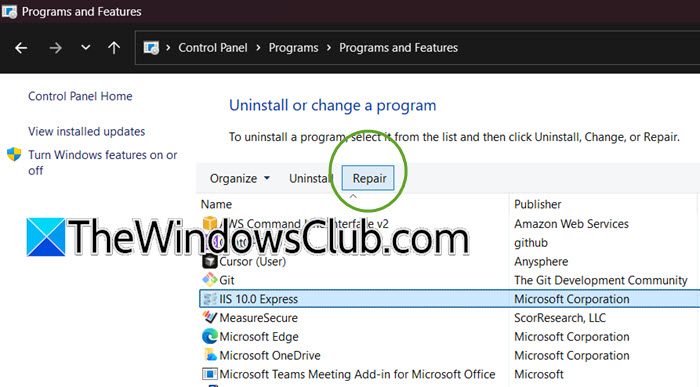
For projects that use HTTPS, this error often occurs because the local development certificate has expired or its private key has been damaged. IIS Express uses this self-signed certificate to establish a secure connection with your browser. When the certificate is invalid, the browser rejects the handshake, and Visual Studio interprets this rejection as a server connection failure. Repairing the IIS Express installation regenerates a valid certificate.
Follow the steps mentioned below.
- Close Visual Studio and any open web browsers.
- Open the Control Panel and navigate to Programs.
- Scroll through the list of installed programs and locate IIS 10.0 Express (or IIS 8.0 Express).
- Right-click on the IIS Express entry and select Repair from the context menu.
- Follow the on-screen prompts to complete the repair process. This action reinstalls the necessary binaries and places a new localhost certificate in the Personal certificate store.
- Restart Visual Studio and run your HTTPS project again. The browser will now trust the connection, and the error will be resolved.
Hopefully, this will do the job for you.
We hope that you will be able to resolve the issue using the solutions mentioned here.
Read: Icons not showing in Visual Studio Code
Why does IIS Express stop working after Windows Update?
A Windows update can expire or remove the localhost development certificate used by IIS Express. It may also reset HTTP port reservations. Running a repair on IIS Express from Programs and Features regenerates the certificate and fixes the issue.
Read: How to install Python Libraries in Visual Studio Code
How do I fix IIS Express localhost certificate error?
To fix the IIS Express localhost certificate error, open Control Panel > Programs and Features. Locate IIS Express in the list, right-click it, and select Repair. The repair wizard automatically regenerates a fresh, valid localhost certificate. Once complete, restart Visual Studio and run your project. The HTTPS binding will now function correctly.
Also Read: Visual Studio crashing on startup in Windows 11.
