
If you are receiving the error message “Unable to connect to API (ConnectionRefused)” when trying to use Claude Code on your Windows 11/10 PC, this post will help you fix the issue. A few users have reported that Claude Code repeatedly displays this message when they try to start the tool or run a command. The error appears with repeated retry attempts, but the connection never succeeds.
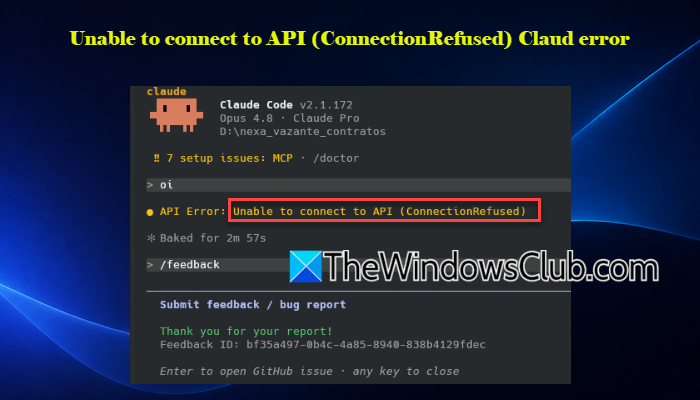
The complete error message reads:
Unable to connect to API (ConnectionRefused) · Retrying in 11s · attempt 8/10
The message indicates that the connection Claude Code is trying to establish to its API endpoint is being actively refused.
Unable to connect to API (ConnectionRefused) Claude error
To fix the Unable to connect to API (ConnectionRefused) Claude Code error, use these solutions:
- Check Claude service status
- Check your network connection
- Check system environment variables
- Restart WSL if you use Claude Code in WSL
- Check Windows Firewall, VPN, and security software
- Perform a clean reinstall of Claude Code
Let us see the above solutions in detail.
1] Check Claude service status
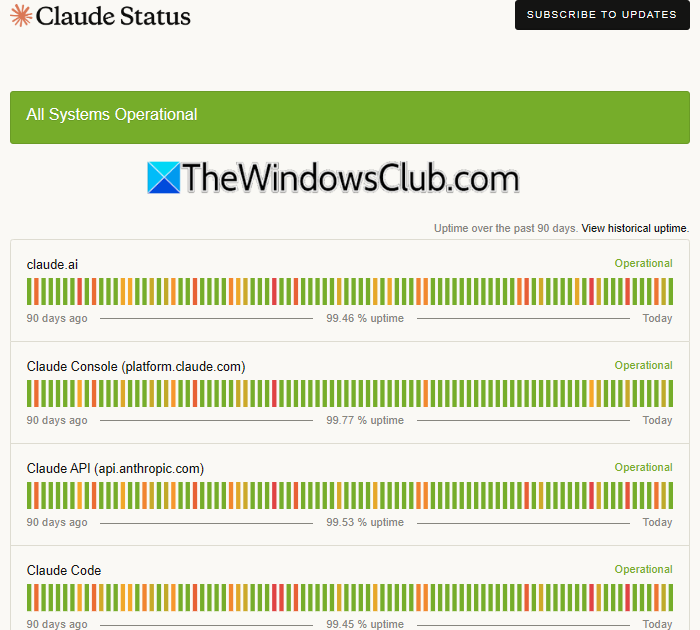
Before troubleshooting your PC, check whether Claude is experiencing a service outage. Open the official Claude status page and check for any ongoing incidents affecting the API or Claude Code.
If the services are operational and other users are not reporting an outage, continue with the solutions below to troubleshoot the connection on your PC.
2] Check your network connection
If you are connected to a public Wi-Fi or a workplace network, it may restrict connections required by Claude Code. Connect your PC to another network (or a mobile hotspot) and run Claude Code again.
If Claude Code works normally, the problem is likely specific to your previous network.
3] Check system environment variables
Claude Code can use environment variables to determine how API requests are routed. For example, ANTHROPIC_BASE_URL can specify a custom API endpoint, while HTTP_PROXY and HTTPS_PROXY can specify a proxy through which requests are sent. If any of these variables contain outdated values, Claude Code may try to connect to an endpoint or proxy that is no longer available.
Press Win + S and search for environment variables. Click Edit the system environment variables.
In the System Properties window, click Environment Variables. Check both User variables and System variables. Look for ANTHROPIC_API_KEY, ANTHROPIC_BASE_URL, HTTP_PROXY, and HTTPS_PROXY.
- If
ANTHROPIC_API_KEYcontains an incorrect or outdated key, update it with the correct value. - If
ANTHROPIC_BASE_URLpoints to a custom endpoint that you no longer use, remove the variable. - If
HTTP_PROXYorHTTPS_PROXYis configured, make sure the proxy address is correct and the proxy is still running. If you no longer use the proxy, remove the outdated variable.
After making the change, restart Claude Code so that it loads the updated environment.
Note: Do not remove or change these variables if they are intentionally configured by your organization or development environment.
4] Restart WSL if you use Claude Code in WSL
If you run Claude Code inside Windows Subsystem for Linux (WSL), a problem with the WSL networking environment can prevent Claude Code from connecting to the API. In that case, restart WSL and try again.
Open PowerShell and run:
wsl --shutdown
Wait a few seconds for WSL to completely stop. Then start your default WSL distribution again by running:
wsl
Once WSL starts, launch Claude Code again and check whether it can connect to the API.
Note: Restarting WSL affects all currently running WSL distributions and processes. If you have unsaved work or other services running inside WSL, save your work and stop them before using wsl --shutdown.
5] Check Windows Firewall, VPN, and security software
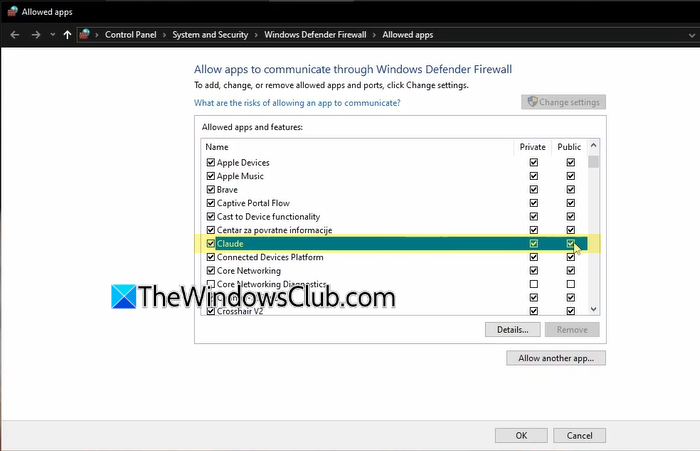
Windows Firewall, a VPN, or third-party security software may prevent Claude Code from establishing a connection with the API. Follow our guide on how to allow or block a program in Windows Firewall to check whether Claude Code is allowed through the firewall.
If you use a third-party antivirus or firewall, check its blocked applications or network protection settings and make sure Claude Code is not being blocked.
If you use a VPN, disconnect it temporarily and launch Claude Code again. If the error disappears after disconnecting the VPN, the VPN or its network rules may be interfering with the connection.
6] Perform a clean reinstall of Claude Code
If none of the above solutions work, completely uninstall Claude Code and reinstall it.
First, close Claude Code and uninstall it from Windows. The normal uninstaller may leave Claude Code files behind, so you can use a reputable third-party uninstaller such as Revo Uninstaller to perform a more thorough cleanup.
Note: A clean reinstall may remove local application settings or cached data, so make sure you understand what the uninstaller will remove before proceeding.
After removing Claude Code completely, restart your PC and install the latest version again. Then launch Claude Code and check whether the error has been resolved.
I hope this helps.
Read: How to run Claude Code locally on a Windows PC.
How to activate API in Claude?
Claude doesn’t require separate API activation for normal use. To use the Claude API, you need an Anthropic Console account, an API key, and sufficient API access/credits for your intended use. For Claude Code, make sure you are signed in using the appropriate account or have configured the required API credentials.
Why can’t I connect to the Claude API?
You may not be able to connect to the Claude API due to a network connection issue, a proxy or VPN, incorrect environment variables, or an unavailable custom API endpoint. If you use Claude Code inside WSL, a temporary WSL networking problem can also prevent the connection.
Read Next: Unable to run Claude from VS Code on Windows computer.
