
Integrating Claude into Visual Studio Code promises an intelligent coding assistant, but encountering errors where the extension fails to start, respond, or authenticate can disrupt your workflow. This issue is often frustrating because it halts development unexpectedly. In this post, we are going to see what you can do if you are unable to run Claude from VS Code.
Unable to run Claude from VS Code on Windows computer
The problem usually stems from an invalid or missing API key that prevents authentication with Anthropic’s servers. Network restrictions such as corporate firewalls, VPNs, or proxy settings can block outgoing requests to the Claude API. Version mismatches between VS Code, the extension, or Node.js can cause silent crashes or initialization failures. Corrupted extension installations or conflicts with other AI-focused extensions also frequently trigger this issue.
If you are unable to run Claude from VS Code, follow the solutions mentioned below.
- Install and authenticate the Claude Code CLI
- Ensure the global npm bin is in your PATH
- Update Node.js and the extension
- Disable conflicting extensions and reinstall
- Configure permission mode to bypass approval prompts
Let us talk about them in detail.
1] Install and authenticate the Claude Code CLI
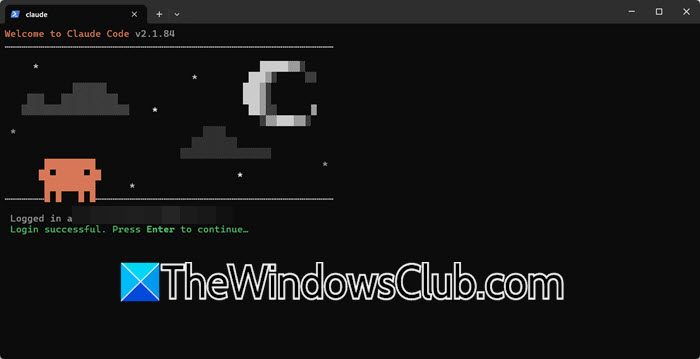
The official VS Code extension does not use an API key. Instead, it relies on the Claude Code CLI, which handles authentication through your browser. If the CLI is not installed or you are not logged in, the extension cannot start any session. We recommend you follow the steps mentioned below to install Claude CLI.
- Open Command Prompt or PowerShell.
- Run the following command to install the CLI globally.
npm install -g @anthropic-ai/claude-code
- Run the command to authenticate.
claude
- A browser window will open. Sign in with your Anthropic account and grant permission.
Close the terminal, then restart VS Code. The extension should now work.
2] Ensure the global npm bin is in your PATH
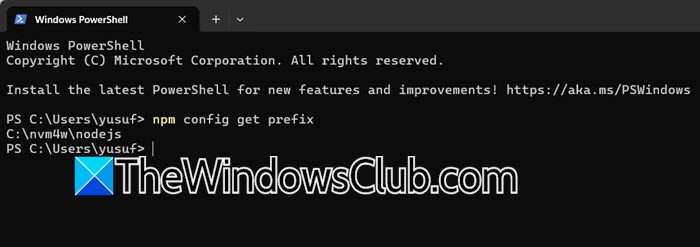
Even after installing the CLI, VS Code’s integrated terminal, and the extension, the claude executable may not be found if the global npm binary folder is not in your system’s PATH. Adding it makes sure the extension can launch the CLI when needed.
First, locate your global npm bin folder.
npm config get prefix
Append \bin (Windows) to that path.
Search for Environmental Variables, click on the Environment Variables button, under System variables, select Path, click on Edit, and add the folder.
Close and reopen all terminals and VS Code.
Verify with claude –version in a new terminal inside VS Code. If it shows a version, the PATH is correct.
3] Update Node.js and the extension
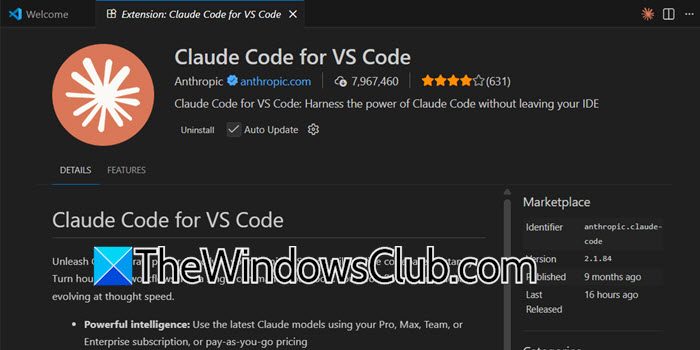
The Claude Code CLI requires Node.js 18 or higher. An older version can cause the CLI to crash or fail silently, leaving the extension unable to communicate with it. Outdated extensions may also contain bugs that are fixed in newer releases.
First of all, we need to check the version of Node.js installed on your computer.
node --version
If it’s below v18, download and install the latest LTS from nodejs.org.
In VS Code, go to Extensions (Ctrl+Shift+X), find Claude Code for VS Code, and check if an Update button is available. If yes, click it. After updating, restart VS Code completely.
4] Disable conflicting extensions and reinstall
Other AI or language‑assistant extensions (like Continue, Roo Code, Cody, etc.) can sometimes conflict with the official Claude Code extension, especially if they try to capture the same shortcuts or run their own background processes. A clean reinstall also fixes any corrupted extension files.
- In VS Code, go to Extensions (Ctrl+Shift+X).
- Disable all extensions except the official Claude Code for VS Code. You can do this quickly by right‑clicking each and selecting Disable.
- Restart VS Code and test if Claude works.
- If it does, re‑enable your other extensions one by one to find the conflict.
- If the problem persists, uninstall the Claude extension, then delete its folder (%USERPROFILE%\.vscode\extensions\anthropic.claude-code-*) manually.
- Restart VS Code and reinstall the extension from the marketplace.
Finally, check if your issue persists.
5] Configure permission mode to bypass approval prompts
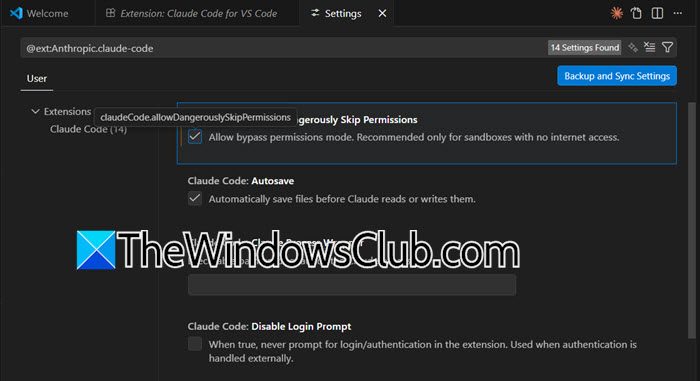
The official Claude Code extension respects permission mode settings that determine whether Claude asks for approval before taking actions like editing files or running terminal commands. When set to bypassPermissions mode, Claude executes commands automatically without prompting, which can resolve issues where the extension appears stuck or unresponsive due to pending permission requests. This is particularly useful if the extension seems to hang because permission dialogs are hidden or not displaying properly.
Follow the steps mentioned below.
- Open VS Code and go to Extensions (Ctrl+Shift+X).
- Locate Claude Code for VS Code, right-click it, and select Settings.
- Find and check the setting Claude Code: Allow Dangerously Skip Permissions.
- Locate Claude Code: Initial Permission Mode and change the dropdown value to bypassPermissions.
- Restart VS Code completely to apply the changes.
Open Claude Code and test by asking it to perform a simple action like reading a file; it should now execute without asking for permission.
Read: How to run Claude Code Locally on PC.
How to restart Claude Code in VS Code?
To restart Claude Code in VS Code, open the Command Palette with Ctrl+Shift+P and run the command Developer: Reload Window. This reloads the entire VS Code window, restarting the Claude extension along with all other extensions. If you are using the Claude Code CLI in the integrated terminal, you can also type exit to close the current session, then run claude again to start a fresh session. For a full reset, close VS Code completely, ensure no background processes remain, and reopen your project.
Read: What are best free AI Extensions for Visual Studio Code?
Is Claude free to use with VS Code?
No, the official Claude Code for VS Code extension is not free. It requires either a Claude Max subscription (priced at $100–$200 per month) or usage of an Anthropic API key, which incurs per‑token costs based on the model selected. While Anthropic offers a free tier for the Claude web interface and mobile apps, those free credits do not apply to the VS Code extension or the Claude Code CLI. You must have an active paid plan or API credits to use the extension.
Also Read: Best AI Code Generator Assistants for VS Code.
