
Many users have reported that Twelve Minutes keeps crashing, freezing, or displaying a black screen on their computers. The issue has been reported by users all around the world. That is why, in this article, we will show you how to fix the issue easily.
Why does my game freeze and then black screen?
Your game(s) may freeze, and a black screen may appear if the graphics card configuration is not compatible with the game. The Overlay feature in the game, outdated graphics card drivers, and other running programs or apps may also interfere with the game and result in freezing or crashing.
Twelve Minutes keeps crashing, freezing, or showing black screen
If Twelve Minutes keeps crashing, freezing, or showing a black screen on your Windows 11/10 computer, check out the following solutions to resolve the issue.
- Play the game in windowed mode
- Stop other apps
- Disable Overlay
- Update Graphics Drivers and Windows
- Verify Game Integrity
Let us talk about them in detail.
1] Play the game in windowed mode
There are two ways to open the game in Windowed Mode: via Steam and the game file. We recommend trying the Steam method first; if that doesn’t work, you can try altering the game files.
Switch to Windowed Mode via Steam
- Open Steam.
- Go to Library.
- Right-click on Twelve Minutes and select Properties.
- Type -windowed -noborder in Launch Options field.
- Click Ok
Switch to Windowed Mode via Game Files
This is a tricky method, first of all, open File Explorer or This PC, paste the following address, and hit Enter.
%LOCALAPPDATA%\Packages\AnnapurnaInteractive.TwelveMinutes_c96c51jf6wkvm\SystemAppData\wgs\
Once you are in the WGS folder, open the folder whose name contains only numbers (the name may differ on different computers). Now, open the folders with numbers and letters. Look for a smaller 1 KB file and open it with Notepad. Look for “fullscreenMode”:1 and change it to 0, for example, “fullscreenMode”:0. Hit Ctrl + S and try opening the game.
2] Stop other apps
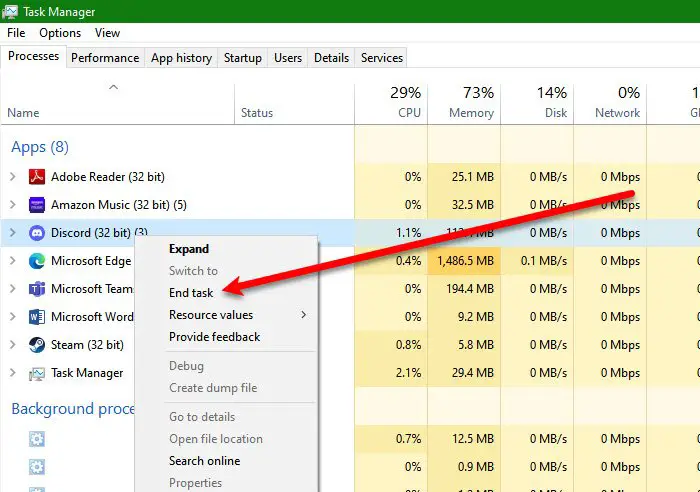
This may not be a cure for crashing, but it will help if your game is freezing frequently. You need to make sure that no other heavy app such as Discord, Chrome, or Edge is running in the background as you open the game. To do that, open Task Manager and check the Processes tab. You will see which app is consuming the most resources, then, just right-click on it and select End Task.
3] Disable Overlay
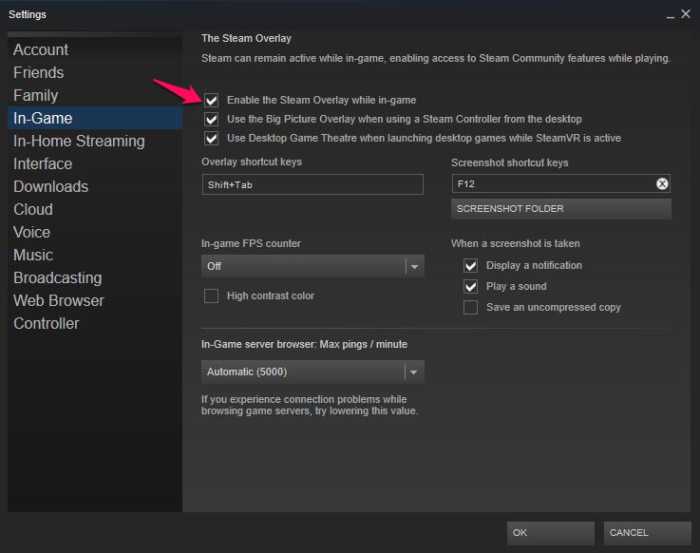
The Overlay provides additional features during gameplay. However, sometimes, it can conflict with your game and cause issues. We should disable Overlay and see if that works. The following is the method to disable Steam Overlay.
- Open Steam.
- Go to Library.
- Right-click on Twelve Minutes and select Properties.
- Make sure that you are on the General tab and untick Enable Steam Overlay while in-game.
Now, reopen the game and see if that works.
If you have some other app with Overlay, disable it as well.
4] Update Graphics Drivers and Windows
You should make sure that your Operating System and Graphics Drivers are up to date. First, check for Windows updates. After updating the OS, if the issue persists, we need to update the Graphics Drivers. The following are some of the ways to do the same.
- Install Driver and Optional Updates.
- Go to the website of your manufacturer and download the latest version of your driver.
- Use freeware to download the driver.
After updating the driver, restart your computer and check if the issue persists.
5] Verify Game Integrity
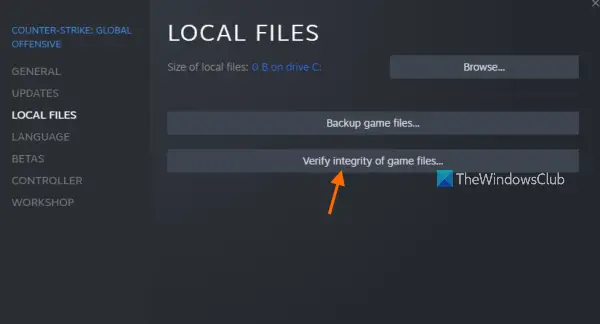
Corrupted game files can also stop the game from running on your system. We are going to use the Steam Launcher to verify and repair the corrupted game files. Follow the given steps to do the same.
- Open Steam.
- Go to Library
- Right-click on your game and select Properties.
- Click Local Files > Verify integrity of game files.
Let the process complete, restart your computer, and check if the issue persists. Hopefully, it will do the trick for you.
Twelve Minutes System Requirements
If you want to play Twelve Minutes, make sure that your computer matches the following system requirements.
Recommended
- OS: Windows 11/10
- Processor: Intel Core i5-6600 | AMD FX-8350
- Memory: 4 GB RAM
- Graphics: Nvidia GeForce GTX 1080, 8 GB | AMD Radeon RX 5700 XT, 8 GB
If your system is compatible, there should be no hesitation in getting the game.
How do I reset my 12 minutes?
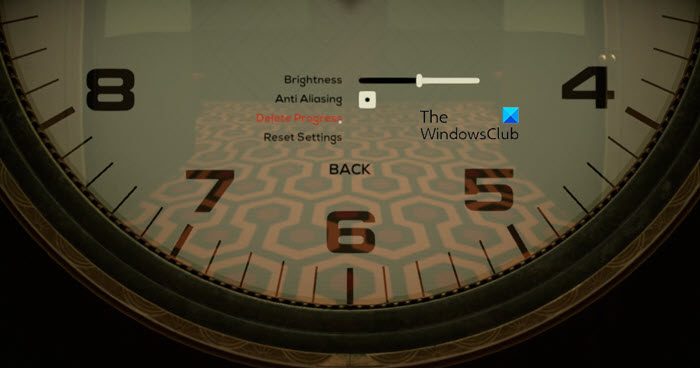
Resetting Twelve Minutes means it will delete all your progress. If you are comfortable with that, follow the prescribed steps to reset the game:
- Open the game.
- Go to Options.
- Click on Advanced > Delete Progress.
- Then, select Yes to confirm your actions.
This is how you reset Twelve Minutes.
Also Check: Ready or Not stuck on Black or Loading screen.
