
When trying to download a WhatsApp photo or video, you might see the following error message – This media cannot be saved. This common issue prevents users from saving precious memories or important documents sent through the app
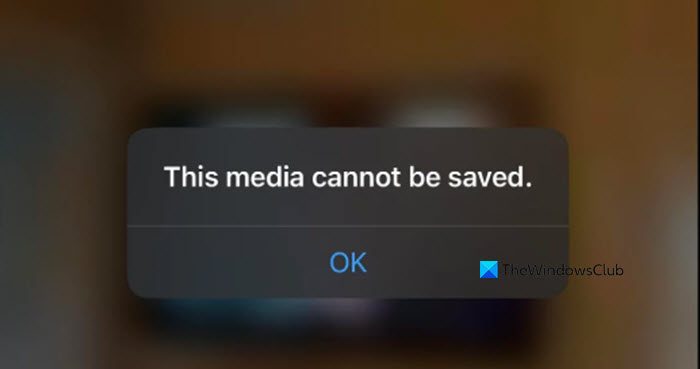
Fix This media cannot be saved WhatsApp error
Your media cannot be saved due to problems with your phone’s settings or WhatsApp’s permissions. The most common reasons for this error are that WhatsApp does not have permission to access your phone’s storage, your device’s storage is full, or there is a small software glitch in the app that a simple refresh can fix. Also, incorrect settings, like the date and time, can affect how the app works.
If media cannot be saved on WhatsApp, you can follow the solutions mentioned below.
- Do a primary check
- Grant WhatsApp Storage Permission
- Check Media visibility & Auto-download settings
Let us talk about them in detail.
1] Do a primary check
Before diving deeper, try these three easy steps that often resolve the issue immediately.
- Reboot your device.
- Force-close WhatsApp, then relaunch it to refresh the app’s state.
- Ensure you have a stable Wi-Fi or cellular data connection. Media cannot download without it.
- Also, make sure that your device has enough space to accommodate the media that you are trying to download.
If after performing basic checks you cannot find anything, go to the next solution.
2] Grant WhatsApp Storage Permission
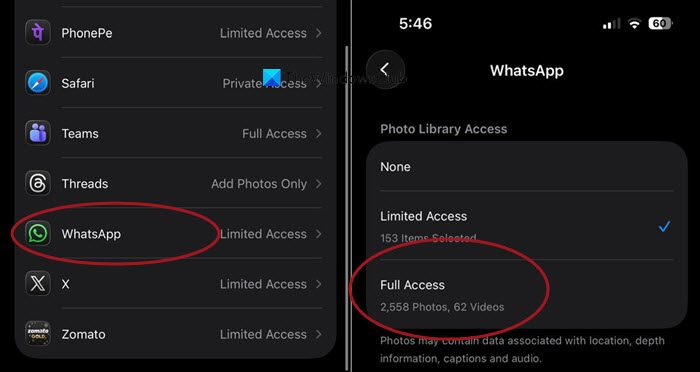
You need to make sure that WhatsApp has permission to write files to your gallery.
On Android: Go to your phone’s Settings > Apps > WhatsApp > Permissions. Ensure the Files and Media or Storage permission is set to Allow.
On iPhone: Go to Settings > Privacy & Security > Photos. Find WhatsApp and ensure it is set to Full Access.
Finally, check if your issue is resolved.
3] Check Media visibility & Auto-download settings
There are two important settings inside WhatsApp that you need to check. First, find the one called Media Visibility. You want this setting to be turned on. If it is switched off, photos and videos you save will not show up in your phone’s gallery, where you normally see all your pictures.
Another setting to look for is Auto-Download. You should make sure this is enabled for photos and videos when you are using either Wi-Fi or your cellular data. When this is on, the app automatically saves media as it arrives, helping prevent errors when you try to save it yourself later.
By checking these two settings, you give WhatsApp the proper instructions it needs to successfully save your files to your device.
That’s it!
Read: How to send HD videos and photos on WhatsApp
Unable to send documents in WhatsApp Web and WhatsApp Desktop
Trying to send a file, but nothing happens, or the attachment button is unresponsive? This common frustration on WhatsApp for desktop can stem from an outdated browser, blocked network permissions, or software conflicts on your computer.
Update Your Software or Switch Browser
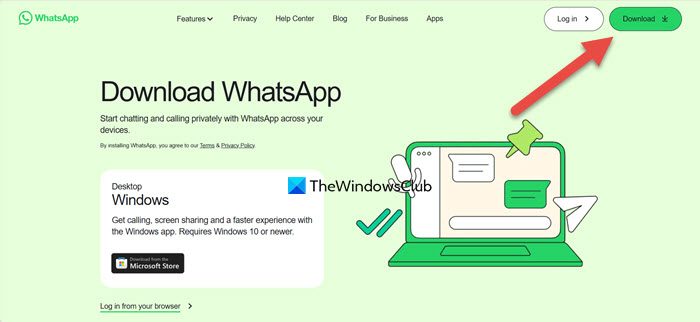
Outdated apps or browsers can have bugs that break core functions, like file uploads. Switching browsers helps determine if the problem is specific to one program.
- For WhatsApp Web: Update your browser to the latest version. If it still fails, try using a different browser (e.g., switch from Firefox to Chrome or Edge).
- For WhatsApp Desktop: Update the app via the Microsoft Store (Windows) or Mac App Store. If no update is available, uninstall and download the latest version directly from the official WhatsApp website (whatsapp.com/download).
You then need to sign into WhatsApp again and try sending a document.
Check Network & Security Permissions
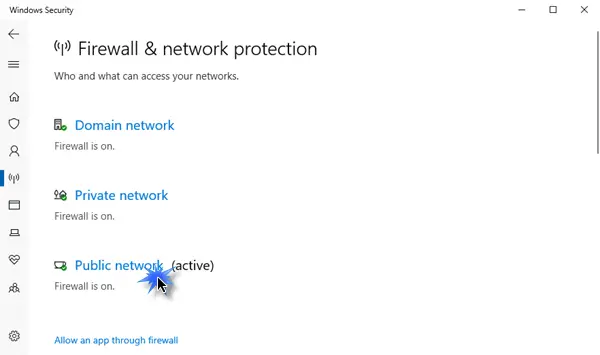
Firewalls or incorrect network settings can block WhatsApp from transferring data.
Temporarily disable your Windows firewall and any third-party antivirus software to test if they are blocking the connection. Re-enable them immediately after testing and add WhatsApp as an exception if this fixes the issue
A Clean Boot helps rule out interference from other software.
Clear App Conflicts and Reset Settings
Corrupted local data or conflicts with other programs (like office software) can disrupt file sending.
Clear your browser’s cache and cookies for the WhatsApp website.
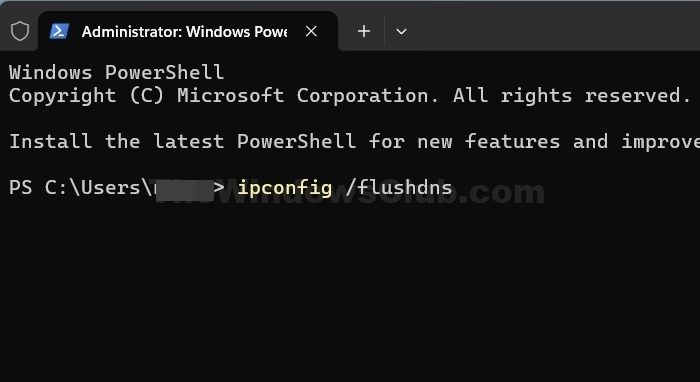
If you are using WhatsApp Desktop, you need to reset your Windows network stack. For that, open Command Prompt as Administrator and run these commands one by one: netsh winsock reset, netsh int ip reset, and ipconfig /flushdns, then restart your PC.
If recipients can’t open your Word files, the issue may be with your office software altering file properties. Try saving the file as a PDF or using a different office suite
Hopefully, with these solutions, your issue will be resolved.
Read: How to move WhatsApp Group Chats to Telegram app
Why does WhatsApp say this video cannot be used?
When WhatsApp says “This video cannot be used,” it’s typically because the video file is in an unsupported format (like MKV or AVI), the file is corrupted from an incomplete download, your phone’s storage is full, or a temporary app glitch is preventing playback. The quickest fix is to check your internet connection and storage space, then try restarting the app.
Also Read: Backup and Restore Signal Chat.
