
One of the best ways to resolve any glitches in WhatsApp is to clear its cache. However, clearing the WhatsApp cache is not easy. Some users may see a Your computer does not have enough space for WhatsApp to run. If you see this message and want to know how to clear WhatsApp cache on a PC or Phone. Therefore, in this article, we will discuss it and show how to do the same.
What happens if I clear WhatsApp cache?
Caches are created as you use WhatsApp on your device. It is stored locally on the device and contains frequently used data and information. This ensures quick access to the information. Information such as passwords, frequently used items, and search results is stored in a cache. Even though they are meant to speed up service, at some point they can occupy a lot of disk space.
When you clear your WhatsApp cache, it doesn’t mean we will delete all your personal files and images; instead, it just clears the information stored on your system that helps WhatsApp access some of its content more easily. As a result, a lot of disk space will be freed.
How to clear WhatsApp cache files on Windows PC
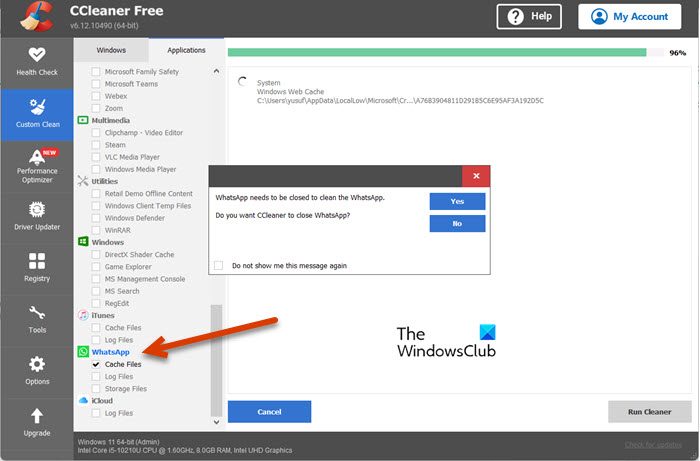
Whether you have a Windows or a Mac computer, you need to use CCleaner to clear WhatsApp’s cache. CCleaner is a third-party application that helps users optimize their computers. Follow the steps given below to clear WhatsApp cache on a Windows or Mac computer.
- Download and install CCleaner on your computer.
- After installing CCleaner, open the app.
- Go to Custom Clean.
- Click on Applications.
- Go to WhatsApp, tick Cache Files and if you don’t want to clean other app’s caches, untick them.
- Now, click on Analyze.
- Once your files are analyzed, click on Run Cleaner.
This will do the job for you. You have to link your account and you will be good to go.
TIP: The WhatsApp Desktop folder in the Package folder stores the downloaded media and can become huge. You might want to clear its contents.
Where are WhatsApp images and videos stored in Windows?
WhatsApp was earlier a native Microsoft Store desktop app, but it is now a Web shell or wrapper, powered by WebView2.
The media and data in the new WhatsApp app are stored in the following locations:
C:\Users\<UserName>\AppData\Local\Packages\5319275A.WhatsAppDesktop_cv1g1gvanyjgm\LocalCache\EBWebView\Default\Service Worker\CacheStorage\
In the earlier WhatsApp Desktop app, the image and video files in Windows were stored at the following location:
C:\Users\<UserName>\AppData\Local\Packages\5319275A.WhatsAppDesktop_cv1g1gvanyjgm\LocalState\shared\transfers
They may be stored in an encrypted form.
How to clear WhatsApp cache on Android
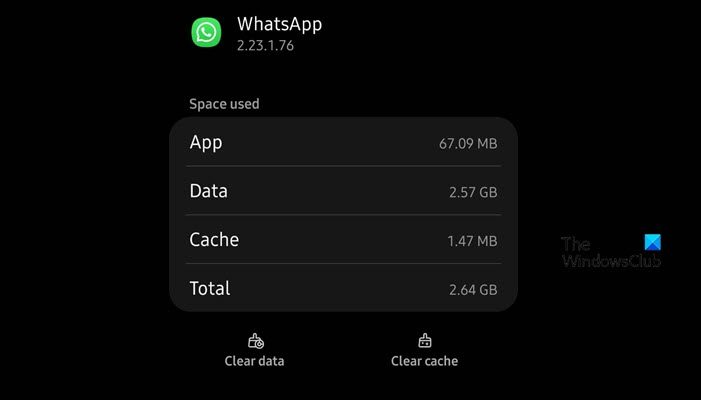
Android users don’t need to install a third-party app to clear WhatsApp’s cache. We can pretty easily delete the cache using Settings. Do keep in mind that every manufacturer has altered the Settings app differently, we have mentioned steps for OneUI of Samsung, you can take it as a reference and do the same on your device. Follow these steps to clear WhatsApp’s cache.
- Open the Settings app.
- Scroll down and press Apps.
- Search for “WhatsApp” and open it.
- Navigate to Usage and hit Storage.
- Finally, hit the Clear cache button.
If you are prompted to confirm your action, do that and clear the cache.
How to delete WhatsApp files on PC to clear up Disk Space?
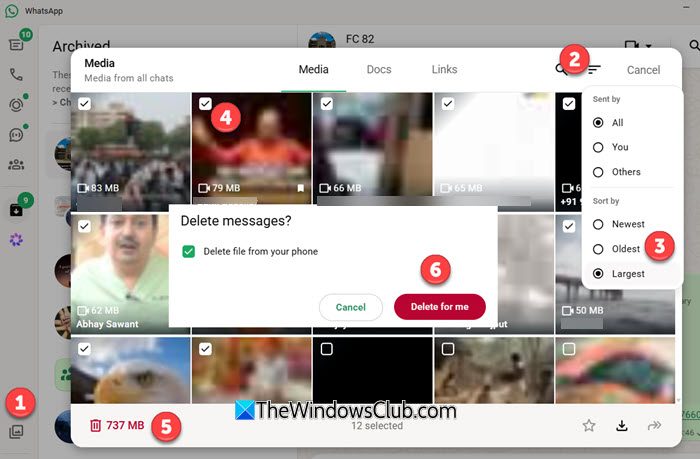
To clear photos, documents and files downloaded by WhatsApp to your Windows PC, Launch WhatsApp Desktop and click on the Media button on the left side. Next, click on Sort by and set it to Oldest or By size. Finally, click the Select button to select the files you want to download, then click the Bin icon to delete them.
How to free up storage on WhatsApp on Android Phone?
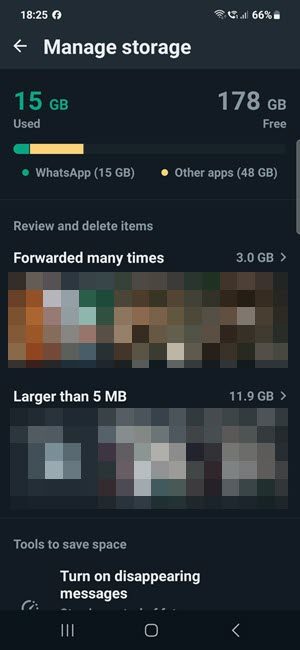
- Open WhatsApp > CHATS tab
- Tap More options > Settings.
- Tap Storage and data > Manage storage.
- Tap Forwarded many times, Larger than 5 MB, or select a specific chat.
- You can:
- Delete all items: Tap Select all if you want to delete all items at once.
- Delete individual items: Tap and hold an item you want to delete. Select additional items to delete multiple items at once.
- Tap Delete.
- Select Starred items to delete starred items.
- Select Delete any copies to delete duplicates.
- Tap Delete.
How to clear WhatsApp cache on iPhone
WhatsApp on iOS doesn’t work the same way as that on Android. You can not go to clear the cache of any application on your iPhone. Unfortunately, there is no way to clear the WhatsApp cache on an iPhone without uninstalling the app.
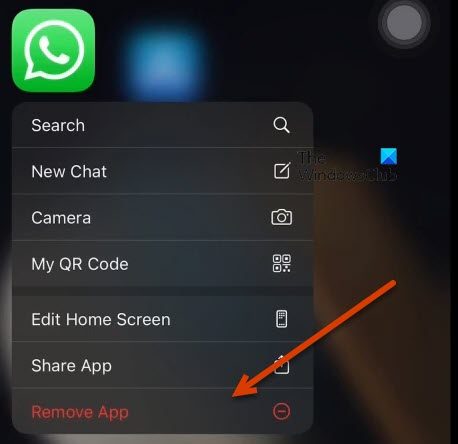
Do keep in mind that uninstalling the application clears not only the cache but also other app data. However, your chats and media will be preserved as they are backed up. So, go ahead and uninstall WhatsApp. To do the same, just press and hold the WhatsApp icon from your desktop and then click on Remove App. After doing the same, download a fresh copy of the app from the App Store and you will be good to go.
We hope that you can clear your WhatsApp cache without any hassle.
Your computer does not have enough space for WhatsApp to run
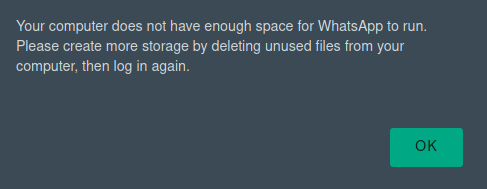
If you see Your computer does not have enough space for WhatsApp to run on your PC, run the built-in Disk Cleanup Tool and then follow the steps laid down in this post to clear the WhatsApp cache.
Read: How to use WhatsApp Communities on PC and Phone.
How do I clear WhatsApp cache on Windows laptop?
To clear the WhatsApp cache on a Windows 11 or Windows 10 laptop or desktop, we can use the CCleaner app. CCleaner is a third-party application that can optimize the system and clear the cache of any program. To know how to do the same, check the aforementioned steps.
Also Read: How to create a Sticker on WhatsApp Web or WhatsApp Desktop
Can I Delete WhatsApp cache files?
Yes, you can delete WhatsApp cache files, as there is no harm in doing so. All your chats and media are backed up, so they will be restored. And even the media that is stored on your computer will not be lost. If you experience any bizarre behavior while using WhatsApp, delete the cache files using the steps above.
